Troubleshooting
Common problems, the messages that report them and what to do; the Log panel; and what to send when reporting a problem.
Most problems announce themselves in a notification at the corner of the window, and every notification is also written to the Log panel with its detail. The first step is therefore nearly always Ctrl+J: read the log.
The Log and Jobs panels
The Log panel (View > Log, Ctrl+J, or Log on the bar at the bottom of the window) shows every message of the session. Its toolbar has a Find box, a list that sets the least severe message shown (All, Debug, Info, Warnings, Errors), Follow to keep the newest line in view, a button that copies the shown lines to the clipboard and one that clears the panel. The status bar counts the errors of the session at its right end. The same messages are appended to logs\geinqsar.log in the application data folder (Tools > Open the log folder); what is written there is set by Log level in Settings.
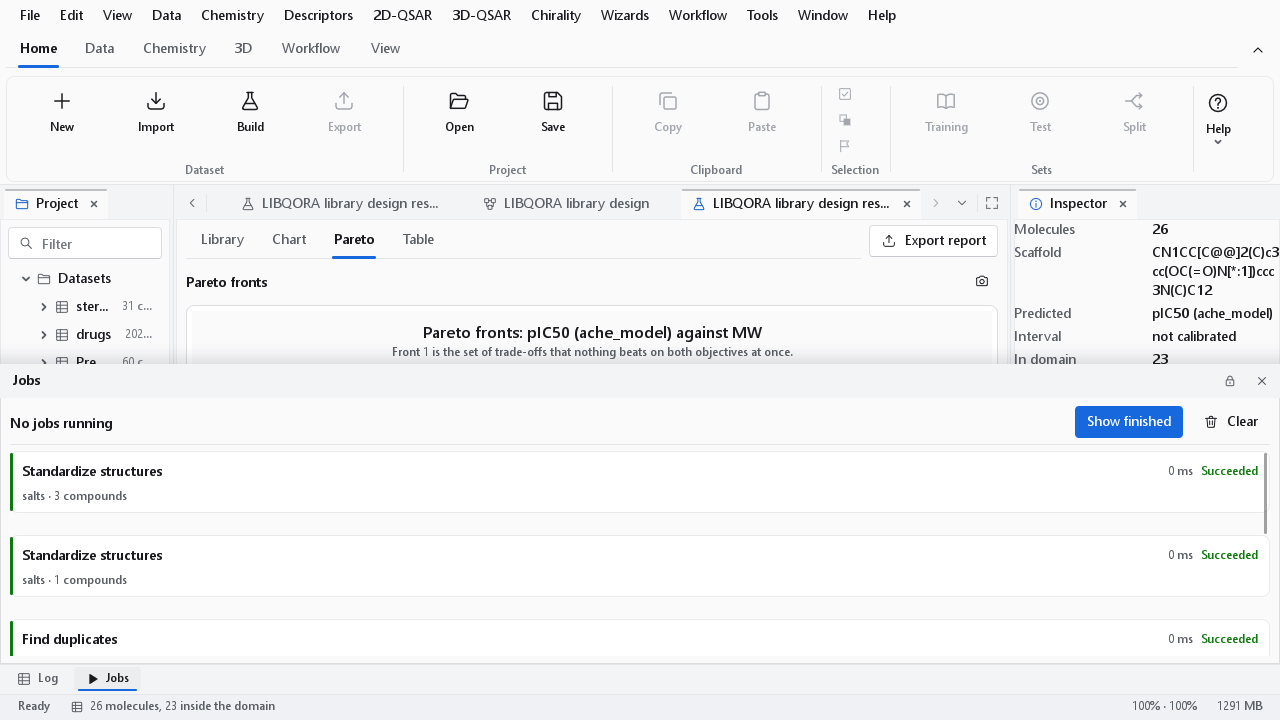
Long calculations (descriptors, standardisation, conformers, workflow runs) run as jobs in the background. The Jobs panel lists them; a job that fails opens the panel by itself, and its line names the reason. Workflow > Cancel all jobs stops everything that is running.
Start-up and display
| Problem or message | What to do |
|---|---|
| The application window could not be created ... GeinQSAR needs a graphics device with OpenGL 3.3 support. | The graphics driver offers no OpenGL 3.3 core profile. Install the current driver from the maker of the graphics adapter (the driver delivered by Windows Update often lacks OpenGL). On a virtual machine or a remote-desktop session, enable 3D acceleration or work on the physical machine. |
| 3D viewer unavailable in a 3D tab | The window works but the 3D view could not start; the line below names the reason. Update the driver as above. On a notebook with two graphics adapters the program asks for the faster one; if the view is still slow or missing, choose the high-performance adapter for GeinQSAR.exe in the Windows graphics settings. |
| The 3D view is slow | Choose the Draft quality preset or switch off ambient occlusion in Settings > 3D workspace, and keep supersampling at 0. |
| Text and controls are too small or too large | Change Interface scale in Settings > Appearance or press Ctrl+= / Ctrl+-; Ctrl+0 returns to 100 %. The scale applies on top of the Windows display scaling. |
| The window looks wrong after the Windows display scaling was changed, or after moving it to a monitor with different scaling | Restart the program. Changes of scaling across several monitors have not been tried on every combination of hardware. |
| Panels have disappeared or the layout is confused | View > Reset layout, or Reset the window layout in Settings > Files & startup. If the window cannot be used at all, start the program with GeinQSAR.exe --reset-layout. |
| A document fills the window and the ribbon is gone | Focus mode or full screen is on: press Esc, F11 or Shift+F11. If only the tab row of the ribbon is shown, it is minimized: Ctrl+F1. |
| The settings seem to be ignored or are corrupted | A settings file that cannot be read is ignored at start-up and the defaults are used; the log says so. Restore defaults in the Settings dialog resets every preference. |
Importing data
| Problem or message | What to do |
|---|---|
| Unsupported file type | The extension is not one the spreadsheet imports. See File formats for the list; rename a .tab file to .tsv, and save a spreadsheet workbook as CSV. |
| File not found | The file has been moved or deleted, for example an entry of the recent-files list marked (missing). |
| no SMILES column was found; choose one in the import dialog | No column could be recognised as structures. Choose the structure column in the import dialog. If the file has no SMILES at all (only names or identifiers), look the structures up with the Dataset Builder's PubChem compound source. |
| Import finished with N invalid | N records had no structure that could be read. With Skip records without a valid structure on (the default) they were left out; with it off they were imported as rows without a molecule, shown with a red cross in the structure column. The log lists each one as line N: reason (up to 200 lines, then a count of the rest). |
| activity value 'x' is not a number in the log | A cell of the activity column holds text, such as >10 or n.d.. The value is left empty. Censored values are handled properly by the Dataset Builder, which reads the relation; use it for tables with qualifiers. |
| Accented characters or the μ sign come out wrong | The file is not in UTF-8. Save it again as UTF-8 (CSV UTF-8 in a spreadsheet program). |
| Numbers with a decimal comma are read as text | Save the table with a decimal point, or bring it in through the Dataset Builder's file source, which reads tables exported with semicolons and decimal commas. |
Structures that do not parse
The usual reasons are a valence the chemistry does not allow (a five-bonded carbon, a neutral four-bonded nitrogen written without its charge), an aromatic ring that cannot be written with alternating bonds, unclosed ring-bond numbers or brackets, and text pasted into the SMILES column. The log names the reason and the line. Correct the structure in the source file, or select the row and use Chemistry > Edit structure to redraw it in the sketcher. For an SD file, a record reported as truncated or malformed usually comes from a file that was cut off or edited by hand; the other records are read normally.
ChEMBL and PubChem
The Dataset Builder and gqsar-cli fetch need an internet connection to www.ebi.ac.uk (ChEMBL) and pubchem.ncbi.nlm.nih.gov (PubChem). Every answer is kept in a local cache, so a dataset downloaded once can be rebuilt without the network.
| Message | Meaning and what to do |
|---|---|
| The service could not be reached. | No connection to the database. Check the internet connection. Records downloaded earlier are read from the local cache, so a repeated download still works. On the command line, --cache DIR --offline reuses an earlier download. |
| The service did not answer in time. | The service is busy. Try again in a moment; Retry repeats the request. |
| The service reported an error or is limiting requests. | The database refused the request, usually because too many were sent in a short time. Wait a minute and retry. The program already repeats failed requests with increasing pauses. |
| The database has no entry of this identifier. | The ChEMBL id, assay number or name is unknown to the database. Check the spelling, or search for the target first. |
| not in the local response cache (command line) | An offline run asked for something that was never downloaded. Run the command once without --offline. |
| No compound passed the curation | The curation removed everything. Read the funnel and the removal reasons in the report: typical causes are a wrong unit, an activity type with no exact values, or a confidence threshold too strict for the target type. |
Proxy servers
The program uses the proxy configured in Windows (automatic configuration included) without any setting. A proxy that asks for a user name and password is not supported: ask the IT department to let the two addresses above through without authentication, or build the dataset on a network without such a proxy. On the command line, --proxy HOST:PORT names a proxy and --proxy direct bypasses the Windows setting.
Models and workflows
| Problem or message | What to do |
|---|---|
| Not ready for modelling with Missing: ... | From 2D-QSAR > Check dataset readiness: the dataset lacks structures, an activity column, activity values, descriptors or a training/test split. Add what is named. |
| Workflow is incomplete, Workflow cannot run | A node lacks a required input connection or a parameter. The message names the node and what is missing. |
| Workflow finished with errors | One node failed and the nodes that depend on it were skipped. The message gives the first error; the Log and Jobs panels give the detail. |
| Workflow opened with notes | The workflow was saved by an earlier version and has been converted. Check it and save it again. |
| workflow format version N is newer than this build supports | The file was saved by a later version of the program. Update GeinQSAR Studio. |
| The model could not be opened | The file is not a model of the expected kind or version. A 2D model bundle (.json) is read by Predict with a saved model or the Read model node; a 3D-QSAR model (.gqfm) by File > Open or the Read 3D-QSAR model node. |
| A warning that the model was trained on descriptors transformed outside the model | An older bundle cannot reproduce the scaling of its descriptors. Train the model again with this version. |
A model fails its validation criteria
The model dashboard marks each statistic that has an accepted threshold as PASS or FAIL: for example q2 > 0.5, R2 of the test set > 0.6, Q2F1, Q2F2 and Q2F3 ≥ 0.70, CCC ≥ 0.85, average r2m > 0.5 and cR2p > 0.5. A FAIL is a finding about the data and the model, not an error of the program, and the report states it unchanged. Before trying more models, look at the causes that are most often responsible:
- A dataset pooled from many publications and assay protocols. The noise between laboratories, often half a log unit or more, limits any model; the shipped acetylcholinesterase sample is an example. Restrict the data to one assay or one publication in the Dataset Builder.
- Too narrow a range of activity. A test set spanning one log unit cannot give a high R2; aim for three log units or more.
- Test compounds outside the applicability domain. The domain tab of the dashboard shows which; a scaffold split is deliberately hard.
- Activity cliffs and stereoisomers that the descriptors cannot distinguish. Run the chirality and activity cliff analysis.
- Too many components or descriptors for the number of compounds, which shows as a high training R2 with a low q2.
In 3D-QSAR, the message Region focusing on: q2 is not an honest cross-validation, judge the model by its test set means what it says: with region focusing the lattice weights come from a model of the same compounds, so q2 is optimistic.
3D structures and alignment
| Message | What to do |
|---|---|
| 3D embedding: N structures could not be embedded | No 3D structure could be built for these compounds, usually because of an unusual valence, a metal or a very strained ring system. Check them in the spreadsheet; the other compounds are shown. |
| common-core alignment: no molecule shares a core of at least N atoms with the reference | The template molecule has too little in common with the series. Choose another template in the alignment step of the 3D-QSAR wizard, or another alignment method. |
| common-core alignment: the common core has only N atoms (at least M are needed); use the pairwise core scope or another alignment method | The structure shared by every compound is too small. Under Advanced, set Core used for the fit to Pairwise, so that each molecule is fitted on what it shares with the template, or align by pharmacophore or shape. |
| for N of M molecules the feature points do not determine the pose ... | In a pharmacophore alignment several mappings fit equally well for these molecules, and the pose was chosen by shape overlap. Inspect them in the alignment preview; for series with few features a common-core alignment is more reliable. |
| Molecules missing from the model | With Drop unaligned on, molecules that could not be aligned are left out and listed. Fix their structures or the alignment, or switch the option off to see why they fail. |
| ... has no 3D coordinates with an as-supplied alignment | The As supplied alignment keeps the poses of the file, so every molecule needs 3D coordinates and Keep existing coordinates must be ticked on the preparation page. Import an SD or MOL2 file with 3D structures, or choose another alignment method. |
The alignment is the most important choice in 3D-QSAR; see The 3D-QSAR wizard for the methods and their options.
Saving and opening
| Message | What to do |
|---|---|
| Project could not be saved | The folder is not writable, the disk is full or the file is open in another program. The detail names the reason; save to another folder. |
| Project could not be opened | The file is damaged (a checksum does not match), is not a project, or was written by a later version. Check it with gqsar-cli project P.gqproj --verify. |
| File association error | Windows refused to register the file type for your user account. The check box returns to its real state; the program is not affected. |
| A report or figure is not where it was expected | The defaults are full paths under Documents\GeinQSAR\Output, shown in full in the field. A relative name you typed is resolved against that folder, and a saved workflow writes beside its own file. Read the path in the dialog, or follow the notification, which names the file that was written. |
Reporting a problem
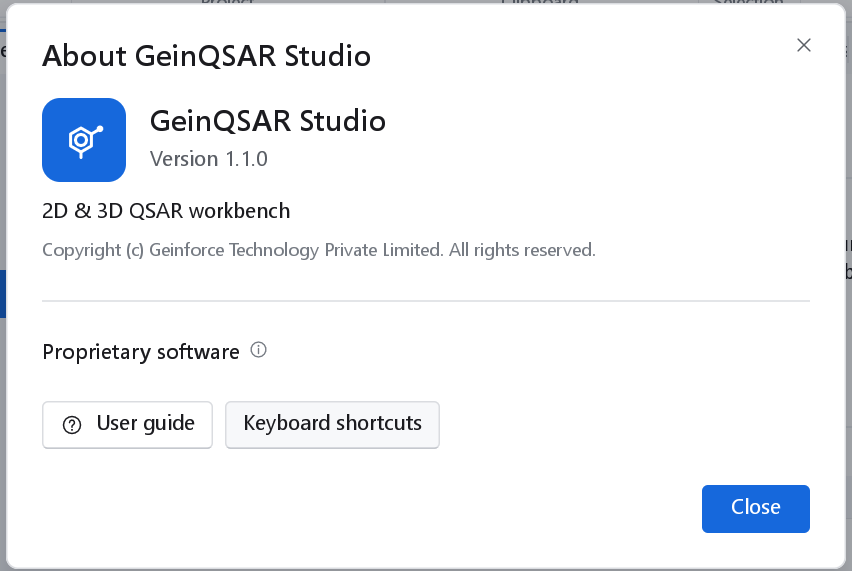
When a problem persists, send Geinforce Technology:
- The version from Help > About GeinQSAR Studio (or
gqsar-cli version). - The steps that lead to the problem, starting from the program's start.
- The log: set Log level to Debug in Settings, repeat the steps, then send
logs\geinqsar.logfrom Tools > Open the log folder. The log records the graphics adapter and driver, which matters for display problems. - If you can share it, the dataset or workflow, or a small part of it that shows the problem.