Settings
Every option of the Settings dialog: what it changes, its default, and when a different value is worth it.
Open the dialog with Tools > Settings, with Ctrl+,, or with Settings on the View tab of the ribbon. The pages are listed on the left: Appearance, 3D workspace, Performance, Files & startup and Folders. The box Find a setting above them filters the list by keyword: typing zoom, cache or log leaves only the page that holds the option.
Every change takes effect at once, so the result can be judged while the dialog is open. OK keeps the changes and stores them. Cancel puts back every setting as it was when the dialog opened, including file associations that were registered in the meantime. Restore defaults sets every preference back to its factory value and keeps the dialog open; it leaves the folders, the file associations and the remembered sizes of panels alone, because those are your data rather than preferences.
The settings are stored in settings.json in the application data folder (see Folders). A damaged file, or a value the program does not recognise, never prevents start-up: the affected setting simply takes its default, and the file is written in one step so that an interrupted save cannot truncate it.
Appearance
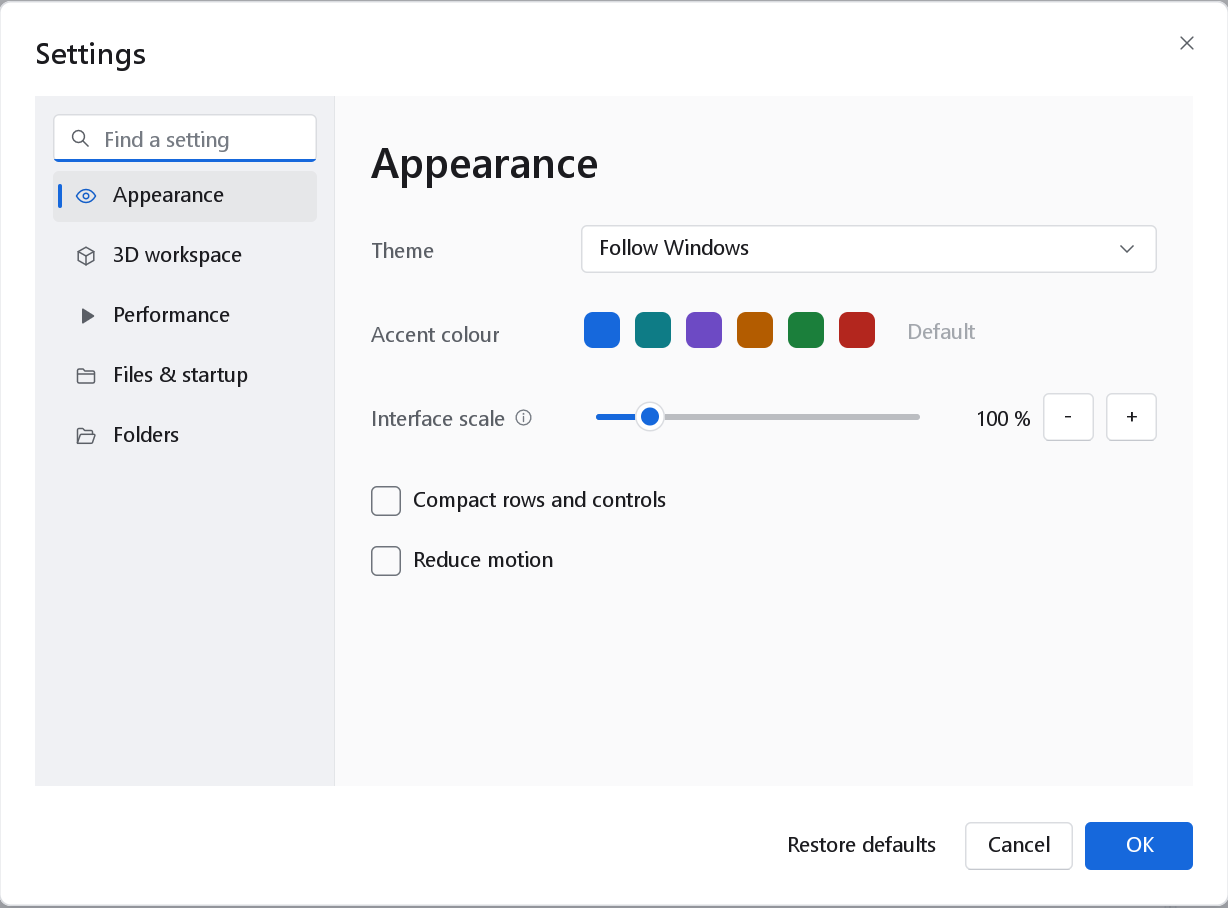
| Option | Default | What it does and when to change it |
|---|---|---|
| Theme | Follow Windows | Follow Windows uses the light or dark mode chosen in the Windows settings and changes with it. Light and Dark fix the theme. High contrast uses a palette with stronger borders and text for low vision or bright surroundings; it adds the check box Dark high-contrast palette (on by default) to choose between its dark and light form. Figures exported from the program have their own background setting and do not depend on the theme. |
| Accent colour | Geinforce blue | The colour of selected items, primary buttons and focus marks. Six presets are offered (Geinforce blue, Teal, Violet, Amber, Forest and Crimson; hover over a swatch for its name). Default returns to Geinforce blue. A different accent helps when two copies of the program are open side by side, or when the blue is hard to tell from the data colours. |
| Interface scale | 100 % | Enlarges every control on top of the Windows display scaling; the layout stays the same. The slider runs from 80 to 200 % in steps of 5 %, and - and + step through 80, 90, 100, 110, 125, 150, 175 and 200 %. Ctrl+=, Ctrl+- and Ctrl+0 do the same from anywhere. Raise it on a large monitor viewed from a distance or for a projector; lower it to see more rows on a small notebook screen. |
| Compact rows and controls | Off | Reduces the height of table rows, list items and controls, so more compounds fit on the screen. Useful for long spreadsheets and small screens. |
| Reduce motion | Off | Switches off the sliding and fading animations of panels, menus and pop-ups. Turn it on if animations are distracting, or when working over a remote-desktop connection, where they arrive as stutter. |
More on themes and scaling, with pictures of each theme, is on Themes, scaling and layout.
3D workspace
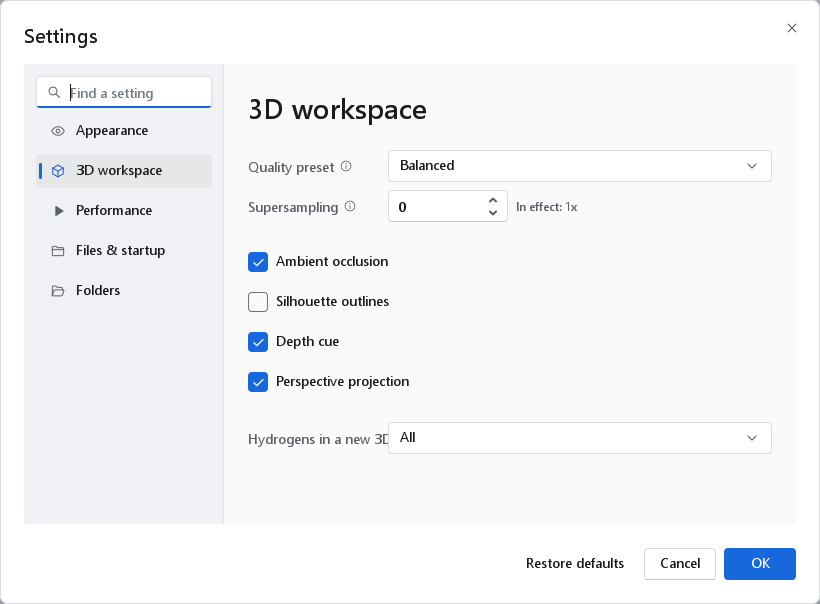
These options set how molecules are drawn in the 3D workspace and in the 3D views of the dashboards, and the resolution of 3D pictures saved from them. Lighting, background and annotations belong to each view and are set there.
| Option | Default | What it does and when to change it |
|---|---|---|
| Quality preset | Balanced | Draft renders at 1x without contact shadows; use it on a weak integrated graphics adapter or for very large scenes. Balanced renders at 1x with them, High at 2x with finer shadows and Publication at 3x with the finest. A higher preset costs the square of its factor in pixels, so choose one of the last two when preparing figures and go back afterwards. |
| Supersampling | 0 | The factor by which the scene is rendered larger and then reduced, which smooths edges and thin lines. 0 takes the value of the preset; 1 to 4 overrides it. The label In effect shows the factor used. Each step multiplies the work of the graphics adapter, so 3 and 4 are for figure work on a capable adapter. |
| Ambient occlusion | On | Darkens creases and buried atoms, which makes the shape of a molecule and of a binding region easier to read. Switch it off if the view is slow; the Draft preset switches it off regardless. |
| Silhouette outlines | Off | Draws a thin outline around atoms and bonds. It is off by default because the standard look separates sticks by their shading alone (see The 3D workspace). Switch it on for a dense overlay of an aligned series, or for a figure that will be printed small. Settings written by version 1.1.0, whose default was on, are migrated to off unless you had changed the value yourself. |
| Depth cue | On | Fades distant atoms towards the background, a cue to depth in a still picture. The strength can be adjusted in each view; switch it off when every molecule of an overlay must keep its full colour. |
| Perspective projection | On | Perspective makes near parts larger, as the eye sees them. Off gives an orthographic projection, in which equal lengths look equal anywhere in the scene; prefer it for lattice boxes, contour maps and measurements. |
| Hydrogens in a new 3D view | All | What a newly opened 3D view shows: All, Polar only, which keeps the hydrogens on nitrogen, oxygen and sulfur, or None. The view's own control changes that view only, so this setting is the starting point rather than a rule. Set it to Polar only if you work mostly with hydrogen-bonding patterns in crowded structures. |
A change reaches open 3D views at once. The projection, the depth cue and the ambient occlusion of an open workspace follow the new settings; its lighting, background and annotations stay as they were, because those belong to the view and are chosen in its own panel (see The 3D workspace).
Performance
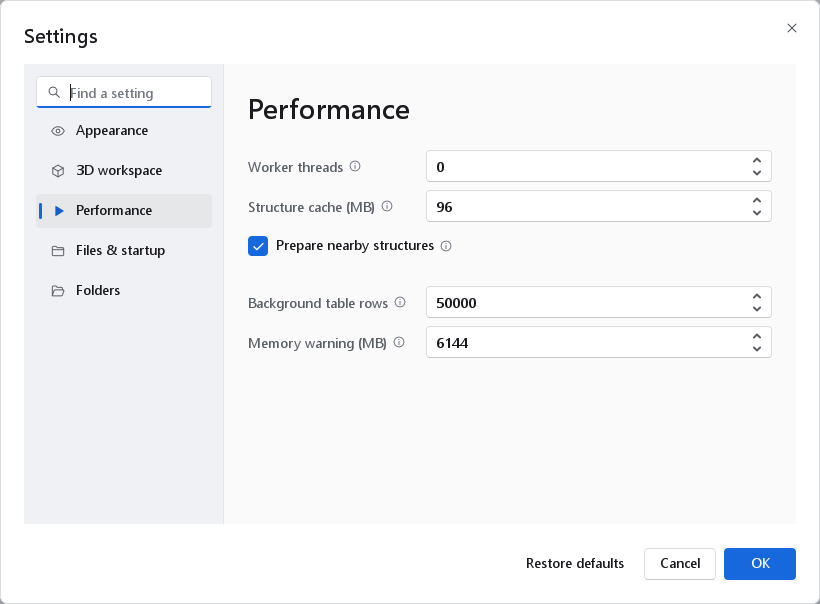
| Option | Default | What it does and when to change it |
|---|---|---|
| Worker threads | 0 | The threads used for descriptors, cross-validation and conformer generation. 0 uses one per hardware thread, which is right on a machine doing nothing else; a smaller number leaves room for other work. It applies when the program next starts. Results never depend on it: the parallel sums are added in a fixed order, so the same model on the same data gives the same numbers whatever this is set to. |
| Structure cache (MB) | 96 | Graphics memory kept for the drawn structures of the spreadsheet cells (16 to 512 MB, in steps of 16). When a long table is scrolled back and forth, structures still in the cache appear at once. Raise it for tables of tens of thousands of compounds on an adapter with plenty of memory; lower it on an integrated adapter that shares memory with the system. |
| Prepare nearby structures | On | Structure cells just outside the visible rows are drawn in the background, so that scrolling shows them immediately. Switch it off only to save work on a slow machine. |
| Background table rows | 50000 | Tables with more rows than this are filtered and sorted on background threads, so the window stays responsive while the work is done (1000 to 10000000, in steps of 1000). Below the threshold the work is done at once, which is faster for small tables. Lower it if sorting a large table makes the window pause. |
| Memory warning (MB) | 6144 | The memory figure at the right of the status bar turns amber when the program uses more than this (256 to 131072 MB). Set it to about two thirds of the installed memory, so that the warning comes before Windows starts swapping. |
Files & startup
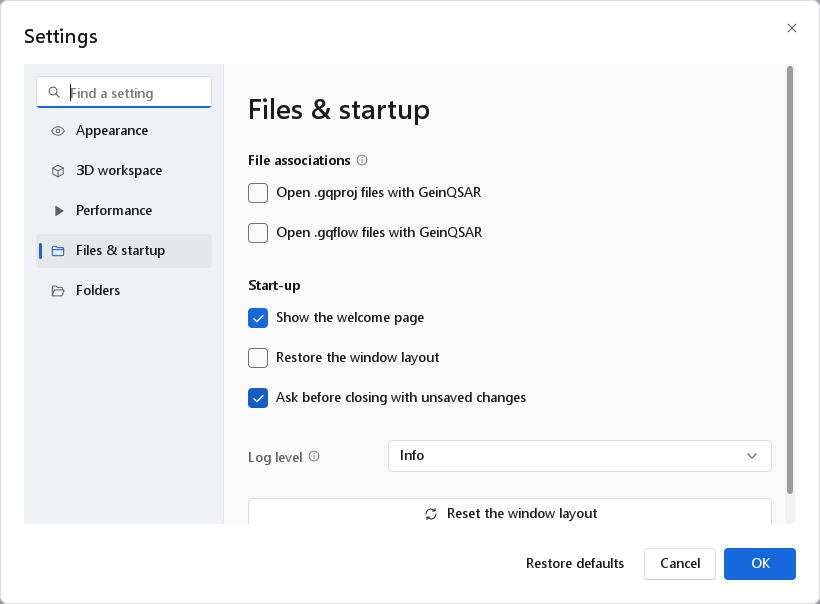
| Option | Default | What it does and when to change it |
|---|---|---|
| Open .gqproj files with GeinQSAR | Off | Registers the program for project files, so a double click in Explorer opens them. The registration is for the current user only (HKEY_CURRENT_USER): no administrator rights are needed and nothing system-wide changes. Switching it off removes the registration. If Windows refuses, a message says why and the box returns to its real state. |
| Open .gqflow files with GeinQSAR | Off | The same for workflow files. |
| Show the welcome page | On | Opens the welcome page with recent files, wizards and samples at start-up. It is not shown when the program is started with files to open. Switch it off once you work mostly from recent projects. |
| Restore the window layout | On | Restores the arrangement of panels (docked, collapsed, their sizes) saved when the program was last closed. Off starts every session with the factory arrangement. |
| Ask before closing with unsaved changes | On | Asks for confirmation when the program is closed while a dataset has unsaved changes. Keep it on. |
| Log level | Info | The least severe message written to the Log panel and to the log file: Debug, Info, Warnings or Errors. Choose Debug before reproducing a problem you want to report; the log then records each step in detail. |
| Reset the window layout | A button, not a setting: puts every panel back where it was when the program was installed, at once. The same as View > Reset layout. |
Folders
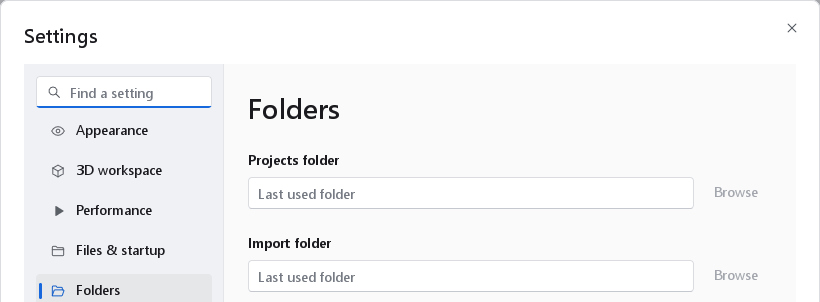
| Option | Default | What it does |
|---|---|---|
| Projects folder | Last used folder | Where Open and Save project start. It is updated each time a project is saved, so the next save lands beside the last one. |
| Import folder | Last used folder | Where Import dataset starts; updated by each import. |
| Export folder | Last used folder | Where exports of tables start; updated by each export. |
| Application data | Not editable. The folder that holds the settings, the window layout, the key bindings and the session log, normally %APPDATA%\Geinforce\GeinQSAR. Tools > Open the data folder opens it in Explorer. |
Type a path, or choose one with Browse, to make a folder the fixed starting point, for instance a project share on the network. The Dataset Builder remembers the folder it last saved a dataset to on its own, and offers it on its Save page tagged Last used.
Where results are written
Every file a wizard, a dashboard or a figure dialog offers to write starts from an absolute path under Documents\GeinQSAR\Output, shown in full in the field so that it can be read before the run. A relative path you type yourself is resolved against that folder, not against the folder the program happened to be started from. The folder is created when it is first needed. A saved workflow is the exception, and deliberately so: it keeps writing beside its own file, which is a place you chose. Input paths are untouched, so the shipped samples and templates still find their data.
GQ_OUTPUT_DIR to the folder before starting the program. Every default output path then begins there.