Installing and starting
What the package contains, what the computer needs, where the program keeps its settings, and what happens the first time it starts.
What is in the package
GeinQSAR Studio is delivered as a folder, GeinQSAR-1.1.0. There is no installer: copy the folder anywhere you have write access, for example to C:\Programs or to your documents, and run GeinQSAR.exe. No administrator rights are needed and nothing is written to the registry unless you ask for file associations.
| Item | What it is |
|---|---|
GeinQSAR.exe | The desktop application. This is the one to pin to the Start menu or the taskbar. |
gqsar-cli.exe | The command-line program for scripts, batch runs and machines without a display (see The command line). |
data\ | Sample datasets and the workflow templates. data\qsar3d\steroids.csv holds 31 steroids with their corticosteroid-binding-globulin affinities and the classical training/test division, data\flow\ache_pic50.csv 429 acetylcholinesterase inhibitors with pIC50 values from ChEMBL, data\flow\herg_class.csv 554 compounds classified for hERG inhibition, and data\flow\templates\ the eight workflow templates. data\flow\DATASETS.md records where every sample came from. |
docs\ | The built-in user guide as HTML pages; open docs\index.html in a browser. |
LICENSE.txt | The licence agreement. |
VERSION.txt | The version, the date of the build and the platform. Quote it with any support request. |
data folder next to GeinQSAR.exe.What the computer needs
| Item | Needed | Why |
|---|---|---|
| Operating system | Windows 10 (version 1809 or later) or Windows 11, 64-bit. | The program is a native 64-bit Windows application. |
| Graphics | A graphics card and driver that support OpenGL 3.3 (core profile). | The whole interface, the tables and charts as well as the 3D viewer, is drawn by the graphics card. A card from the last ten years with the vendor's current driver is enough. |
| Memory | 8 GB; 16 GB or more for datasets above about 50 000 compounds. | Descriptor blocks of several thousand columns and 3D conformers are held in memory. The status bar shows the memory in use and turns amber above a threshold you can set. |
| Processor | Any 64-bit processor with two cores; eight or more are worth having. | Descriptors, cross-validation and conformer generation run in parallel on every core. |
| Display | At least 1024 x 640; Windows display scaling up to 300 per cent is supported. | Below 1100 x 700 the ribbon turns into a single toolbar row so that the documents keep their height (see Themes, scaling and layout). |
| Disk | About 200 MB for the program and its samples, plus space for your projects. | |
| Internet | Only for the Dataset Builder and the fetch command. | Everything else works offline. ChEMBL and PubChem are reached over HTTPS. |
The first start
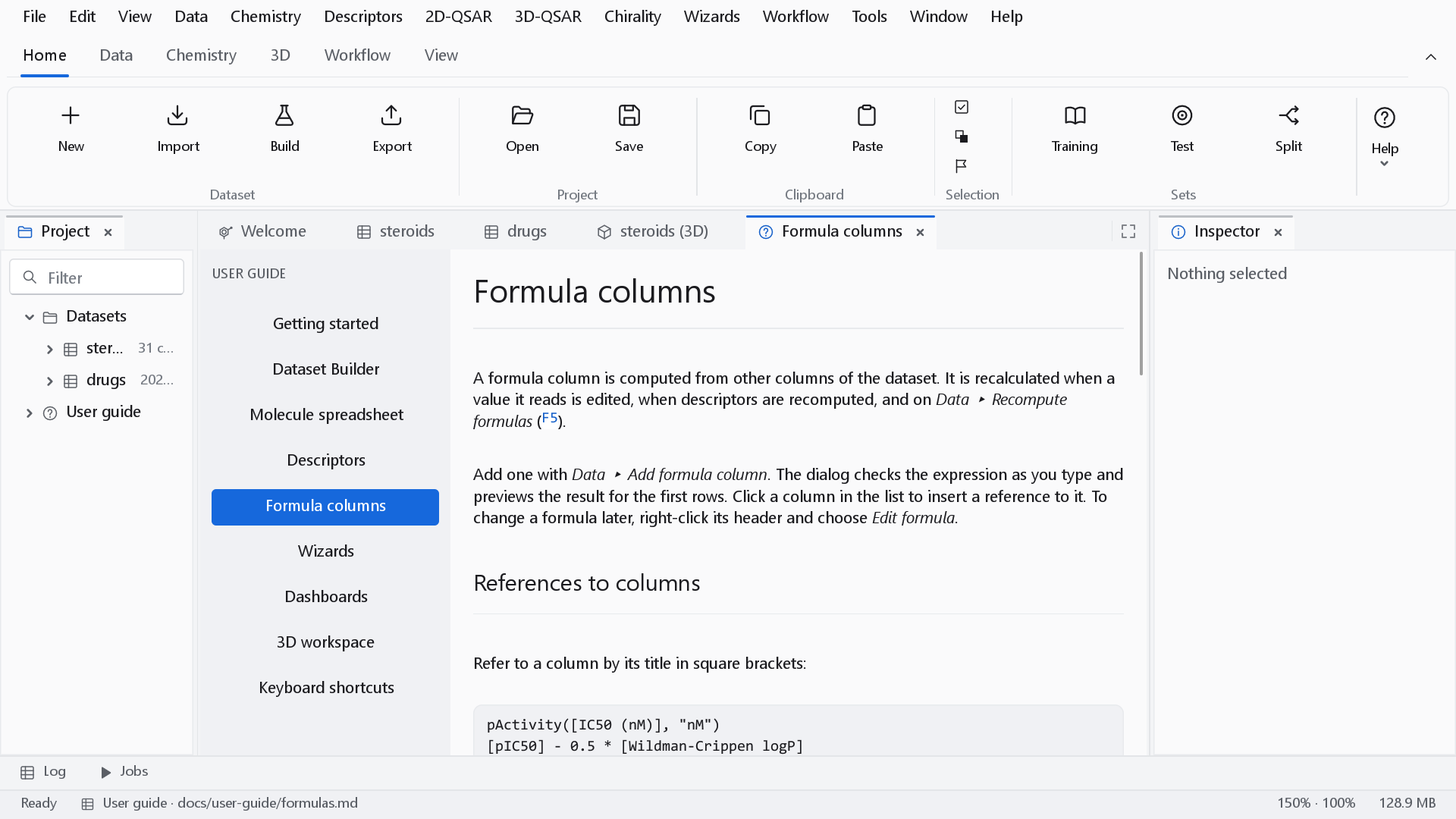
A small splash window reports the three stages of the start: loading the settings, creating the OpenGL context and preparing the workspace. The main window then opens at 1440 x 900 with the factory arrangement: the Project panel on the left, the Inspector on the right, and the Log and Jobs panels folded into two buttons on the bar at the bottom, so that the documents keep the full height. The welcome page is the first document.
The quickest way to see the program working is a sample. Under Samples on the welcome page, CBG steroids opens the steroid set through the import dialog, exactly as your own file would be opened, so you can see what the program detects before anything is read. Reference drugs is a list of about 200 well-known drugs and natural products, and Chiral drug pairs the enantiomer pairs used by the chirality descriptors.
Only one copy of the program runs at a time. Opening a project or a dataset from Explorer while the program is running hands the file to the open window and brings it to the front.
Checking the version
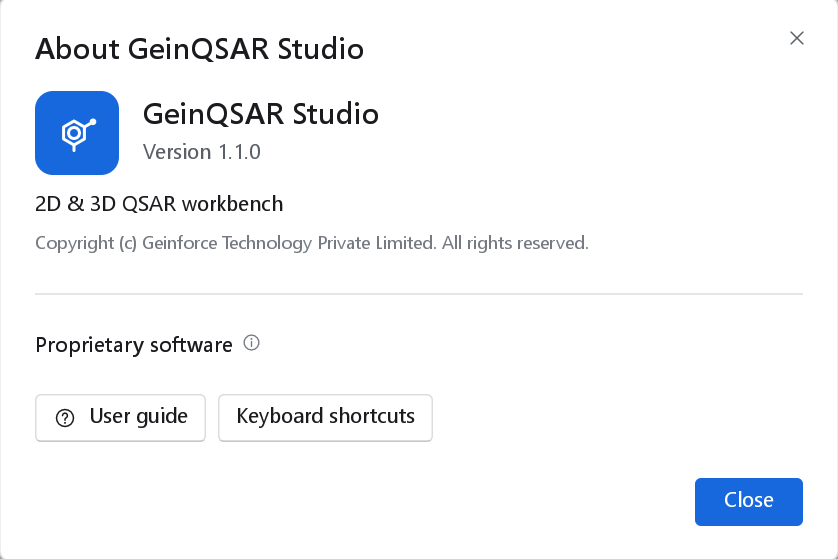
Help > About GeinQSAR Studio shows the product, the version and the copyright. The same version is in VERSION.txt.
Where settings and data are kept
The program writes nothing into its own folder. Everything that belongs to you as a user goes to %APPDATA%\Geinforce\GeinQSAR\, which on most computers is C:\Users\name\AppData\Roaming\Geinforce\GeinQSAR\. Tools > Open the data folder opens it in Explorer.
| File | What it holds |
|---|---|
settings.json | Every setting of Tools > Settings, the recent-file list of the welcome page and the File menu, and small view states such as the width of a dashboard's control panel. A file written by a newer version, or one that is damaged, never stops the program from starting: whatever cannot be read falls back to its default. |
layout-v2.json | The arrangement of the panels: which are docked where, their sizes, and which are folded away. |
window.txt | The position and size of the main window. |
keybindings.json | Keyboard shortcuts you have changed (only present if you have). |
logs\geinqsar.log | The session log. Tools > Open the log folder opens its folder; attach the file to a support request. |
Your datasets, projects, workflows and exports go wherever you save them. Tools > Settings > Folders sets the folders the file dialogs start in.
Resetting and removing
- To return the window to the factory arrangement, use View > Reset layout, or start the program once with
GeinQSAR.exe --reset-layout. - To return every setting to its default, use Restore defaults in the Settings dialog, or close the program and delete
settings.json. Your files are not affected. - To remove the program, delete its folder and, if you wish, the
%APPDATA%\Geinforce\GeinQSARfolder. If you registered the.gqprojand.gqflowfile types, untick them in Tools > Settings > Files & startup first.
Starting from a shortcut or a script
GeinQSAR.exe accepts files and a few options on its command line. Files given there are opened at start-up: projects (.gqproj), workflows (.gqflow) and datasets (.sdf, .mol, .csv, .tsv, .smi); a dataset opens in the import dialog.
| Option | Effect |
|---|---|
--theme light, dark or system | Uses that theme for this session only; the saved setting is not changed. |
--reset-layout | Starts with the factory panel arrangement and window placement. |
--new-instance | Starts a second, independent copy instead of handing the files to the running one. |
--no-splash | Does not show the splash window. |
--log file | Appends the session log to that file as well. |
--version, --help | Shows the version or the list of options. |
Opening the user guide
F1, Help > User guide, the Guide button of the Home ribbon tab and User guide on the welcome page all open the built-in guide as a document. Its page list is on the left; the same pages appear under User guide in the Project panel. The guide is short and stays with the program; this manual is the full reference.