Menus and shortcuts
Every command of the menu bar, the ribbon, the command palette and the spreadsheet context menu, with its keyboard shortcut.
All commands of GeinQSAR Studio are registered once and reached in four ways: from the menu bar, from the ribbon, from the command palette and by keyboard shortcut. A command that cannot run in the present state (Export without a dataset, Run workflow without a workflow) is greyed out everywhere at once. Commands that act on "the dataset" act on the dataset of the active spreadsheet tab; commands that act on "the selection" act on its selected rows.

The menu bar
Each menu name has an access letter, underlined while Alt is held: Alt with that letter opens the menu, and a tap on Alt or F10 moves the keyboard into the menu bar, where the arrow keys move between menus and commands.
File
| Command | Shortcut | What it does |
|---|---|---|
| New dataset | Ctrl+N | Creates an empty compound dataset. |
| Open | Ctrl+O | Opens a dataset, a project, a workflow or a 3D-QSAR model file. |
| Import dataset | Ctrl+I | Imports an SD file, CSV table or SMILES list (Importing a dataset). |
| Build a dataset | Opens the Dataset Builder for ChEMBL, PubChem or your own file (Building a dataset). | |
| Replay a provenance file | Regenerates a dataset from its provenance file and compares it with the original. | |
| Recent files | The most recently used projects and datasets; pinned entries first, missing files marked (missing). Clear the list removes the entries that are not pinned. | |
| Save project | Ctrl+Shift+S | Saves the datasets and workflows of the session in one .gqproj file. |
| Save project as | The same under a new name. | |
| Export | Ctrl+E | Exports the active dataset as a CSV table. |
| Export as SD file | Exports the active dataset as an SD file with its columns as data fields. | |
| Export for a spreadsheet program (the command after Export as SD file) | Exports a CSV table that starts with a UTF-8 byte order mark, so that a spreadsheet program shows accented characters correctly. | |
| Export as SMILES | Exports the structures as a SMILES list with their names. | |
| Close document | Ctrl+W | Closes the active tab. |
| Exit | Closes GeinQSAR Studio, asking first if a dataset has unsaved changes. |
Edit
| Command | Shortcut | What it does |
|---|---|---|
| Copy | Ctrl+C | Copies the selected rows. |
| Copy with headers | Ctrl+Shift+C | Copies the selected rows with the column names as the first line. |
| Paste SMILES | Ctrl+V | Adds the SMILES on the clipboard as new rows. |
| Select all | Ctrl+A | Selects every row that is shown (the filter applies). |
| Invert selection | Ctrl+Shift+A | Selects the rows that were not selected. |
| Clear selection | Ctrl+D | Deselects every row. |
| Find | Ctrl+F | Moves the cursor to the search box of the spreadsheet. |
| Delete rows | Delete | Deletes the selected rows. |
View
| Command | Shortcut | What it does |
|---|---|---|
| Project explorer | Ctrl+B | Shows or hides the Project panel. |
| Inspector | Ctrl+Shift+B | Shows or hides the Inspector. |
| Log | Ctrl+J | Shows or hides the Log panel. |
| Jobs | Shows or hides the Jobs panel. | |
| Welcome page | Opens the welcome page. | |
| Show structures | Shows or hides the structure column of the spreadsheet. | |
| Show filter row | Shows or hides the filter row under the column headers. | |
| Zoom in | Ctrl+= | Enlarges the interface one step. |
| Zoom out | Ctrl+- | Reduces the interface one step. |
| Reset zoom | Ctrl+0 | Returns to 100 %. |
| Switch theme | Changes between the light and the dark theme. | |
| Focus mode | F11 | Hides the ribbon and the panels so the document fills the window; Esc restores them. |
| 3D view full screen | Ctrl+F11 | Shows only the 3D view of the active document on the whole screen; Esc restores. |
| Minimize the ribbon | Ctrl+F1 | Shows only the ribbon tab row; a click on a tab opens the ribbon over the document. |
| Command palette | Ctrl+Shift+P | Opens the search over every command. |
| Reset layout | Puts every panel back in its factory position. |
Data
| Command | Shortcut | What it does |
|---|---|---|
| Add formula column | Adds a column computed from a formula (Formula columns). | |
| Columns | Opens the column manager: show, hide, order and set the role of columns. | |
| Recompute formulas | F5 | Recomputes every formula column. |
| Auto-fit columns | Fits the width of each column to its content. | |
| Assign to training set | Puts the selected rows into the training set. | |
| Assign to test set | Puts the selected rows into the test set. | |
| Assign to external set | Puts the selected rows into the external validation set. | |
| Exclude from modelling | Keeps the selected rows in the table but out of every model. | |
| Clear set membership | Removes the selected rows from every set. | |
| Training/test split | Opens the split dialog: method, test fraction and seed. Nothing is assigned until Split is pressed. | |
| Activity-sorted split | Opens the split dialog with the activity-sorted method chosen. | |
| Toggle flag | Flags or unflags the selected rows. | |
| Find duplicates | Lists rows with the same canonical SMILES. | |
| Convert activity | Adds a p-scale column (pIC50, pKi) from a concentration column. | |
| Column statistics | Shows the histogram and summary statistics of a numeric column. | |
| Build a dataset | As in the File menu. | |
| Replay a provenance file | As in the File menu. |
Chemistry
| Command | Shortcut | What it does |
|---|---|---|
| Edit structure | Opens the sketcher on the selected compound. | |
| Draw a new compound | Opens the sketcher for a new row. | |
| Standardize structures | Strips salts, keeps the largest fragment, neutralises and sets the canonical tautomer. | |
| Clear structure filters | Removes the substructure and similarity filters of the spreadsheet. | |
| Open 3D workspace | Ctrl+3 | Opens the 3D workspace of the active dataset. |
Descriptors
| Command | Shortcut | What it does |
|---|---|---|
| Physicochemical properties | Computes Crippen logP, TPSA, hydrogen-bond counts, rule counts, QED and ring counts. | |
| 2D descriptor set | Computes the standard set of 2D descriptor families. | |
| Choose descriptors | Opens the descriptor dialog to pick families and single descriptors (Molecular descriptors). |
2D-QSAR
| Command | Shortcut | What it does |
|---|---|---|
| 2D-QSAR model builder | Opens the 2D-QSAR wizard: data, descriptors, split, model and the OECD validation set. | |
| Check dataset readiness | Reports whether the dataset has structures, an activity column with values, descriptors and a training/test split, and names what is missing. | |
| Training/test split | Opens the split dialog. | |
| Export the model matrix | Writes descriptors, activity and split as one CSV table. |
3D-QSAR
| Command | Shortcut | What it does |
|---|---|---|
| 3D-QSAR builder | Opens the 3D-QSAR wizard: conformers, alignment, interaction fields, PLS and contour maps. | |
| Open the 3D workspace | Opens the 3D workspace of the active dataset. | |
| Generate conformers for the selection | Opens the 3D workspace with the selected compounds. | |
| Add a molecular surface | Adds a solvent-excluded surface in the open 3D workspace of the dataset. |
Chirality
| Command | Shortcut | What it does |
|---|---|---|
| Chirality and activity cliffs | Opens the wizard for stereoisomer pairs, SALI, eudismic analysis and the descriptor-blindness diagnosis. | |
| Add chirality descriptors | Computes the chirality-sensitive descriptor families. | |
| Stereochemistry summary | Reports the stereocentres and stereo bonds of the dataset. |
Wizards
| Command | Shortcut | What it does |
|---|---|---|
| 2D-QSAR model builder | See 2D-QSAR. | |
| 3D-QSAR builder | See 3D-QSAR. | |
| Chirality and activity cliffs | See Chirality. | |
| Pharmacophore hypotheses | Common pharmacophore search over the actives of a series. | |
| Predict with a saved model | Applies a stored model to new compounds with its applicability domain. | |
| LIBQORA library design | Designs molecules from a scaffold and ranks them with your own models; see Designing a library. |
Workflow
| Command | Shortcut | What it does |
|---|---|---|
| New workflow | Ctrl+Shift+N | Opens an empty workflow canvas. |
| Open workflow | Opens a .gqflow workflow or a project. | |
| Template gallery | Starts from a complete, executable workflow. | |
| Templates | Each template by name; the program asks for the data before it opens. | |
| Save workflow | Ctrl+S | Saves the active document if it can be saved. |
| Run workflow | F9 | Runs the whole workflow. |
| Run selection | Runs the selected nodes and what they depend on. | |
| Run to here | Runs up to the selected node. | |
| Stop workflow | Stops the running workflow. | |
| Group selection | Puts the selected nodes into a named group frame. | |
| Add comment | Adds a comment box in the middle of the canvas. | |
| Auto-layout | Arranges the nodes from left to right by their connections. | |
| Fit workflow | Ctrl+0 on the canvas | Fits the whole diagram into the view. |
| Zoom 100% | Shows the diagram at its natural size. | |
| Select mode | V | The left button picks, marquee-selects and drags nodes. |
| Pan mode | H | The left button drags the whole diagram; hold Space to pan in either mode. |
| Open results dashboards | Opens the dashboards of the last run of this workflow. | |
| Recompute the project's results | Runs the workflows that had results when the project was saved, one after another. Available while such workflows are still pending; see Projects and files. | |
| Export report | Writes the OECD-style report of the last run as PDF, Word or Excel (Reports and export). | |
| Compute properties for all datasets | Computes the physicochemical properties for every open dataset. | |
| Show the job queue | Opens the Jobs panel. | |
| Cancel all jobs | Cancels every running and waiting job. |
Tools, Window and Help
| Command | Shortcut | What it does |
|---|---|---|
| Tools > Settings | Ctrl+, | Opens the Settings dialog. |
| Tools > Open the data folder | Opens the application data folder in Explorer. | |
| Tools > Open the log folder | Opens the folder of the session log file. | |
| Window > Window full screen | Shift+F11 | Fills the screen with the program window. |
| Window > Close document | Ctrl+W | Closes the active tab. |
| Window > Documents | Lists the open tabs; choosing one makes it active. | |
| Help > User guide | F1 | Opens the built-in user guide. |
| Help > Keyboard shortcuts | Opens the shortcuts dialog. | |
| Help > About GeinQSAR Studio | Shows the version and copyright. |
The ribbon
The ribbon holds the most used commands as large buttons with short labels. When the window is too narrow for all of them, the buttons of the less important groups lose their labels first, so every command stays on screen. A double click on a tab, the chevron at its right end or Ctrl+F1 minimizes the ribbon to its tab row.
| Tab | Groups and buttons |
|---|---|
| Home | Dataset: New, Import, Build, Export. Project: Open, Save. Clipboard: Copy, Paste. Selection: Select all, Invert, Flag. Sets: Training, Test, Split. Help: Guide, Palette. |
| Data | Columns: Formula, Columns, Recompute, Auto-fit, Statistics. Curate: Duplicates, p-scale, Standardize. Descriptors: Properties, 2D set, Choose. Modelling: Readiness, Split, Matrix. |
| Chemistry | Structures: Draw, Edit. Search: Find, Clear. Stereochemistry: Descriptors, Summary. |
| 3D | Workspace: Workspace, Conformers. Display: Surface. |
| Workflow | Wizards: 2D-QSAR, 3D-QSAR, Cliffs, Pharmacophore, Predict. Workflow: New, Templates, Open, Save, Report. Run: Run, Selection, Stop, Dashboards. Arrange: Layout, Fit, Group. Mouse: Select, Pan. Edit: Undo, Redo, Delete. |
| View | Panels: Project, Inspector, Log, Jobs. Appearance: Theme, Zoom in, Zoom out, Settings. Layout: Focus, 3D full screen, Reset. |
Each button runs the menu command of the same meaning, listed in the tables above.
The command palette
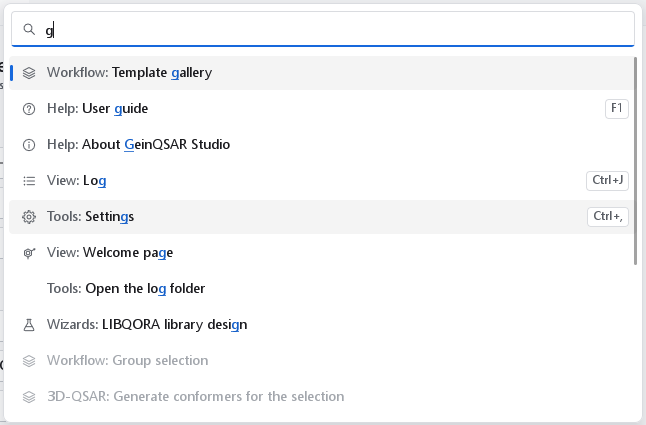
Ctrl+Shift+P (or Palette on the Home tab, or View > Command palette) opens a search over every command. Type any part of a command's name; the letters need not be adjacent, so exmat finds Export the model matrix. Commands used recently are listed first.
| Key | Effect |
|---|---|
| Up, Down | Moves through the list. |
| Page Up, Page Down | Moves a page at a time. |
| Ctrl+Home, Ctrl+End | Jumps to the first or last entry. |
| Enter | Runs the highlighted command. |
| Esc or Ctrl+Shift+P | Closes the palette. |
The palette is the quickest way to reach a command whose menu you do not remember, and it shows the shortcut of each command it finds.
The shortcuts dialog
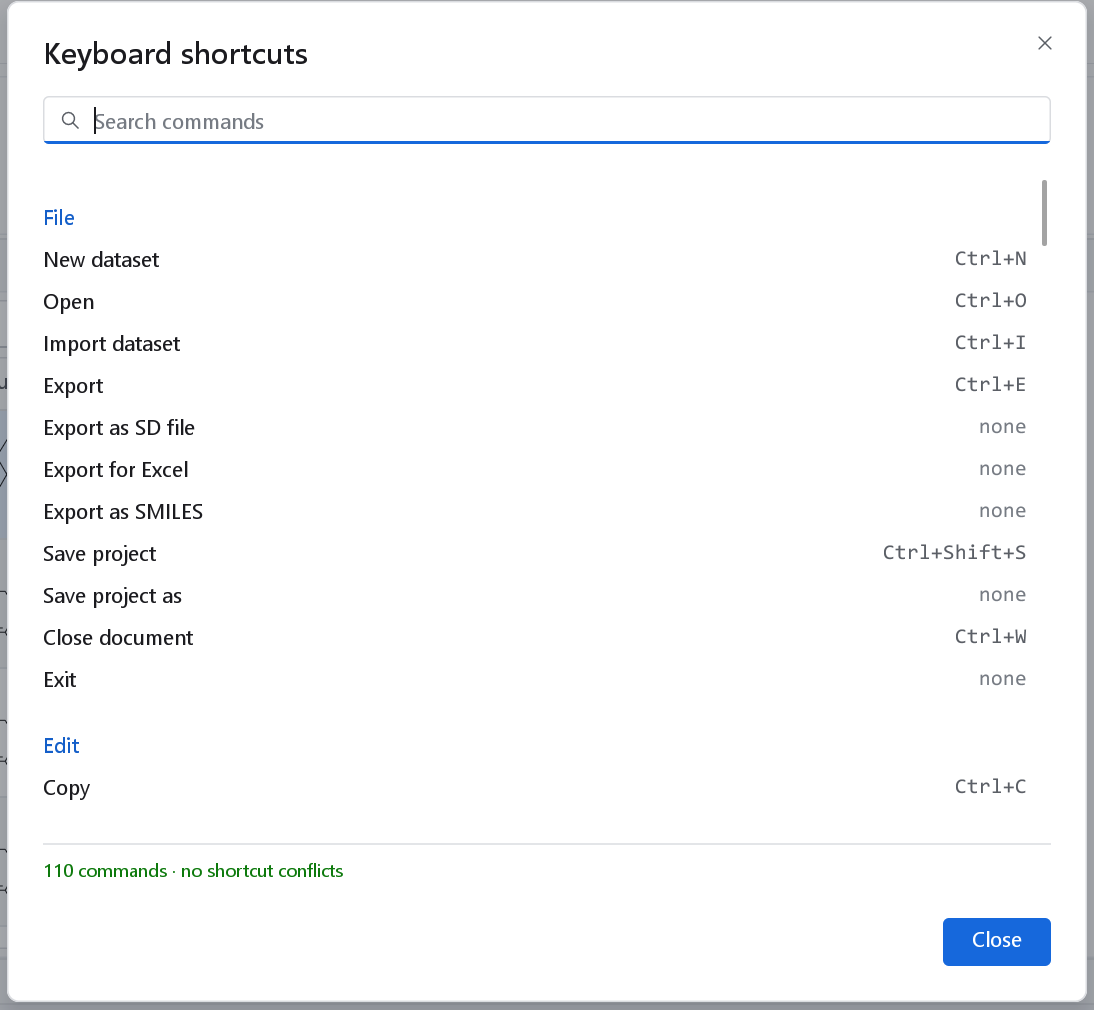
Help > Keyboard shortcuts lists every registered command with its binding. The search box filters by command name. The line at the bottom reports conflicting bindings and bindings that Windows reserves for itself, which matters after key bindings have been changed in keybindings.json in the application data folder; that file is read at start-up, and a binding it cannot use is reported in the log.
Shortcuts by context
Some keys mean different things in different places: Ctrl+C copies rows in the spreadsheet and nodes on the workflow canvas, and Ctrl+0 resets the interface zoom but fits the drawing when the canvas or the sketcher has the focus.
| Where | Shortcut | Command |
|---|---|---|
| Everywhere | Ctrl+N, Ctrl+O, Ctrl+I, Ctrl+E | New dataset, Open, Import dataset, Export |
| Everywhere | Ctrl+Shift+S, Ctrl+W | Save project, close the active document |
| Everywhere | Ctrl+Shift+P, Ctrl+,, F1 | Command palette, Settings, User guide |
| Everywhere | Ctrl+B, Ctrl+Shift+B, Ctrl+J | Project explorer, Inspector, Log |
| Everywhere | F11, Ctrl+F11, Shift+F11, Ctrl+F1 | Focus mode, 3D view full screen, window full screen, minimize the ribbon |
| Everywhere | Ctrl+=, Ctrl+-, Ctrl+0 | Zoom the interface in, out, reset |
| Spreadsheet | Ctrl+F, Ctrl+A, Ctrl+Shift+A, Ctrl+D | Find, select all shown rows, invert, clear the selection |
| Spreadsheet | Ctrl+C, Ctrl+Shift+C, Ctrl+V, Delete | Copy rows, copy with headers, paste SMILES, delete rows |
| Spreadsheet | F5, Ctrl+3 | Recompute formula columns, open the 3D workspace |
| Workflow canvas | Ctrl+Shift+N, Ctrl+S, F9 | New workflow, save, run |
| Workflow canvas | Ctrl+Z, Ctrl+Y | Undo, redo |
| Workflow canvas | Ctrl+C, Ctrl+X, Ctrl+V, Ctrl+D, Ctrl+A, Delete | Copy, cut, paste, duplicate, select all, delete nodes |
| Workflow canvas | V, H, Space held | Select mode, pan mode, pan temporarily |
| Workflow canvas | Middle drag; wheel or Ctrl+wheel; Shift+wheel | Pan; zoom about the cursor; scroll sideways |
| Workflow canvas | Ctrl+0 or a double click on empty canvas | Fit the workflow |
| Sketcher | C N O S P F I H, L (Cl), B (Br) | Element of the hovered atom, or of the atom tool |
| Sketcher | 1 2 3, + - | Order of the hovered bond; charge of the hovered atom |
| Sketcher | Delete, Backspace | Remove the hovered item or the selection |
| Sketcher | Ctrl+C, Ctrl+Shift+C, Ctrl+V | Copy SMILES, copy MOL block, paste SMILES or a MOL block |
| Sketcher | Ctrl+L, Ctrl+0, Esc | Clean up the layout, fit the drawing, cancel the drag and clear the selection |
The spreadsheet context menu
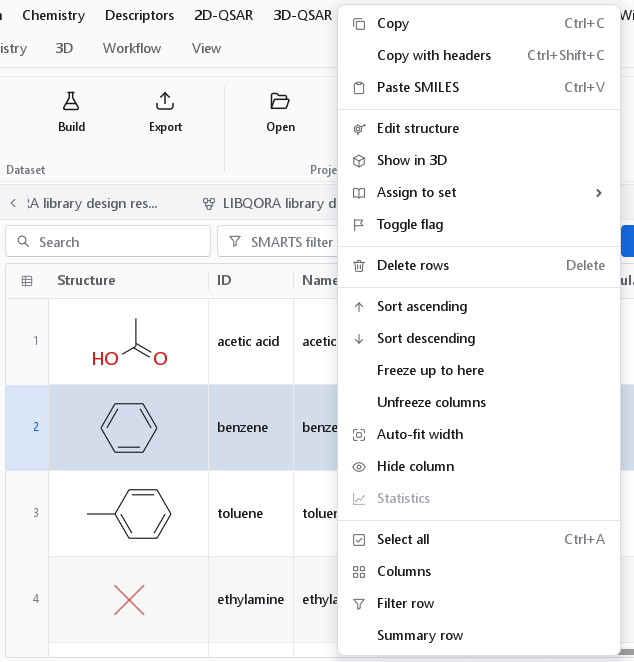
| Entry | What it does |
|---|---|
| Copy, Copy with headers, Paste SMILES | As in the Edit menu. |
| Edit structure | Opens the sketcher on the clicked compound. |
| Show in 3D | Shows the selected compounds in the 3D workspace. |
| Assign to set | A submenu: training, test, external, excluded, or no set. |
| Toggle flag | Flags or unflags the selected rows. |
| Delete rows | Deletes the selected rows. |
| Sort ascending, Sort descending, Clear sort | Sorts the table by the clicked column; Clear sort appears while a sort is active and restores the original order. |
| Freeze up to here, Unfreeze columns | Keeps the columns up to the clicked one in view while scrolling sideways, or releases them. |
| Auto-fit width, Hide column | Fits the width of the clicked column, or hides it (the column manager shows it again). |
| Statistics | Histogram and summary statistics of the clicked numeric column. |
| Edit formula, Remove column | Shown for a formula column, and for columns that hold their own values: edit the formula, or delete the column. |
| Select all, Columns | Selects all shown rows; opens the column manager. |
| Filter row, Summary row | Switch the filter row under the headers and the summary row of the table on or off (a tick shows the state). |
| Clear filters | Shown while a structure filter is active; removes it. |
The spreadsheet itself is described on The molecule spreadsheet.