The Structure panel
The inventory of the scene, the derived selection groups the analysis tools maintain, and how to use both to select and restyle.
The Structure panel is the inventory of everything in the scene, and it is also the fastest way to select and restyle part of it. It has two halves: the structure itself at the top, and derived selection groups underneath.
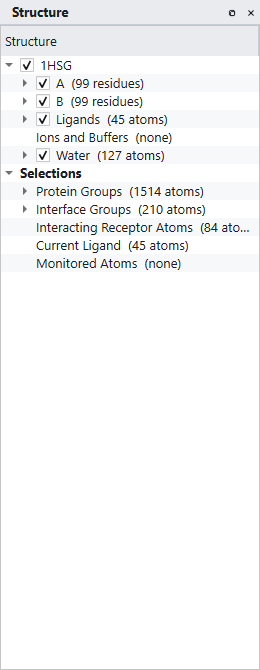
The structure branches
| Branch | What it holds |
|---|---|
| The model | The top row, named after the file or, for a docked result, after the complex. Expanding it gives the chains. |
| Each chain | Named by its identifier with its residue count, expanding to the residues and then to individual atoms. |
| Ligands | Everything that is not a standard residue and is not an ion or a water. A docked pose appears here. |
| Ions and Buffers | Metal ions and crystallisation additives, kept separate because they are often needed when the rest of the heteroatoms are not. |
| Water | Retained waters, if any were kept during preparation. |
Every branch has a checkbox that shows and hides it. Unticking Water, or unticking a chain you are not interested in, is the quickest possible way to clean up a crowded scene.
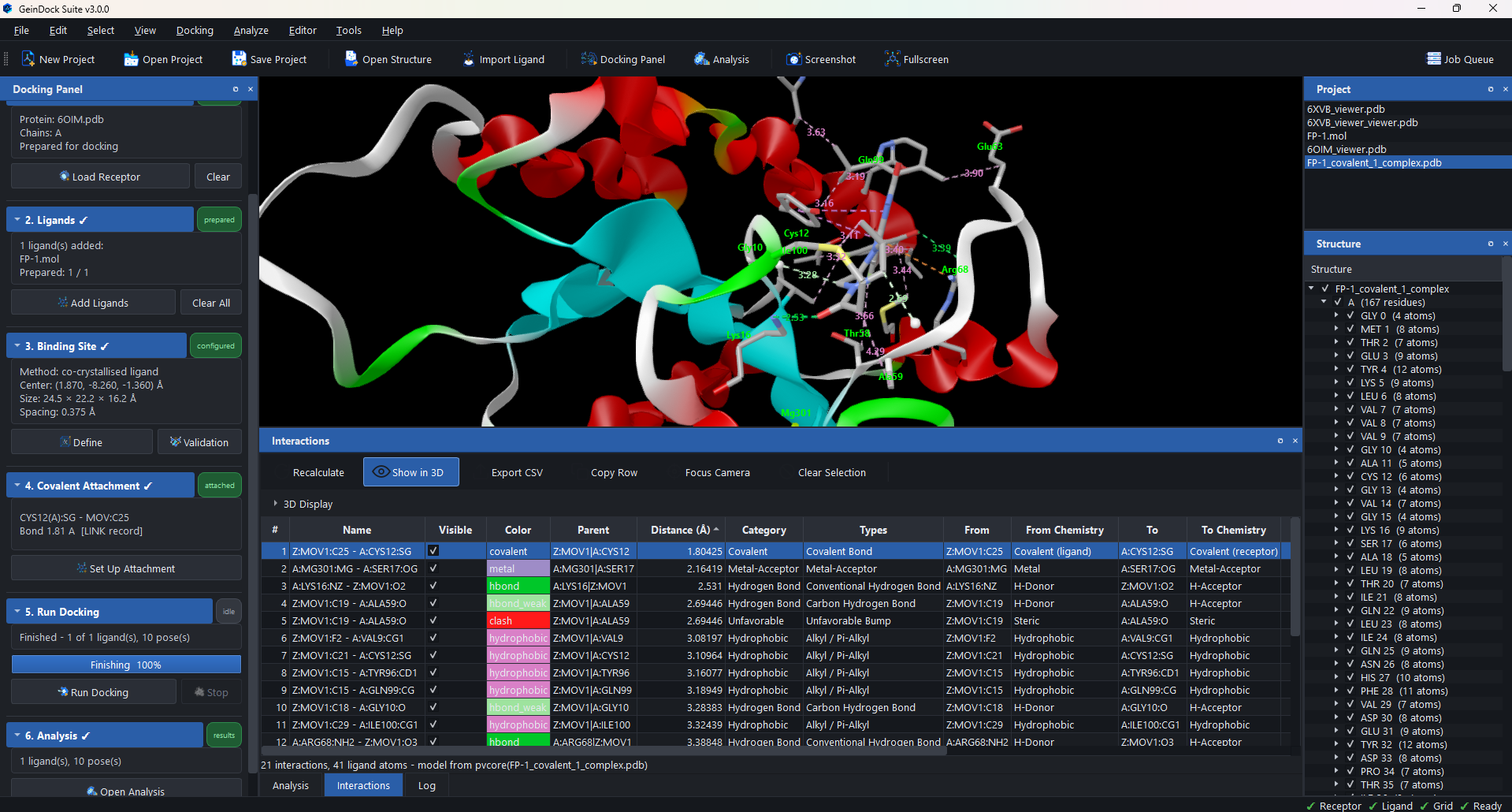
The selection groups
Under Selections sit groups the application maintains for you. They are recomputed whenever the current pose changes, so they always describe what you are looking at now.
| Group | What it contains |
|---|---|
| Protein Groups | The receptor atoms, as a single selectable group. |
| Interface Groups | The residues that lie at the boundary between the receptor and the ligand. This is the binding site, defined by contact rather than by a distance you had to guess. |
| Interacting Receptor Atoms | The individual receptor atoms that make a detected contact with the current pose. |
| Current Ligand | The pose currently loaded, ready to select in one click. |
| Monitored Atoms | Atoms you have marked to watch. |
Working from the tree
| Action | What happens |
|---|---|
| Click a row | Selects that item in the viewer. |
| Tick or untick a checkbox | Shows or hides it. |
| Right click a row | Opens a menu that restyles, recolours, hides, isolates or selects that item and everything under it. |
| Expand a chain | Reveals its residues, and expanding a residue reveals its atoms. |
Selection commands
The Select and Edit menus carry the selection commands, and they work together with the tree.
| Command | Shortcut | What it does |
|---|---|---|
| Select All | Ctrl+A | Everything in the scene. |
| Select None | Ctrl+Shift+A | Clears the selection. |
| Invert Selection | Ctrl+I | Selects everything that was not selected. |
| Expand to Whole Residues | Ctrl+R | Grows an atom selection out to the complete residues those atoms belong to. |
| By Expression | Ctrl+F | Selects with a text expression, which is how you reproduce a selection exactly or apply one somebody sent you. |
| By Residue | Asks for one or more residue names, separated by spaces, and selects every residue with those names. Use it to pick out all the histidines, say, or a cofactor by its three letter code. | |
| By Chain | Asks for one or more chain identifiers, separated by spaces, and selects those chains whole. Use it to isolate one copy of a multimer. |
By Residue and By Chain start a new selection from what you type; they do not grow the one you already have. To grow the current selection out to complete residues, use Edit › Expand to Whole Residues.
Restoring the appearance
Styling and colouring applied to individual groups override the global settings, which is what you want while you are building a figure and not what you want afterwards. Edit › Reset Colours drops every per atom colour override and Edit › Reset Styles drops every per group representation override, returning the scene to whatever the View menu currently says.