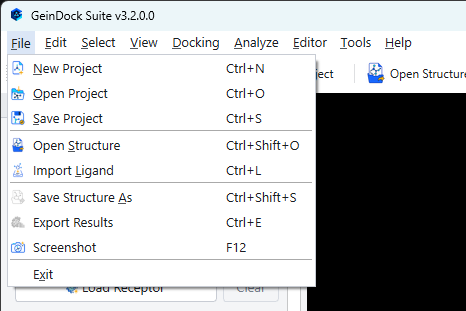
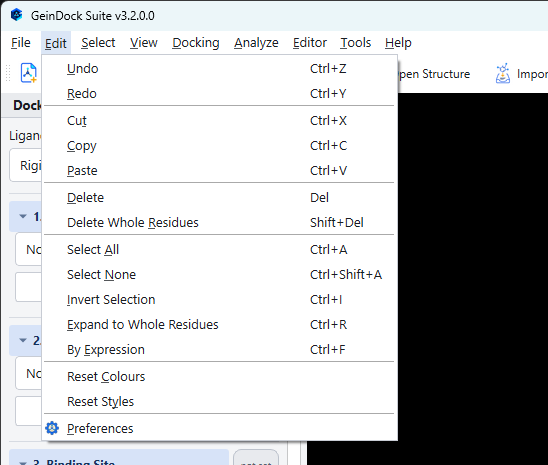
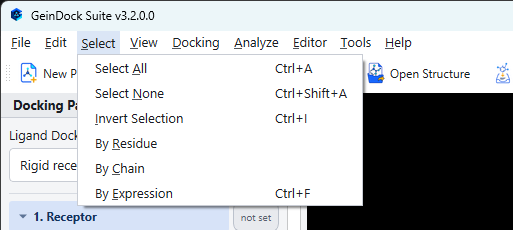
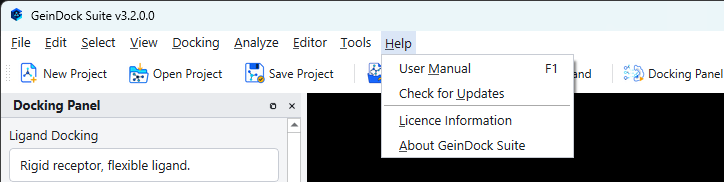
Every command in the application, grouped as the menu bar groups them, with its keyboard shortcut.
Every command in the application, grouped as the menu bar groups them. Commands that need something
you have not loaded yet are greyed out rather than hidden, so this reference also tells you what will
become available once you have.
Eight commands are the exception. Rescore Poses, Consensus Score,
Add Atom, Delete Atom, Add Bond,
Minimize, Fragment Library and Plugin Manager are
listed in the menus but are not available in this version. They stay greyed whatever is loaded, and
resting the cursor on one shows a note beginning "Unavailable in this build". The tables below say
what to use instead where there is an alternative.
File
Project and structure input and output.
Command
Shortcut
What it does
New Project
Ctrl+N
Clears the session.
Open Project
Ctrl+O
Restores a saved study.
Save Project
Ctrl+S
Writes the study to disk.
Open Structure
Ctrl+Shift+O
Loads a structure into the scene without making it the receptor.
Import Ligand
Ctrl+L
Loads a small molecule into the scene.
Save Structure As
Ctrl+Shift+S
Writes the current structure in a chosen format.
Export Results
Ctrl+E
Writes the results table as one CSV file.
Screenshot
F12
Saves the 3D view as a PNG image.
Exit
Closes the application.
Edit
History, clipboard, selection and preferences.
Command
Shortcut
What it does
Undo
Ctrl+Z
Reverses the last edit.
Redo
Ctrl+Y
Reapplies it.
Cut, Copy, Paste
Ctrl+X, Ctrl+C, Ctrl+V
Clipboard operations on selected atoms.
Delete
Del
Removes the selected atoms.
Delete Whole Residues
Shift+Del
Removes the complete residues those atoms belong to.
Select All
Ctrl+A
Selects everything.
Select None
Ctrl+Shift+A
Clears the selection.
Invert Selection
Ctrl+I
Swaps selected for unselected.
Expand to Whole Residues
Ctrl+R
Grows the selection to complete residues.
By Expression
Ctrl+F
Selects with a text expression.
Reset Colours
Drops every per atom colour override.
Reset Styles
Drops every per group representation override.
Preferences
Opens the application's default settings, described below.
Preferences
Edit › Preferences holds the defaults the application starts from, on three
tabs. Apply saves and keeps the window open, OK saves and closes, and
Cancel discards only the changes made since the last Apply.
Tab
What it sets
When to change it
General
Output Directory and Default Project Directory, the folders offered for results and for projects.
When your studies live on another drive or a shared folder, so you do not browse there every time.
Docking
Docking Engine, Exhaustiveness and CPU Cores.
When you always work with the same search effort, or want to keep some processor cores free for other work on the same computer.
Display
Receptor Style and Ligand Style, and the colour and opacity of the grid box.
When you prefer a different starting appearance, or the box is hard to see against your background.
Select
Six commands. The first three repeat the Edit menu; the last three build a selection from something you type.
Command
What it does
Select All
Selects everything in the scene.
Select None
Clears the selection.
Invert Selection
Swaps selected for unselected, which is how to get everything except the part you picked.
By Residue
Asks for residue names, separated by spaces, and selects every residue with those names.
By Chain
Asks for chain identifiers, separated by spaces, and selects those chains whole.
By Expression
Selects with a text expression, for anything the two prompts above cannot describe.
None of these grows an existing selection. For that, use
Edit › Expand to Whole Residues, or Ctrl+R.
View
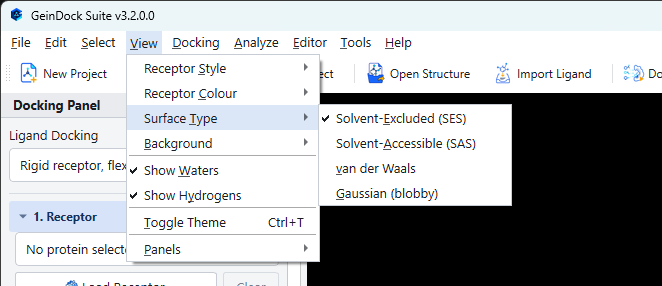
The View menu opens with four submenus, then the two visibility switches, the theme and Panels. Here Surface Type is open, with the surface in use ticked.
Submenu
What it holds
Receptor Style
Ten representations: lines, sticks, licorice, ball and stick, spacefill, cartoon, ribbon, tube, trace and surface.
Receptor Colour
Eighteen colouring schemes, from element and chain through to the two publication schemes.
Surface Type
Which surface the Surface style draws: Solvent-Excluded (SES), Solvent-Accessible (SAS), van der Waals or Gaussian (blobby). It has a visible effect only while the style is Surface.
Background
Black, white, grey or custom.
Panels
Reset Panel Layout, which puts every panel back where it started, then a tick box to show or hide each one: Docking Panel, Project, Structure, Co-Scientist, Analysis, Interactions, Job Queue and Log. This is where to bring back a panel you have closed. The toolbar's Co-Scientist button is the same switch for that one panel.
Command
Shortcut
What it does
Show Waters
Shows or hides retained water molecules.
Show Hydrogens
Shows or hides hydrogen atoms.
Toggle Theme
Ctrl+T
Switches between the light and dark appearances.
Docking
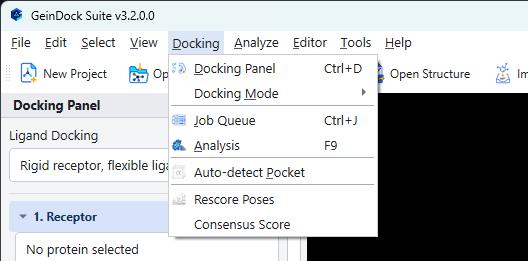
The Docking Mode submenu chooses the kind of run. The two greyed entries at the foot are not available in this version.
Command
Shortcut
What it does
Docking Panel
Ctrl+D
Shows and raises the workflow panel.
Docking Mode
Chooses between ligand, flexible, constraint and covalent docking.
Job Queue
Ctrl+J
Shows the job list.
Analysis
F9
Shows the pose table.
Auto-detect Pocket
Places the search box around the heteroatom records in the structure, which in practice means the co-crystallised ligand. If the structure has none, it places a 25 Å cube at the centre of the structure instead. It does not search the protein for pockets, so look at the box before you rely on it.
Rescore Poses
Listed, but not available in this version.
Consensus Score
Listed, but not available in this version.
Analyze
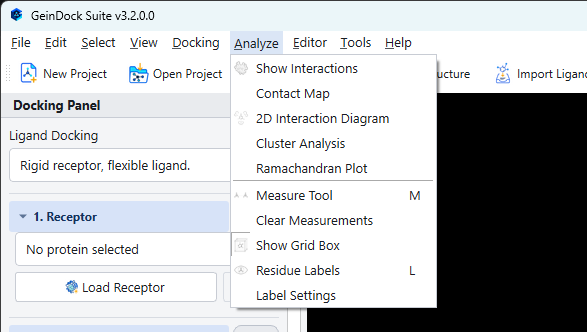
The analysis tools, all of which act on the currently selected pose.
Command
Shortcut
What it does
Show Interactions
Detects and lists the contacts of the current pose.
Contact Map
The residue to residue contact matrix.
2D Interaction Diagram
The flattened interaction figure.
Cluster Analysis
Groups the poses by similarity.
Ramachandran Plot
Backbone geometry assessment.
Measure Tool
M
Turns clicks into distances, angles and dihedrals.
Clear Measurements
Removes them all.
Show Grid Box
Draws the search box in the viewer.
Residue Labels
L
Labels residues in the viewer.
Label Settings
Typography for every label the viewer draws.
Editor
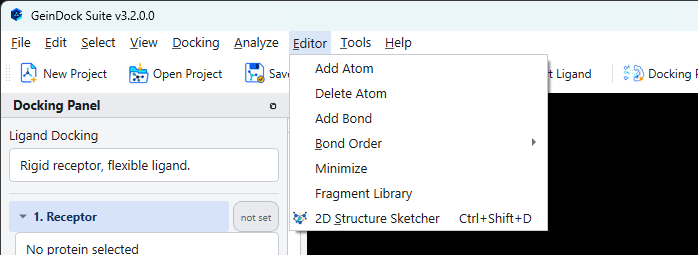
Structure editing, and the route to the sketcher.
Command
Shortcut
What it does
Add Atom
Listed, but not available in this version. To build or change a compound, use the sketcher.
Delete Atom
Listed, but not available in this version. Select the atoms and use Edit › Delete or the viewer's context menu instead.
Add Bond
Listed, but not available in this version.
Bond Order
Sets a bond to Single, Double, Triple or Aromatic, or removes it with Delete Bond. Click the bond in the 3D view first; until you do, the entries are greyed. Use it to correct a bond order the file got wrong.
Minimize
Listed, but not available in this version. Ligands are minimised during preparation in step 2.
Fragment Library
Listed, but not available in this version. The ready made fragments are in the Templates menu of the sketcher.
2D Structure Sketcher
Ctrl+Shift+D
Opens the drawing editor.
Tools
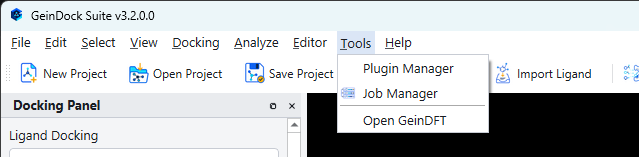
The job list, and the route to GeinDFT. Plugin Manager is greyed because it is not available in this version.
Command
What it does
Plugin Manager
Listed, but not available in this version.
Job Manager
The job list, the same view the Job Queue panel shows.
Open GeinDFT or Get GeinDFT
GeinDFT is the companion quantum chemistry product that joined the suite in version 3.2. The menu shows one of the two entries: Open GeinDFT when it is installed on this computer, and Get GeinDFT when it is not.
Help
Documentation, updates and licensing.
Command
Shortcut
What it does
User Manual
F1
Opens the PDF of this manual online, in your web browser, so it needs an internet connection.
Check for Updates
Asks whether a newer version is available.
Licence Information
The key in use, the machine it is bound to and the period it covers.
About GeinDock Suite
The version, and the build it was made from with its date. Copy details puts them on the clipboard for a support request.
Every command at a glance
The sections above explain each command. This table is the plain list, in the order the menus show
them, with every shortcut. It is produced from the application itself each time this manual is built,
so it is complete for the version named at the foot of the page even where a newly added command has
not yet been written up above. The Panels submenu of View is
described under View; of Open GeinDFT and Get GeinDFT, the Tools menu
shows whichever applies.