Step 2: Ligands
Adding compounds from files, folders, line notation or a drawing, checking what was read, and preparing them all for the search.
Step 2 collects the compounds you want to dock and turns each of them into a three dimensional, protonated, charged structure with its rotatable bonds identified. You can supply them as files, as a folder, as text formulae, or by drawing them, and they all end up in the same table and go through the same preparation.
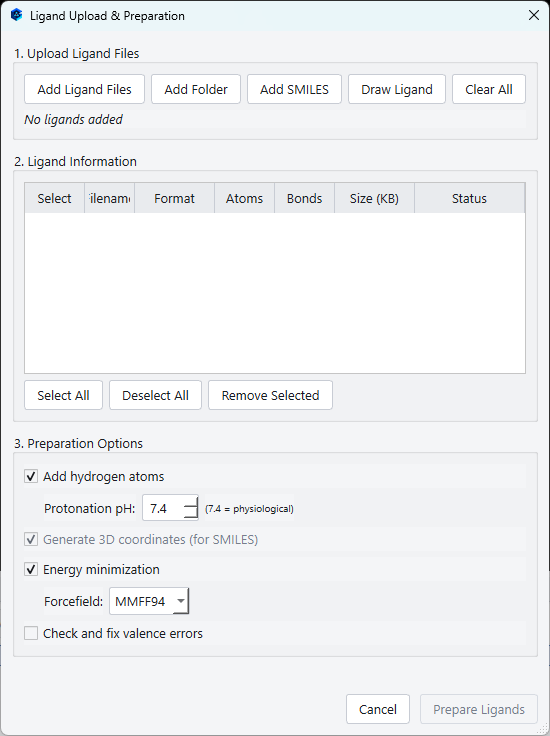
Add Ligands opens the Ligand Upload and Preparation dialog.
1. Adding ligands
| Button | What it does |
|---|---|
| Add Ligand Files | A file chooser that accepts several files at once. It lists MOL, SDF, PDB and MOL2 files, so convert a ligand held in any other format to one of those first. |
| Add Folder | Adds every structure file in a folder in one action. This is how you set up a screen over a compound library. |
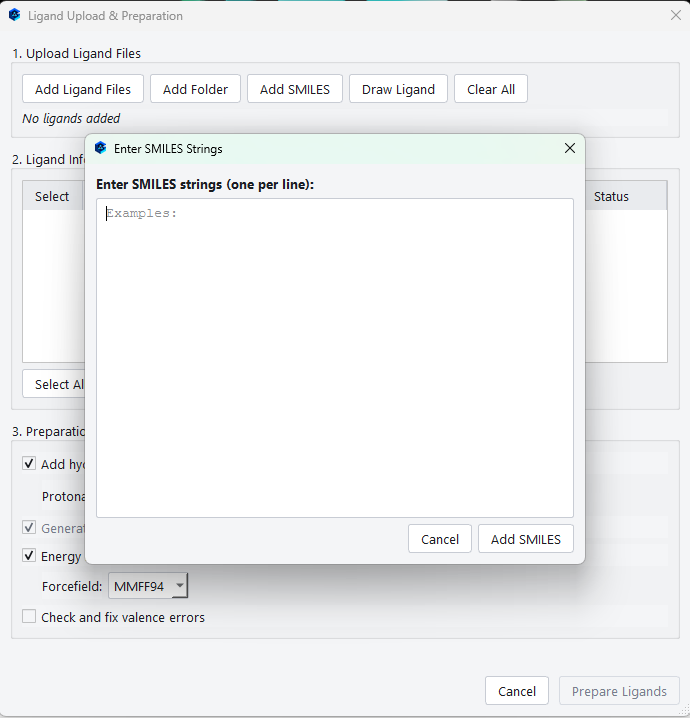
| Add SMILES | A text box that takes one line notation string per line. Each becomes a ligand, and the preparation step generates three dimensional coordinates for it. |
| Draw Ligand | Opens the 2D sketcher, described in The 2D sketcher. Draw a structure and it is added as a ligand. |
| Clear All | Empties the list. |
2. Reviewing what was read
Every ligand appears as a row in the table, and the table is a check on the input rather than a simple list.
| Column | What it tells you |
|---|---|
| Select | A tick box. Only ticked ligands are prepared and docked, so you can load a folder and then dock part of it. |
| Filename | The name the ligand will be reported under everywhere else in the application, including the progress line, the Job Queue and the pose table. |
| Format | The format the reader recognised. Worth a glance: a file with the wrong extension shows up here. |
| Atoms and Bonds | Counts as read. A count of zero, or one far smaller than expected, means the file did not parse the way you assumed. |
| Size (KB) | The file size, which is a quick way to spot an empty or truncated file. |
| Status | The verdict. Valid means the structure was read and makes chemical sense. Anything else needs looking at before you dock it. |
Select All, Deselect All and Remove Selected below the table manage the list.
3. Preparation options
| Option | Default | What it does |
|---|---|---|
| Add hydrogen atoms | On | Adds the hydrogens the input is missing. Structures drawn in two dimensions and line notation strings both carry only implicit hydrogens, so this is nearly always needed. |
| Protonation pH | 7.4 | The pH at which ionisable groups on the ligand are protonated. Use the same value you used for the receptor, so that the two are consistent. |
| Generate 3D coordinates (for SMILES) | Always on | Builds a three dimensional conformer for a ligand that arrives without one, which is every ligand entered as a line notation string. The box is ticked and greyed out because it is there to inform you rather than to be set: the step always happens, since a ligand without coordinates cannot be docked. |
| Energy minimization | On | Relaxes the generated geometry with a force field so that bond lengths and angles are reasonable before the search starts. A strained input costs the search effort it should be spending on the pose. |
| Forcefield | MMFF94 | Which force field the minimisation uses. MMFF94 is a good general purpose choice for drug like organic molecules. |
| Check and fix valence errors | Off | Looks for atoms with impossible valences, usually from a mis-drawn structure or an imperfect file, and repairs them where it safely can. Turn it on when you are importing structures whose provenance you do not control. |
4. Preparing
Prepare Ligands runs the whole list in one pass and reports progress as it goes.
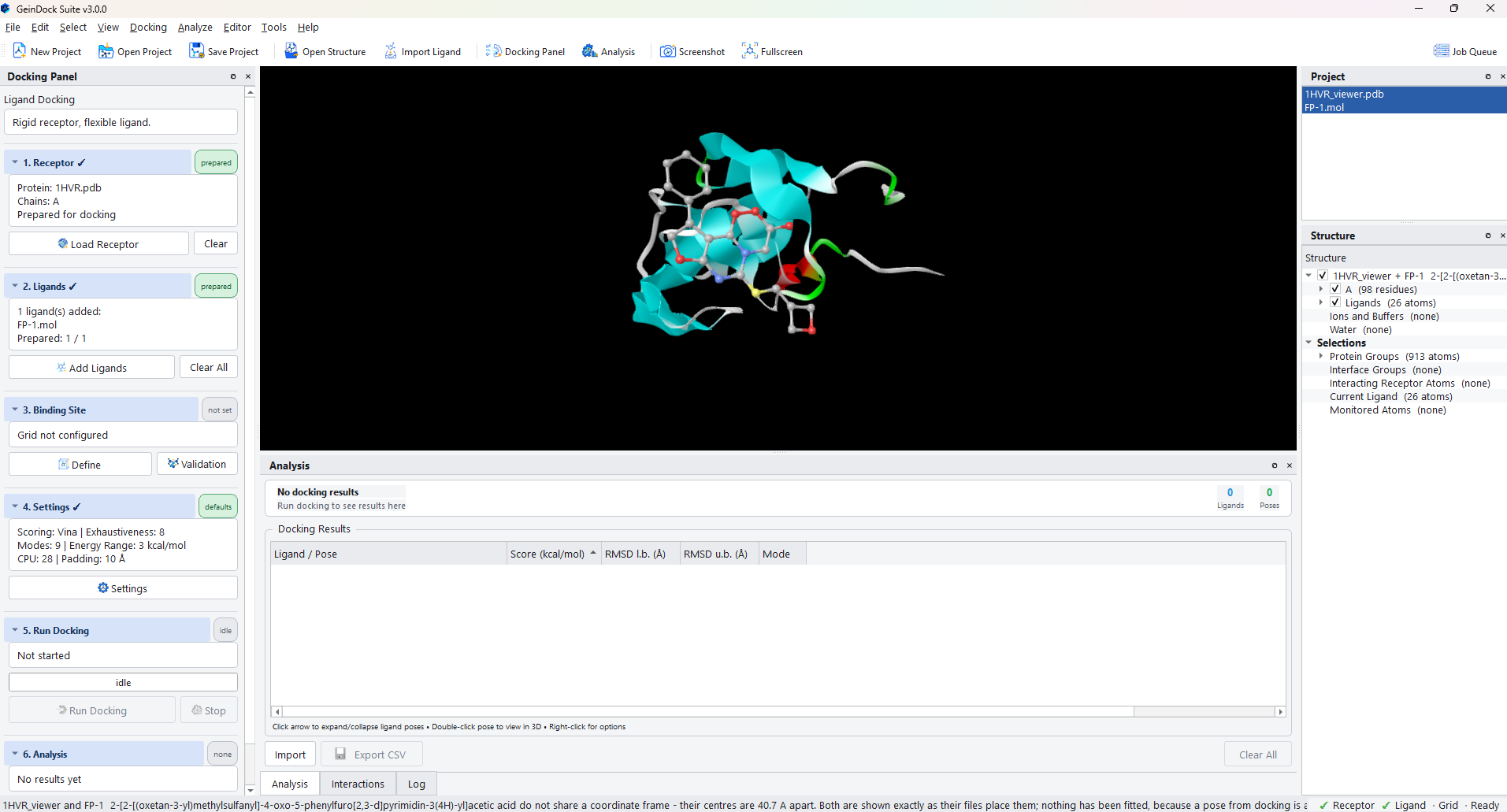
When it finishes, the dialog closes and step 2 in the panel summarises what happened: the first few
names, how many there are in total, and a prepared count in the form Prepared: 1 / 1.
The chip reads prepared only when every ligand succeeded. If it reads added, the counts differ and at least one ligand did not prepare; reopen the dialog and look at the status column to find which.
Docking many ligands at once
There is no separate batch mode to switch into. A run docks every prepared ligand in the list against the receptor, one after another, and reports them all into the same pose table. To screen a library, add the folder, prepare it, and run.
Two things are worth knowing before you start a large batch.
- The progress bar divides the run between the ligands, giving the receptor preparation a small fixed share at the front. A batch of fifty ligands therefore moves in fifty small steps rather than jumping to the end after the first one.
- Each ligand is a separate subprocess with its own working area, so one badly behaved structure fails on its own and the rest of the batch carries on. The Job Queue shows which ones failed.