Meet the Co-Scientist
The research assistant built into the application: what it is, what it needs, how to open its panel, and what each part of the panel and each connection state means.
The GeinDock Co-Scientist is a research assistant built into the application. You type a request in ordinary language, and it either answers it or carries it out in the session you have open: it can fetch and prepare a structure, add ligands, place the binding site, run a validation or a docking job, read the results, restyle the 3D view, search public research databases and write a report. Whatever it does, it does in front of you, in the same Docking Panel, viewer and result panels you would have used yourself.
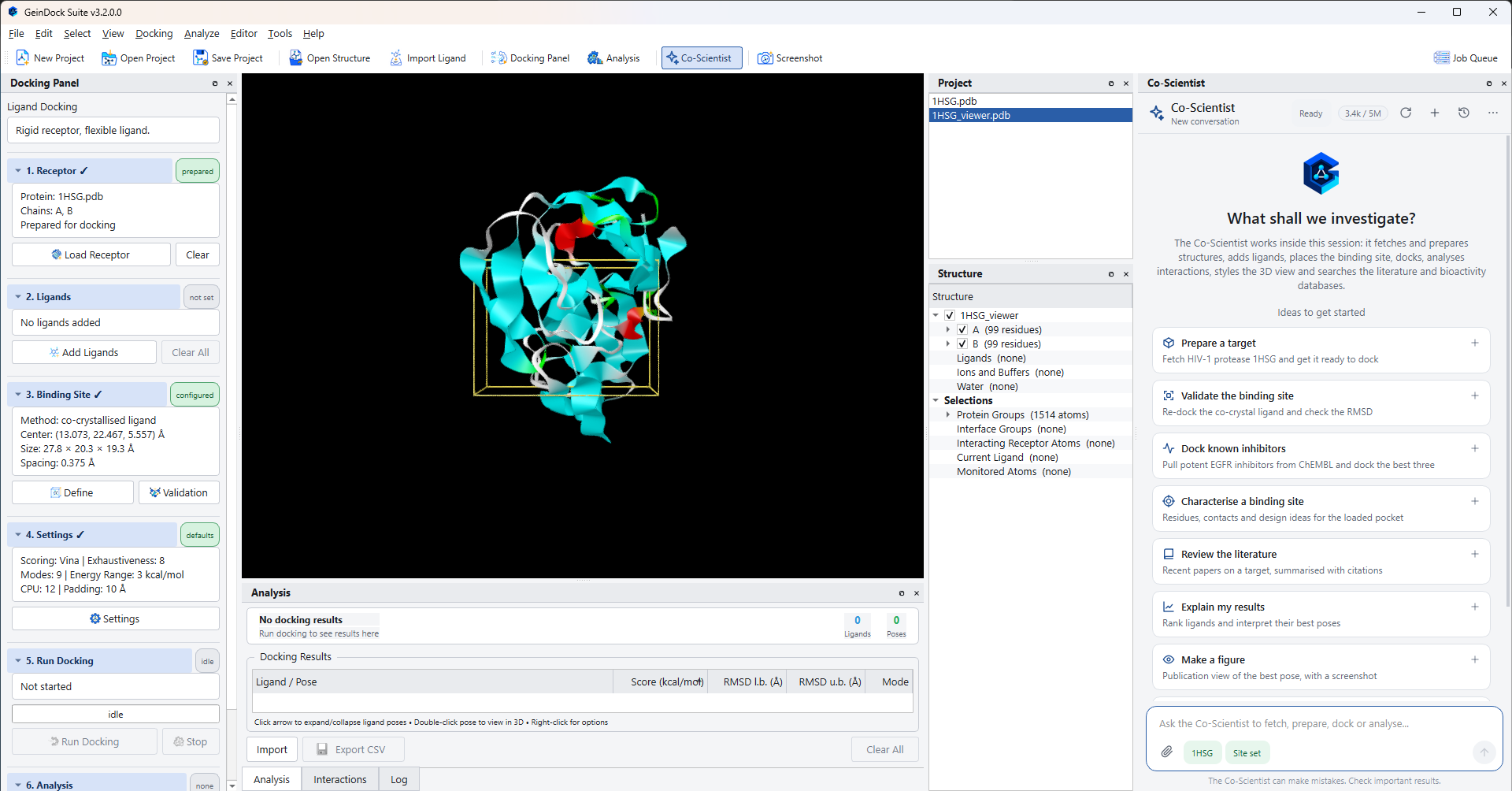
What it is, and what it is not
| It is | It is not |
|---|---|
| An artificial intelligence assistant. When you use it you are talking to an AI system, not to a person. | A source of authority. Its answers can be incomplete, out of date or wrong, including chemistry, numbers and literature citations. |
| A second pair of hands on the application. It works through the same operations the menus and the Docking Panel offer, so everything it sets up is an ordinary receptor, ligand list, box or run that you can inspect and change. | A separate engine. It has no docking method of its own, and a run it starts is the same run you would have started from step 5. |
| Optional. Every other part of the application works exactly as before whether or not you ever open the panel. | A replacement for your judgement. You remain responsible for your scientific conclusions and for anything you publish. |
| Limited to its subject: drug discovery, structural biology, medicinal chemistry, bioinformatics and the use of this application. | A general purpose chat program. It declines unrelated requests in a sentence. |
What you need
| Requirement | Why |
|---|---|
| An activated licence that includes the Co-Scientist | The Co-Scientist signs in with the licence already on this computer. There is no separate account, password or key to enter. See Licence and activation. |
| An internet connection | The assistant runs on the GeinDock AI service, not on your computer, and its look-ups reach public databases. This is the only part of the application that needs a connection while you work: everything else in GeinDock Suite works offline. |
| Acceptance of its terms of use | Asked once, the first time you open the panel, and again only if the terms change. |
Opening the panel
The toolbar carries a Co-Scientist button, placed just before the screenshot command. It shows the panel when it is hidden and hides it when it is showing. View › Panels › Co-Scientist does the same thing from the menu bar.

The panel is a dockable panel like the others. Drag it by its title bar to the left or the right edge of the window, drag it out to float it, or close it. To make it wider, drag the edge that faces the 3D viewer. View › Panels › Reset Panel Layout returns it to the right hand edge at its default width.
First use: the terms of use
The first time the panel is shown, a start screen card headed Before you start appears and the terms of use open in their own window. Nothing can be sent until you have accepted them.
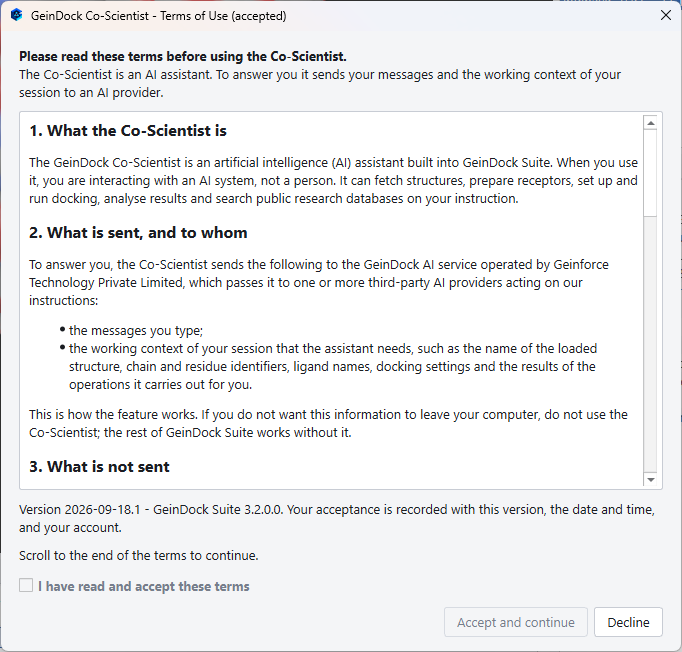
- Read to the end. The line Scroll to the end of the terms to continue stays under the text until you have reached the last section.
- Tick the box. I have read and accept these terms becomes available once the end has been reached.
- Choose. Accept and continue records your acceptance and puts the cursor in the message box. Decline closes the window and leaves the Co-Scientist unavailable, with everything else in the application working as usual.
The terms are short and worth reading properly, because they say what leaves your computer when you use the assistant. The same points are summarised in Conversations, allowance and privacy.
The start screen
A new conversation opens on a start screen headed What shall we investigate?, with eight cards under Ideas to get started. Each card is a complete request. Clicking one sends it, which is the quickest way to see how the assistant works before you write a request of your own.
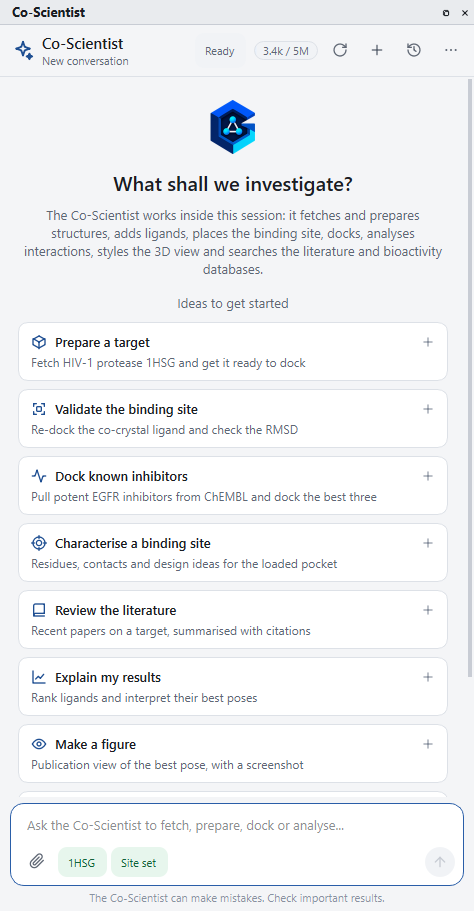
| Card | What it asks for |
|---|---|
| Prepare a target | Fetch a known protease structure, prepare it as the receptor and define the binding site around its co-crystallised ligand. |
| Validate the binding site | Run a re-docking validation of the current binding site and say whether it passes. |
| Dock known inhibitors | Find potent inhibitors of a kinase in a bioactivity database, choose a suitable structure, prepare it and dock the top three. |
| Characterise a binding site | Describe the pocket of the loaded structure: the residues that line it, the contacts its ligand makes, and what that suggests for design. |
| Review the literature | Summarise recent papers on inhibitors of a target, with citations. |
| Explain my results | Rank the docked ligands, explain the key interactions of the best poses and suggest next steps. |
| Make a figure | Set up a publication view of the best pose and take a screenshot. |
| Write a report | Write a PDF report of the docking study in this session. |
The cards that work on results or on a loaded structure need something to work on. On an empty session, start with Prepare a target or Review the literature.
A tour of the panel

| Part | What it shows or does |
|---|---|
| Title | Co-Scientist, or GeinDock Co-Scientist in full when the panel is wide enough, with the title of the current conversation on the line beneath. A conversation is titled New conversation until you send its first message, and is then named after that message. Hover over the conversation title to see which model tier is in use, which is worth quoting when you report a problem. |
| Status | One or two words on what the assistant is doing: Ready, Connecting, Working or the step in hand such as Thinking, Writing, Writing a question, Updating the plan or Next: followed by the operation about to start, Needs approval, Needs your answer, or one of the connection states listed further down this page. Hover over a connection state to read the full message. Reconnecting (attempt 2), with the number rising, means a request did not get through and is being sent again. Nothing is needed from you: up to four attempts are made before the problem is reported in the conversation. |
| Allowance meter | How much of this licence's allowance has been used, for example 12.4k / 250k, or Unlimited. Hover over it for the detail. It appears once the service has reported the allowance. See Conversations, allowance and privacy. |
| Reconnect | Contacts the service again, which is the button to press after a connection problem. |
| New conversation | The plus sign. Starts an empty conversation. The previous one is kept and can be reopened. |
| Conversations | Opens the list of saved conversations. Pressing it again returns to the conversation you were in. |
| More | A menu holding the commands that are needed less often. |
The More menu
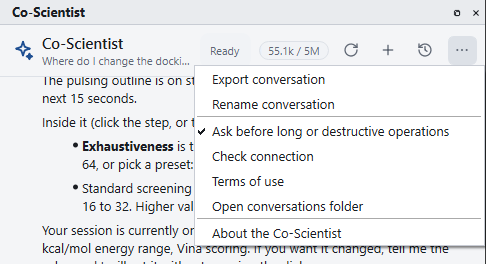
| Command | What it does |
|---|---|
| Export conversation | Writes the current conversation to a file, in Markdown, for your notes or for a colleague. |
| Rename conversation | Gives the current conversation a title of your own, so it is easier to find later. |
| Ask before long or destructive operations | A switch. While it is ticked the assistant asks before starting a run that takes minutes or an operation that replaces your current work. See Working with the Co-Scientist. |
| Check connection | Contacts the service again, the same as the reconnect button in the header. |
| Terms of use | Shows the terms. Once accepted, this is a way of reading them back and asks nothing. |
| Open conversations folder | Opens the folder on this computer where conversations are saved. |
| About the Co-Scientist | What the assistant is, the state of its connection, and a reminder about checking results. |
The conversation
The middle of the panel is the conversation itself, oldest at the top. Your messages, the assistant's answers, the record of each operation it carried out, and any plan, question or request for approval all appear here in the order they happened. When you scroll back to read something earlier, a Latest button appears at the bottom of the conversation and returns you to the newest message.
The message box
| Part | What it does |
|---|---|
| The text box | Where you type. It grows as you write, up to eight lines. Press Enter to send and Shift+Enter to start a new line. With the box empty, Up brings back your earlier messages one at a time. |
| The prompt in the empty box | Grey text that says what is expected of you at that moment, so read it when you are unsure why nothing is happening. Normally it reads Ask the Co-Scientist to fetch, prepare, dock or analyse.... It changes to Choose Run or Don't run above, or type what to do instead while an approval is waiting, to Choose an option above, or type your answer while a question is waiting, and to The job runs in the background. Type to ask something meanwhile... during a docking run or a validation. |
| The attach button | The paperclip, Attach files (structures, ligands, logs). Opens the Attach files dialog to choose files for the assistant to work with. You can also drag files from a file manager onto the box. Each attached file appears as a chip above the text, with a cross to remove it. A message can consist of attachments alone. The file itself is not uploaded with the message: the assistant is told where the file is, and then opens or reads it in the session as it would any other file, so attach a file when you want it loaded or read without typing its location. |
| The session chips | Small labels between the attach button and the send button that summarise the session the assistant will act on: the receptor and whether it is prepared, the number of ligands, Site set or Site validated, and Docking... or Validating... while a job runs. Hover over one for the detail. In a narrow panel the ones that do not fit are left out. |
| The send button | The round button, Send (Enter). Sends the message. While the assistant is working it becomes a stop button, Stop (Esc), and Esc does the same. |
The footer
The line under the message box reads The Co-Scientist can make mistakes. Check important results. It is there permanently because it is permanently true. Hovering over it shows how many tokens the current conversation has used.
Connection states
When the assistant cannot be used, the status in the header says why in a word or two, and the start screen shows a card with the full message and a button for the usual remedy. If the problem arises in the middle of a conversation, the message appears in the conversation instead, with a Retry button or a button for the remedy where there is one.
| Status in the header | What it means | What to do |
|---|---|---|
| Offline | The service did not answer at all. Either this computer has no internet connection or the service cannot be reached from it. The card reads You're offline. | Check the connection, then press Try again. The rest of the application is unaffected. |
| Activate licence | There is no activated licence on this computer for the Co-Scientist to sign in with. | Press Licence information, which opens Help › Licence Information, and activate. See Licence and activation. |
| Licence inactive | The licence was found but cannot use the Co-Scientist, for example because its period has ended or because it does not include the assistant. The card reads The Co-Scientist is not available for this licence and gives the reason. | Press Licence information to see the state of the licence. Renew it, or contact Geinforce if you believe the licence should include the assistant. |
| Allowance used | This licence's allowance for the current period has been used up, and the service is refusing further requests. The allowance meter turns red. | Wait for the reset date shown when you hover over the meter, then press Check again. Nothing already in the session is affected. |
| Update required | This version of GeinDock Suite is older than the service now accepts. | Press Check for updates and install the newer version. The application also offers the update check by itself when it meets this state. |
| Unavailable | The service answered, but cannot serve requests at the moment. This includes the case where Geinforce has switched the assistant off for a time, when the message box is disabled and the footer carries the explanation. | Wait a few minutes and press Try again. |
| Connection problem | The service was reached but the connection could not be completed. The card reads The Co-Scientist could not connect and gives the reason. | Press Try again. If it persists, restart the application, and report the message shown if that does not clear it. |
| Terms not accepted | The terms of use have not been accepted, or have changed since you accepted them. The message box is disabled. | Press Read the terms, read them and accept. |
Where to go next
Working with the Co-Scientist covers what happens once you send a request: how its work is shown, when it asks before acting, and what it can do. Conversations, allowance and privacy covers saved conversations, the allowance, and what is sent to the service.