Working with the Co-Scientist
Asking a question, watching the work it leads to, approving long or destructive operations, and the full range of what the assistant can set up, analyse, look up and write.
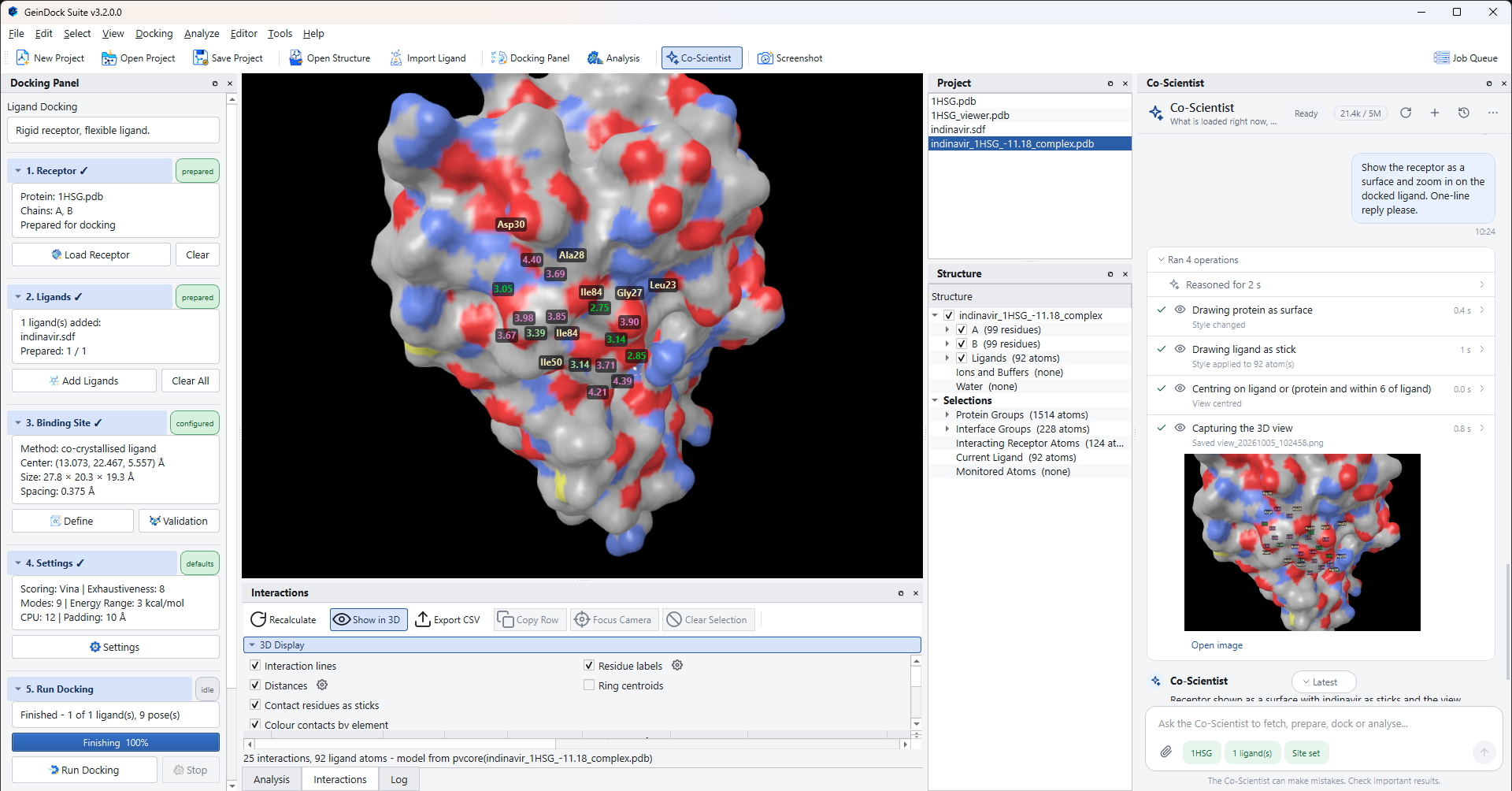
Working with the Co-Scientist is a conversation in which one side can also operate the software. You say what you want, it decides which operations that takes, carries them out where you can watch, and tells you what it found. This chapter covers what you will see while that happens, the points at which it stops to ask you, and the full range of what it can do.
Asking
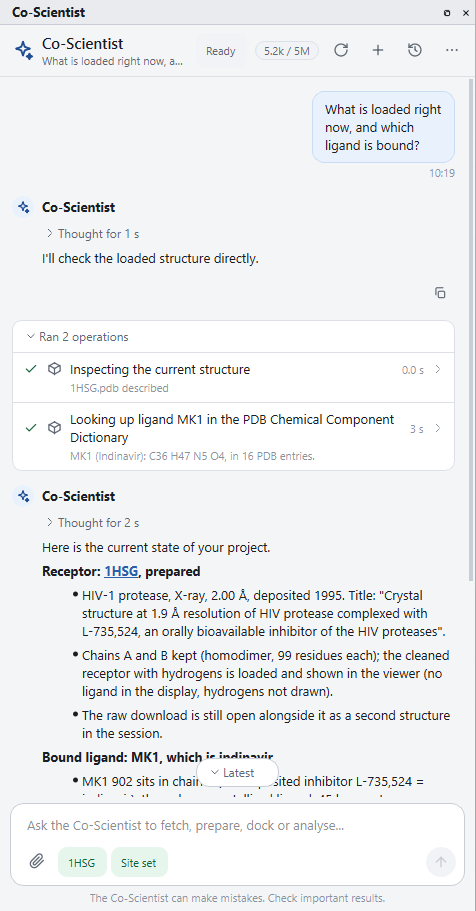
Type a request in the message box and press Enter. There is no command syntax to learn. A request can be a question, such as what a residue does, or an instruction, such as preparing a structure, or a whole study described in one sentence. The assistant replies in the language you write in.
Every message you send is accompanied by a short description of the session as it stands: the receptor, the ligands, the binding site, the settings, the results, any running job and what the viewer is showing. That is why you can say the receptor or the best pose without explaining which, and why you can do part of the work by hand between messages: the assistant sees the session as it is now, not as it remembers it.
Reading an answer
Answers are written as short paragraphs, lists and, where several structures, ligands or poses are being compared, tables. Three things in an answer are live.
| In the answer | What it does |
|---|---|
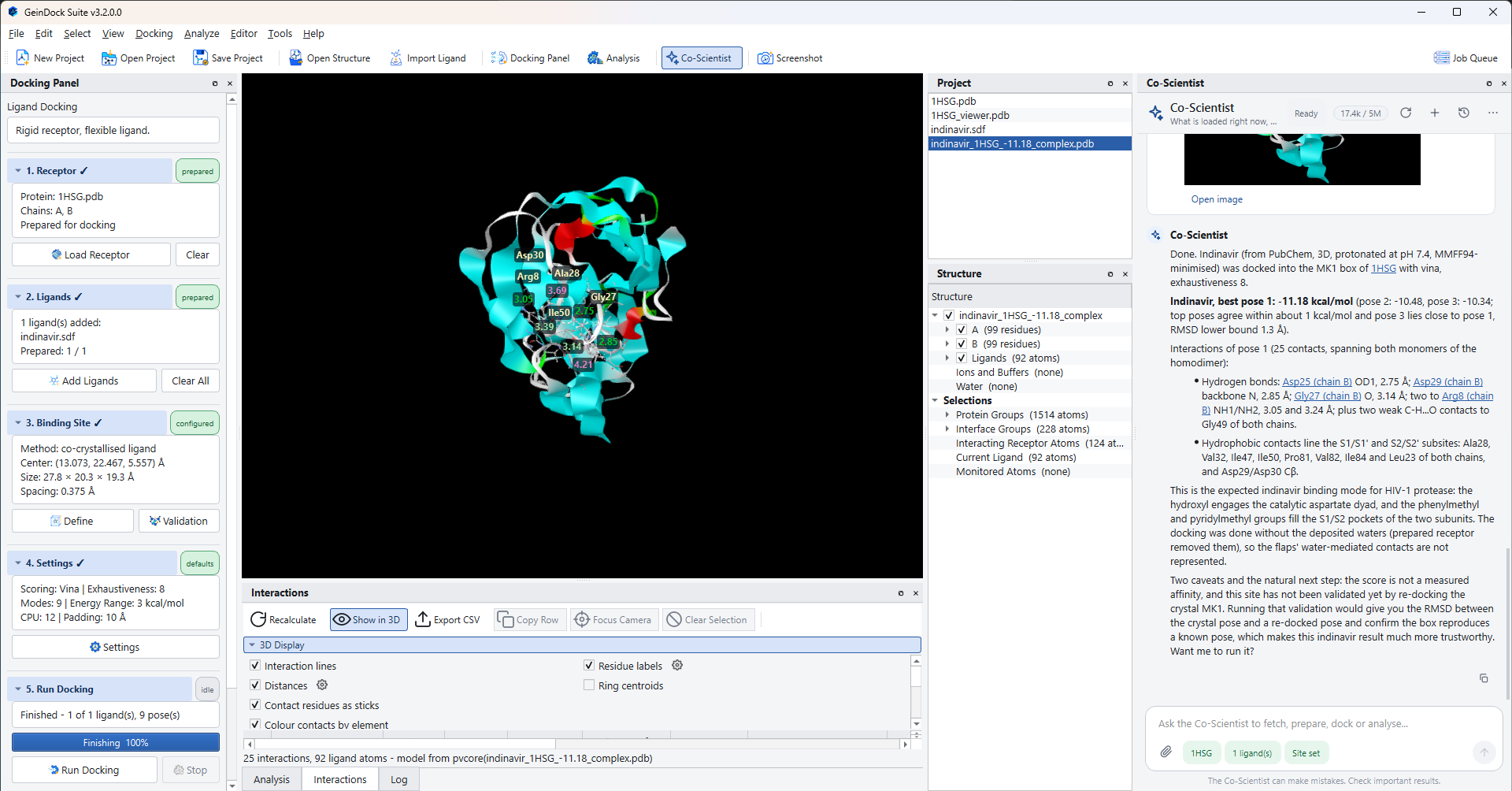
| A residue or a selection written as a link | Selects those atoms in the 3D viewer and centres the view on them. Use it to see at once which residue the text is talking about. |
| A structure identifier written as a link | Downloads that structure and shows it in the viewer. |
| A citation or database link | Opens the paper or the database record in your web browser, so the source of a stated fact is one click away. |
While the assistant is composing a reply the message shows Thinking, which becomes Thought for and a duration once the reply begins. Click it to read the reasoning behind the answer. The Copy answer button at the end of a finished answer copies its text to the clipboard.
How it works on your session
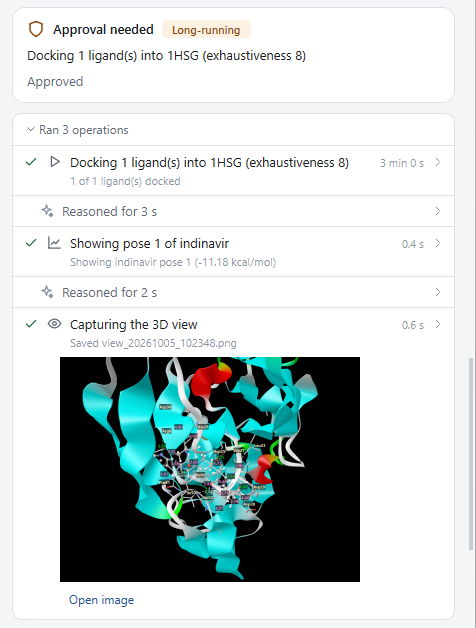
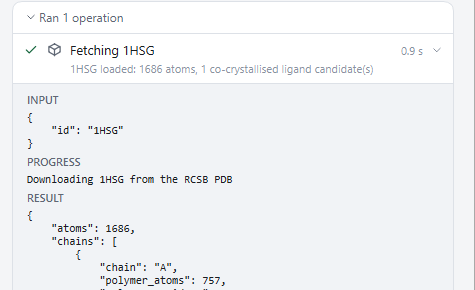
When a request needs something done, the assistant does it with the application's own operations, one after another, and each one is recorded in an activity card in the conversation. At the same time you see the effect where you would expect it: the structure appears in the viewer, the Docking Panel chips turn green, the Job Queue fills.
| Part of the card | What it tells you |
|---|---|
| The heading | While work is in progress, what is happening now, with a spinner. Afterwards, a count such as Ran 4 operations, with the number that failed if any did. Click the heading to fold the card away or open it again. |
| A row | One operation, described in plain words, for example the structure being downloaded or the ligands being added. A tick means it succeeded and a cross means it failed. The line beneath gives a one line summary of the result, or the error. |
| An expanded row | Click a row to open it. Input is exactly what the assistant asked for, Progress is the commentary while it ran, and Result or Error is what came back. This is the place to look when you want to know precisely which chains, which padding or which settings were used. |
| Reasoned for rows | The assistant's reasoning on the way to an operation. Click to read it. |
| Pictures and files | A screenshot it took is shown under its row with Open image. A file it wrote, such as a report, is listed with Open and Show in folder. |
Operations that open a window, such as a validation, close it again when they finish, so a request carried out by the assistant does not leave the screen cluttered.
Approvals
Most of what the assistant does is quick and easily undone, and it simply does it. Two kinds of operation are different, and for those it stops and shows an Approval needed card before anything happens.
| Label on the card | Operations | Why you are asked |
|---|---|---|
| Long-running | Running a docking job, and running a re-docking validation. | These take minutes per ligand and occupy your processor. You should decide when that starts. |
| Replaces current work | Starting a new, empty project, and opening a saved project. | Both discard the session you have open. Unsaved work would be lost. |
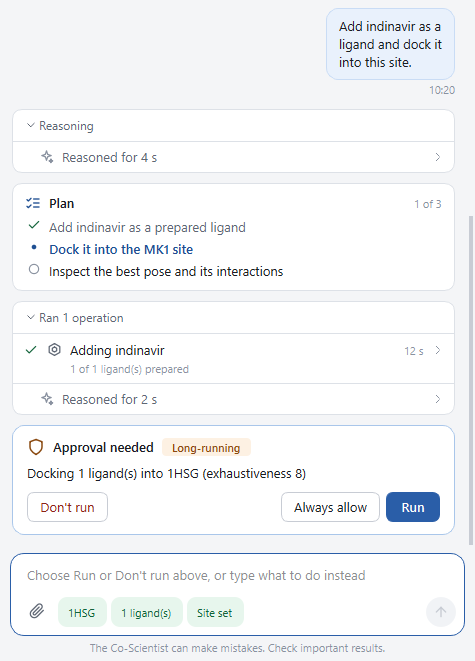
| Button | What happens | When to use it |
|---|---|---|
| Run | The operation goes ahead, this once. | The description is what you intended. |
| Always allow | The operation goes ahead, and later requests for the same kind of operation in this conversation run without asking. | You are working through a series of runs and do not want to confirm each one. |
| Don't run | The operation is not carried out. The assistant is told you declined and asks what you would like instead, or continues without it. | Something in the description is not what you wanted. |
The sentence on the card is a summary. Show details opens the request exactly as it will be run, with every setting, and Hide details folds it away again. Read it before approving a run whose settings matter to you. Once you have chosen, the buttons go and the card keeps a record of the outcome: Approved, Approved, and allowed for the rest of this conversation, Declined, or No decision was made if the assistant was stopped while the card was still waiting.
You can also answer an approval card by typing. Whatever you write in the message box is taken as your instruction in place of the operation, so use chain B instead declines the run and redirects it in one step. While a decision is waiting the status reads Needs approval, and the panel brings itself to the front if it was hidden.
The Ask before switch
More › Ask before long or destructive operations turns the approval step on and off. It is ticked by default, and the setting is remembered between sessions.
Plans
For a task of several steps, the assistant first writes a plan and shows it as a card, then updates the card as it goes. The count at the top right, such as 2 of 5, is how many steps are complete.
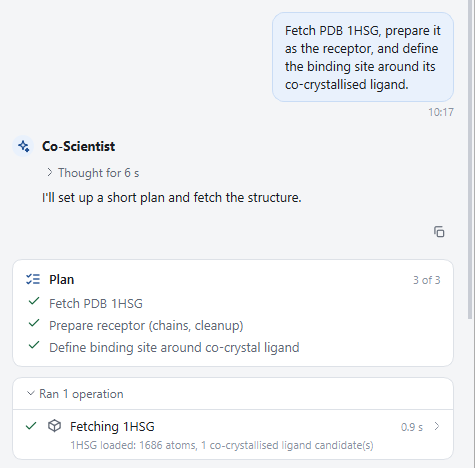
A plan is a statement of intent, not a commitment you have to accept. If a step is not what you want, stop the assistant and say so, or simply tell it what to change when it next pauses.
Questions it asks you
Where a decision is properly yours and has no sensible default, the assistant asks. Typical cases are which of several comparable structures to use, which chain carries the site you care about, and which candidate compounds to dock. For everything else it picks the standard choice and tells you which it picked.
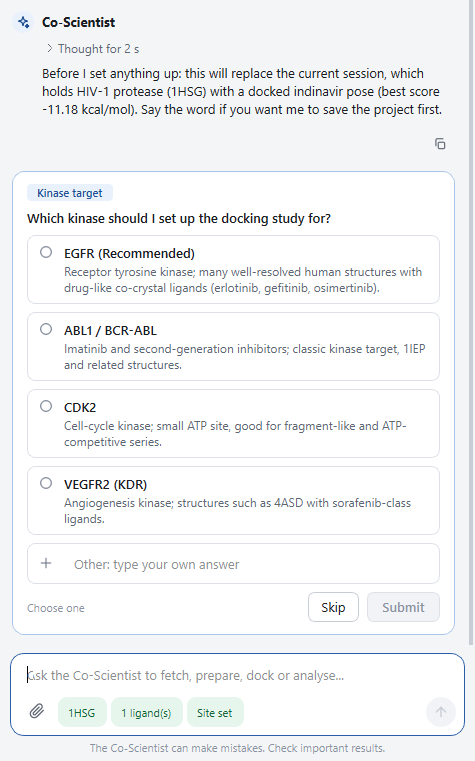
| Part | What it does |
|---|---|
| The options | Click one to choose it. The hint under the list reads Choose one or Choose any that apply, depending on the question. |
| Other: type your own answer | A line for an answer that is not among the options. |
| Submit | Sends your choice. |
| Skip | Sends no choice, and the assistant carries on as best it can. |
Typing in the message box and pressing Enter also answers the question. While a question is waiting the status reads Needs your answer. Afterwards the card records what happened, as Answered: followed by your choice, Skipped, or Not answered if the assistant was stopped before you replied, so the conversation shows later which decisions were yours.
Stopping it
While the assistant is working, the send button is a stop button. Press it, or press Esc with the cursor in the message box. The assistant stops where it is, the conversation records Stopped., and what it had already done stays done. A reply that was stopped part way is marked Stopped, and one that was cut off before it finished is marked Interrupted, so an incomplete answer is never mistaken for a finished one.
The assistant also stops by itself if a single request has taken a very large number of steps, and says so. Send a message to let it continue.
Typing while a job runs
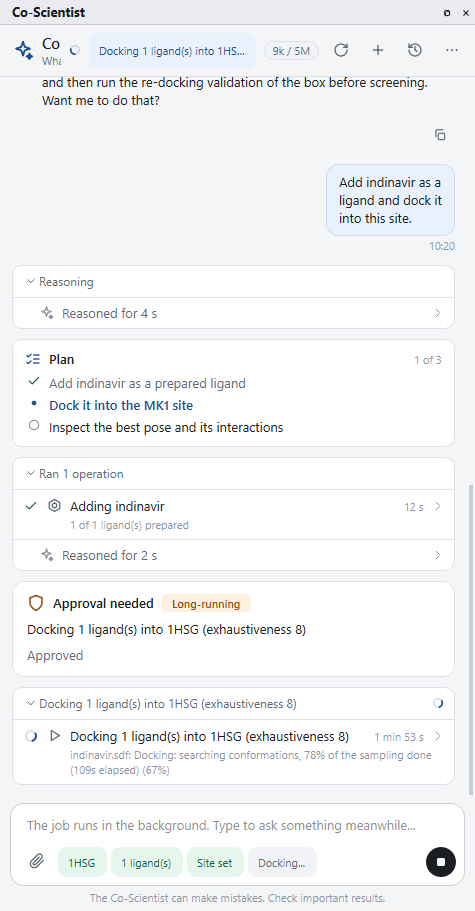
A docking run can take a long time, and the conversation does not have to wait for it. While the assistant is waiting on a docking job or a validation, the message box reads The job runs in the background. Type to ask something meanwhile..., and anything you send is answered straight away. The job continues, the assistant follows its progress, and it reads the results once the job has finished.
The round button follows what you are doing. With the message box empty it stays Stop (Esc), and as soon as you type it becomes Send (Enter), so sending a question during a run does not stop anything.
The session itself is busy during a docking run, so some requests have to wait until the job ends. The receptor cannot be prepared again, ligands cannot be added or removed, the binding site cannot be defined, the docking mode cannot be changed, flexible, constraint or covalent docking cannot be set up, a validation cannot be started, a project cannot be opened and the session cannot be cleared. The assistant tells you when a request was refused for this reason. Ask again once the run has finished, or stop the run first.
What it can do
The tables below list everything the assistant can do in the application and everything it can look up. If a request falls outside them, it will say that it cannot do it instead of pretending.
Set up and run docking
| Task | What it covers |
|---|---|
| Fetch a structure | A Protein Data Bank entry by its identifier, or a predicted model by its UniProt accession, downloaded and shown in the viewer. |
| Open a structure file | A file on disk that you name or attach, in any of the structure and small molecule formats the application reads. |
| Inspect a structure | Chains and residue counts, bound small molecules, waters, metal ions and the candidates for the co-crystallised ligand. |
| Prepare the receptor | Step 1: which chains to keep, removal of waters and other bound molecules, hydrogens and charges. It uses the application's defaults unless you say otherwise, and can keep a catalytic metal or the waters near the ligand. You can also name the pH, the charge model, how hydrogens are handled and whether non-standard residues are removed, which is worth doing when your system needs something other than the defaults. |
| Add and remove ligands | Step 2: from a line notation string, a compound name or identifier looked up in PubChem, a Protein Data Bank ligand code, the co-crystallised ligand of the receptor, or files. Each ligand is built in three dimensions, protonated and minimised. Up to 50 can be added in one request. On request it can skip the minimisation, use the UFF force field in place of MMFF94 for a compound MMFF94 cannot handle, and replace the current ligand list instead of adding to it. |
| Define the binding site | Step 3: a box around the co-crystallised ligand, a box around residues you name, an explicit centre and size, or the whole protein for blind docking. State the padding if you want more or less room around the ligand or the residues than the default gives. |
| Validate the binding site | The re-docking validation, then, if you ask, adoption of the box that passed. Needs your approval. |
| Change the settings | Step 4: scoring function, exhaustiveness, number of binding modes, energy range and processor cores. Asking for the Swift, Precise or Rigorous preset by name is the quickest way to set search effort, and any single value you state overrides the preset. |
| Set up a specialised mode | Flexible side chains, named or chosen automatically near the ligand; constraints of each supported kind; and the covalent attachment read from the deposited structure. Each one switches the docking mode for you. |
| Run docking | Step 5: every prepared ligand in one batch. Needs your approval. It can also report how far a job has got, and stop it. |
| Manage the project | Save the project, open a saved one, or start a new empty one. Opening and starting new need your approval, because they replace the session. |
Analyse results
| Task | What it covers |
|---|---|
| Read the results | The docked ligands ranked by best score, with the score and the two RMSD columns of each pose, as in the pose table. |
| Show a pose | Loads a chosen pose of a chosen ligand into the viewer inside the receptor and draws its interactions. |
| Analyse interactions | Hydrogen bonds, salt bridges, hydrophobic contacts, aromatic stacking, cation to aromatic contacts, halogen bonds, metal coordination, water bridges and clashes, with the residues, atoms and distances, drawn in the viewer and listed in the Interactions panel. |
| Compute ligand properties | Formula, molecular weight, heavy atom count, hydrogen bond donors and acceptors, rotatable bonds and a rule of five check for the ligands in the session. |
| Export the results table | Every pose of every docked ligand as a CSV file in the reports folder of the workspace. |
| Read a log or list files | The text of a docking log or similar file, and a listing of what the workspace holds. Useful when you ask why a run failed. |
Drive the 3D viewer
| Task | What it covers |
|---|---|
| Change the representation | Any of the ten styles in The 3D viewer. The atom based styles can be applied to part of the structure, such as the ligand or the residues around it. |
| Change the colouring | A colouring scheme, or a single colour for a chosen set of atoms. |
| Show, hide and isolate | Show or hide a set of atoms, or show only that set, which is how to isolate a pocket. |
| Select, centre and label | Select atoms by chain, residue, name or distance from the ligand, centre the view on them, and add or remove residue labels. |
| Set the scene | Background colour, waters, hydrogens, the grid box, bonds, the surface type and the element colour palette. |
| Control the interaction display | Which contact types are drawn, their lines, distances and labels, the pocket surface, and the reduced scenes meant for figures. |
| Measure | A distance, an angle or a dihedral between atoms you describe, drawn in the viewer. |
| Tidy up and undo | Clear measurements, labels and the selection, and undo or redo recent changes to the view. |
| Take a screenshot | A PNG of the view, saved in the screenshots folder of the workspace and shown in the conversation. The picture is framed for the capture and your own view is left as it was. The image is 1600 by 1200 pixels unless you ask for another size, which a journal figure may need. The framing is chosen automatically, or you can ask for the whole structure, the ligand and its pocket, the current selection, or the view exactly as it is on screen. |
Look things up
The assistant looks facts up in public databases instead of recalling them, and cites what it found with a link. The start screen names most of the sources it can reach. The table below is the full list.
| Subject | Sources | What it can find |
|---|---|---|
| Structures | RCSB PDB, AlphaFold | Entries for a target, the details of an entry, the ligands bound in it, and whether a predicted model exists. |
| Binding sites | PDBe | The annotated binding sites of an entry: for each bound molecule, the residues that contact it. Useful for choosing which ligand or which residues should define the box. |
| Proteins | UniProt | The protein behind a name or a gene, with its function and annotations. |
| Targets | Open Targets | A summary of a drug target, including its disease associations and known drugs. |
| Bioactivity | ChEMBL, BindingDB | Measured activities of compounds against a target, which is how to assemble a set of known actives to dock. |
| Chemistry | PubChem, ChEMBL | A compound by name or identifier with its properties, and compounds similar to one you have. |
| Literature | PubMed, Europe PMC | Papers on a subject and their abstracts. Europe PMC also covers preprints and patents, so ask for those when the published literature is thin. |
| Citations | Crossref | The full details of a citation from its DOI or its title, which is how a reference in a report is checked and completed. |
Write reports
On request the assistant writes a study report from the live session and opens it. The application assembles the facts itself, so the numbers in the report are the numbers in the session, and the assistant contributes the narrative: the summary, the objective, the discussion, the conclusions and the literature references.
| Aspect | Detail |
|---|---|
| Formats | PDF, which is the default, a Word document, an Excel workbook holding every pose and interaction, HTML, or all four at once. |
| Contents | A cover with the key results, a table of contents, materials and methods, the re-docking validation with the crystal and re-docked poses superimposed, the ranking of every docked ligand, a section for each of the top ligands with its poses, a 3D figure, a 2D interaction diagram and an interaction table, a comparison of interactions across ligands, limitations and references. It also carries a score chart, a capture of the current 3D view, the computed properties of the ligands, references for the methods used, and an appendix listing the data files, so a reader can trace every figure back to its source. |
| Options | Say so in the request if you want a subtitle, extra sections of your own, or a confidentiality line in the footer for work that is not to be circulated. You can set how many of the top ligands get a detailed section, which is ten unless you say otherwise, leave out the figures or the capture of the 3D view for a quicker, smaller report, and ask for the report not to be opened when it is done. |
| Figures | Captured from the viewer with its current display settings. Style the view first if you want a particular look. The viewer shows each pose briefly while it is captured and is then put back as it was. The figures are also saved as PNG files beside the report. |
| Where it goes | The reports folder of the project workspace. A report is named docking_report_ followed by the date and time it was written, with its figures in a folder beside it, so successive reports never overwrite one another. The activity card lists the file with Open and Show in folder. |
Show you where a control is
| Task | What it covers |
|---|---|
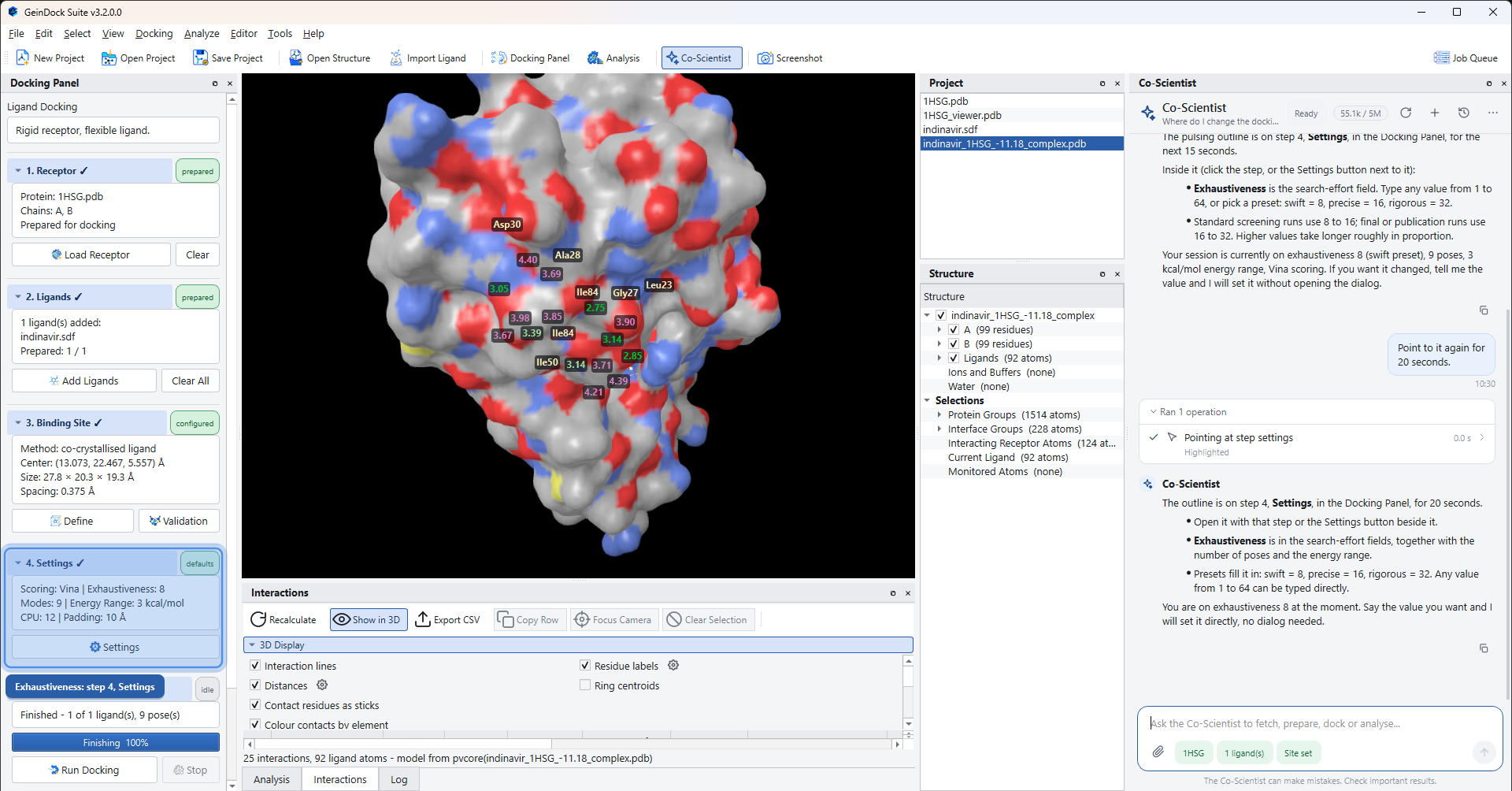
| Point at part of the window | A pulsing outline with a short caption, drawn for a few seconds around the thing in question: the Docking Panel, any of its steps or buttons, the viewer, a panel, the toolbar, the menu bar or the status bar. A hidden panel is opened first. |
| Show or hide a panel | Brings a panel to the front, or puts it away. |
| Open a window for you | Opens a dialog for you to work in by hand: receptor, ligands, binding site, settings, validation, the three mode pickers, the sketcher, the 2D diagram, the contact map, the Ramachandran plot, pose clustering or preferences. The assistant does not see what you do in it until your next message. |
| Close windows | Closes windows that are still open when you no longer need them. |
Every operation, by area
The sections above describe what the assistant can do in terms of the task. This is the complete list, named as the activity cards name each operation while it runs, so that an entry you see in a card can be found here. The list is produced from the application itself each time this manual is built, so it is always the full set for the version named at the foot of the page.
| Area | Operations |
|---|---|
| Report | Write report |
| Viewer | Change style, Change colour, Show or hide atoms, Select atoms, Focus view, Label residues, Background, Display options, Interaction display, Measure, Clear annotations, Undo, Screenshot |
| Interface | Point at interface, Show panel, Open window, Close windows |
| Session | Read session state, New project, Open structure file, Save project, Open project, List workspace files, Read text file |
| Structures | Fetch structure, Inspect structure, Prepare receptor, Search the PDB, Read a PDB entry, Look up a PDB ligand, Read binding sites, Find an AlphaFold model |
| Ligands | Add ligands, Remove ligands |
| Binding site | Define binding site, Use validated box |
| Docking | Docking settings, Docking mode, Flexible residues, Docking constraints, Covalent docking, Run docking, Stop docking, Re-docking validation, Job status |
| Analysis | Docking results, View pose, Analyse interactions, Ligand properties, Export results |
| Proteins | Search UniProt, Read a UniProt entry |
| Literature | Search PubMed, Read PubMed abstracts, Search Europe PMC, Look up a citation |
| Bioactivity | Search ChEMBL targets, Read ChEMBL bioactivities, Read BindingDB ligands |
| Chemistry | Read a ChEMBL molecule, Look up a PubChem compound, Find similar compounds |
| Targets | Summarise a drug target |
Worked examples
Each of these is a single message. They are written the way the assistant handles best: the goal, the system, and anything you have already decided.
| You type | What happens |
|---|---|
| Fetch 1HSG, prepare it as the receptor and define the binding site around its co-crystallised ligand. | The structure is downloaded and shown, prepared with the default options, and boxed around its bound inhibitor. Steps 1 and 3 of the Docking Panel turn green. |
| Run a re-docking validation of the current binding site and tell me whether it passes. | An approval card appears. After you approve, the validation runs and the answer gives the verdict and the RMSD to the crystal pose. |
| Add ibuprofen, naproxen and celecoxib as ligands and dock them at exhaustiveness 16. | The three compounds are looked up by name, built and prepared, the setting is changed, and an approval card asks before the run starts. |
| Which residues does the best pose of the top ligand contact? Show them as sticks and label them. | The pose is loaded, its interactions are detected and listed in the answer with distances, and the view is restyled. |
| Find potent inhibitors of this target with measured activities and suggest three worth docking. | The bioactivity databases are searched, and the answer is a short table of compounds with their activities and links to the records. Nothing in the session changes until you ask. |
| White background, cartoon receptor, ligand as sticks, interactions with residue labels, then take a screenshot. | The view is set up step by step and the image appears in the conversation. |
| Write a PDF report of this study, and a Word copy. | The report is assembled from the session in both formats and opened. |
| Where do I set which side chains are flexible? | A short answer, and the assistant can outline the relevant step of the Docking Panel on screen. |
Phrasing requests well
| Do this | Because |
|---|---|
| Name things exactly: the structure identifier, the chain, the residue with its number, the compound. | The assistant does not guess identifiers. Given a vague name it has to search and may have to ask you, which costs a turn. |
| Say how far to go. Set it up but do not run it is a complete instruction. | It does what was asked and then stops and offers the next step. It does not carry on through a whole workflow you did not request. |
| State the decisions you have already made: which chain, what exhaustiveness, which ligand defines the site. | Anything you do not specify is given the standard default. That is usually right, but it is your study. |
| Ask for one study per conversation, and start a new conversation for a new subject. | The whole conversation accompanies each request, so a long, mixed conversation is slower and uses the allowance faster. |
| Ask it to explain or justify. Why chain A? is a good question. | The reasoning is often more useful than the result, and it is where a wrong assumption shows. |
| Correct it plainly when it is wrong. | It reads the session afresh with every message and will act on the correction. |
Its limits
The footer of the panel says The Co-Scientist can make mistakes. Check important results. These are the mistakes worth guarding against.
| Limit | What to do about it |
|---|---|
| A stated fact can be wrong or out of date, including a measured activity, a resolution or a citation. | Follow the link it gives and read the source. Treat a fact given without a link as unverified. |
| A docking score is an estimate, and the assistant's interpretation of it is an interpretation. | Judge poses by their interactions and by the agreement between the top poses, as The pose table explains. Compare candidates with the re-docked crystal ligand under the same settings. |
| A default it chose may not suit your system. | Open the row in the activity card and read Input. The chains, the padding and the settings actually used are all there. |
| It sees the session through a summary, not through your eyes. | If it describes the view or the results in a way that does not match the screen, tell it what you see. |
| A long reply can be cut short, and a very long conversation can be shortened to fit. The conversation says so when either happens. | Ask it to continue, or start a new conversation and restate what matters. |
| It will not help with work outside its subject, and it will not help design agents intended to cause harm. | This is deliberate and is not something a rephrased request will change. |