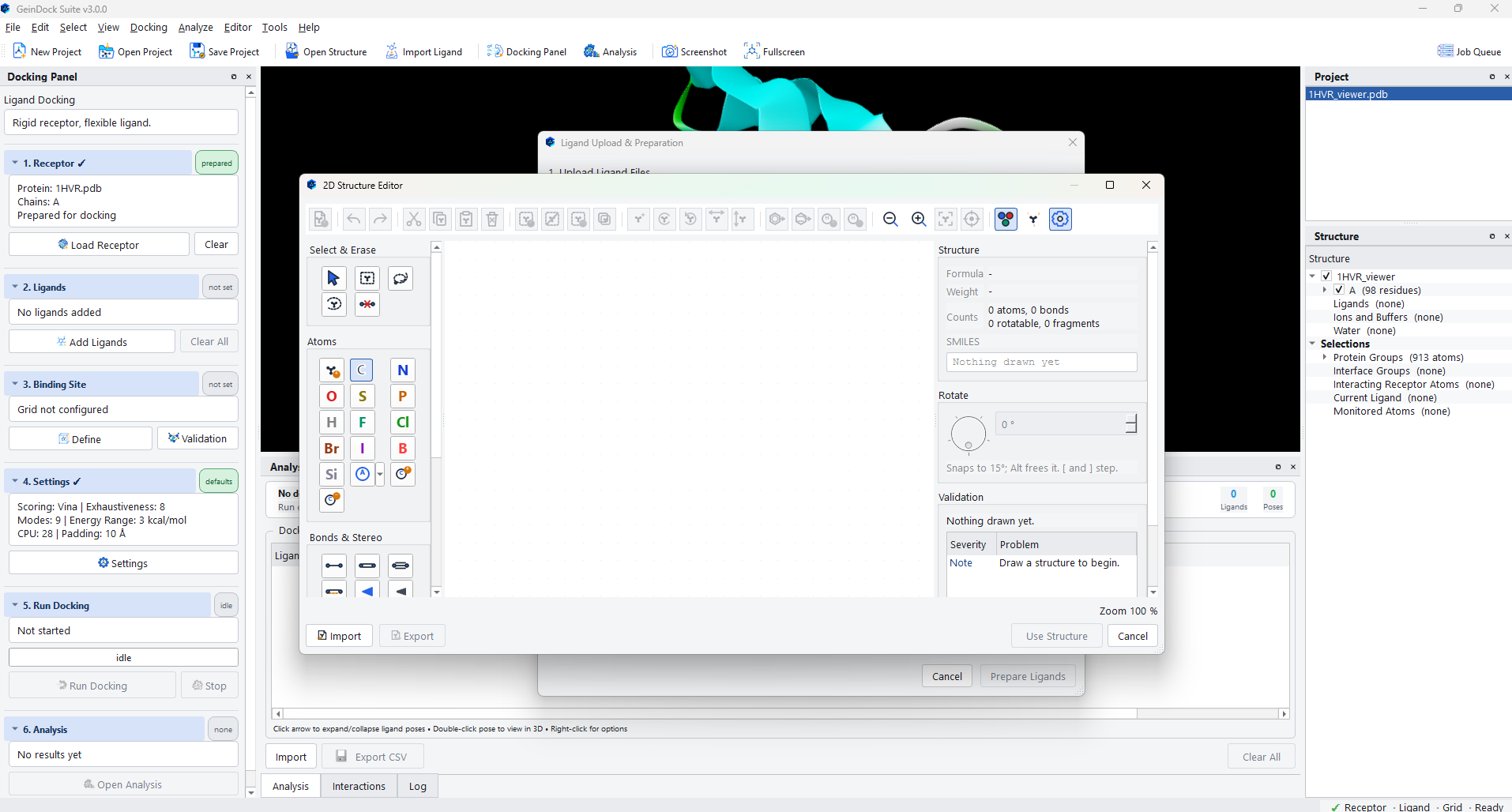
The 2D sketcher
Drawing a compound, checking it as you go, and handing it straight to the docking workflow.
The 2D sketcher lets you draw a compound and hand it straight to the docking workflow, with no external drawing program and no file to move. Reach it from Draw Ligand in the ligand dialog, or from Editor › 2D Structure Sketcher, or with Ctrl+Shift+D.
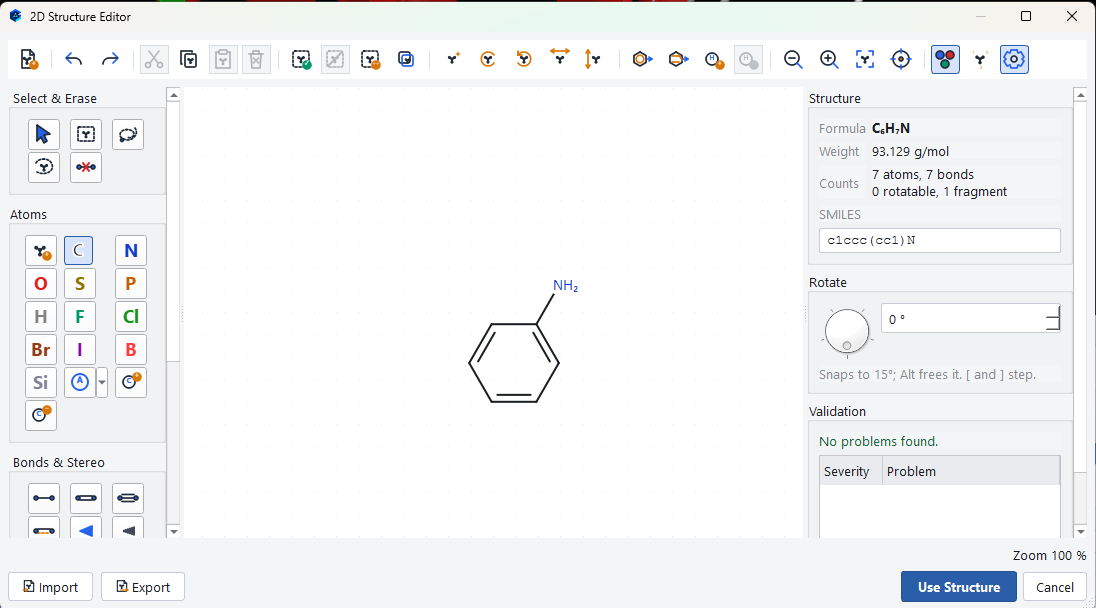
The tool palette
| Group | What it holds |
|---|---|
| Select & Erase | Pointer, rectangle and lasso selection, selection of a whole fragment, and an eraser. |
| Atoms | A general atom tool, then direct buttons for carbon, nitrogen, oxygen, sulfur, phosphorus, hydrogen, the halogens, boron and silicon, a button for any other element, and the two charge tools. |
| Bonds & Stereo | Single, double, triple and aromatic bonds, solid and hashed wedges for stereochemistry, and a wavy bond for undefined configuration. |
| Rings & Chains | A chain tool and ready made rings from three to eight members, plus benzene and a five membered aromatic. |
| Templates | A menu of complete scaffolds: the common carbocycles, and a long list of heterocycles from pyridine and imidazole through to indole, quinoline, purine and coumarin. |
The toolbar
| Group | What it does |
|---|---|
| File and history | New molecule, undo and redo. |
| Clipboard | Cut, copy, paste and delete the selection. |
| Selection | Select all, deselect all, invert, and duplicate the structure. |
| Geometry | Clean up the 2D layout, rotate left or right, and flip horizontally or vertically. |
| Chemistry | Aromatise, kekulise, add hydrogens and remove hydrogens. |
| View | Zoom in and out, fit to canvas and centre the structure. |
| Display | Colour by element, show atom numbers, and show the alignment grid. |
The structure panel
The panel on the right updates continuously as you draw, and it is the quickest check that you have drawn what you meant.
| Readout | What to check |
|---|---|
| Formula | Against the compound you intended. A wrong hydrogen count usually means a valence problem. |
| Weight | A second check on the same thing, and often the easier one to compare with a catalogue entry. |
| Counts | Atoms, bonds, rotatable bonds and fragments. A fragment count above 1 means the drawing is in disconnected pieces, which is almost never intended. |
| SMILES | The canonical line notation for what is drawn. Copy it into your notes, or paste it into a database search to confirm the compound is what you think. |
Rotate
The dial rotates the whole drawing. It snaps to 15 degree steps, holding Alt frees it, and the bracket keys step it. This is presentation only and changes no chemistry.
Validation
The validation list reports anything that would trouble the preparation step, graded by severity, with a Fix button for the problems that can be repaired automatically. A drawing that reports no problems is one the preparation step will accept.
Importing and exporting
| Command | What it does |
|---|---|
| Import › From SMILES | Reads a line notation string and lays it out on the canvas. The fastest way to get a known compound in front of you for editing. |
| Import › From Molfile Text | Reads a pasted connection table. |
| Import › From File | Reads a structure file from disk. |
| Export | Writes the drawing as line notation, a connection table, or an image. |
Handing the structure to the workflow
Use Structure closes the sketcher and adds the drawing to the ligand list, where it is treated exactly like a file: the same table row, the same validity check, the same preparation options.