Conversations, allowance and privacy
Saved conversations and how to reopen, rename, export and delete them, how the usage allowance is counted and shown, and what is and is not sent to the GeinDock AI service.
Three practical matters sit behind every conversation with the Co-Scientist: where the conversation is kept and how to get back to it, how much of the assistant your licence allows you to use, and what leaves your computer when you use it. This chapter takes them in that order.
Conversations
A conversation is one continuous exchange with the assistant, saved automatically as it goes. The assistant remembers what was said earlier in the same conversation and nothing from any other, so a conversation is the natural unit for one study or one question. Nothing is saved until you send the first message, so opening the panel or pressing New conversation and then changing your mind leaves no empty entry behind.
Starting a new one
Press New conversation, the plus sign in the header. The panel returns to the start screen and the previous conversation is kept. Starting a new conversation changes nothing in the session: the receptor, ligands and results stay as they are, and the new conversation sees them.
If the assistant is still working when you start, open or delete a conversation, the application asks first whether to stop it.
The Conversations page
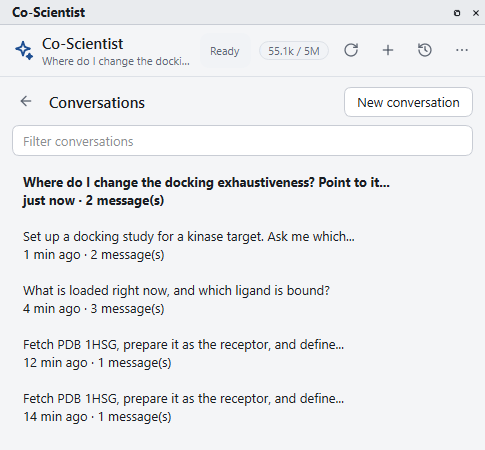
The Conversations button in the header replaces the conversation with a list of the saved ones, most recent first. The list holds the 300 most recent conversations. Older ones are still on disk and can be reached through the conversations folder described below. Each row gives the title, when it was last active and how many messages you sent in it. The conversation you were in is shown in bold. Before anything has been saved the list reads No saved conversations yet.
| To | Do this |
|---|---|
| Reopen a conversation | Click its row, or right click it and choose Open. It opens with everything in it, including the activity cards and their details, and you can carry on from where it ended. |
| Find a conversation | Type part of its title in Filter conversations. Nothing matches means no title contains what you typed, so shorten it or clear the box. |
| Delete a conversation | Right click its row and choose Delete, then confirm. This cannot be undone. Deleting a conversation removes the record of it, not the structures, results or reports it produced. If you delete the conversation that is open, a new one is started in its place. |
| Go back without choosing | Press the back button at the top left, or the Conversations button again. |
| Start afresh | Press New conversation at the top right of the page. |
Renaming
A conversation is titled automatically from its first message. More › Rename conversation replaces that with a title of your own for the conversation that is open, which is worth doing for any conversation you expect to come back to. A title can be up to 80 characters long, and anything beyond that is cut off. The command does nothing on a conversation that has no messages yet, because there is nothing saved to rename.
Exporting
More › Export conversation writes the open conversation to a file. The save dialog offers Markdown (*.md) and Text (*.txt), and suggests your documents folder and a name taken from the title. The content is Markdown whichever of the two you choose, so pick the text type only when the file has to open in a plain editor by default. The file holds your messages, the assistant's answers, a line for each operation saying whether it succeeded, the questions it asked with your answers, the approvals it requested and its plans. The status bar confirms where the file was written. On a conversation with no messages the command reports This conversation is empty. and writes nothing.
The conversations folder
More › Open conversations folder opens the folder on this computer where conversations are kept, one file for each. The folder is in the application's local data folder for your Windows account, not in any project, so it is not copied when you copy a project. Use the command to back conversations up or to remove them all at once.
The allowance
The Co-Scientist comes with your licence and has a usage allowance. The allowance is counted in tokens, which are the units of text the service measures: roughly, pieces of words. Both directions count. What is sent on your behalf, which is your message, the description of the session and the results of the operations carried out, is counted as input, and what the assistant writes back is counted as output.
Reading the meter
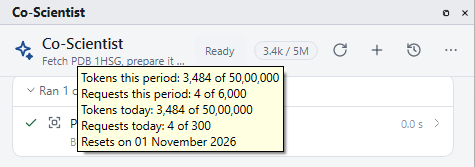
The meter in the header shows the tokens used against the allowance for the current period, for example 12.4k / 250k, where k stands for thousands and M for millions. A bar behind the figures fills as the allowance is used. A licence with no token limit shows Unlimited.
| Line in the tooltip | What it means |
|---|---|
| Tokens this period | Tokens used out of the allowance for the current period. This is the figure the meter shows. |
| Requests this period | The number of requests made out of the number allowed, where the licence limits requests as well as tokens. |
| Tokens today and Requests today | The same two counts against a daily limit, where the licence has one. A daily limit stops a single heavy day from using up the whole period. |
| Resets on | The date on which the period ends and the counts return to zero. |
A line appears only when the licence has the limit it describes, so a short tooltip means a simple allowance, not missing information.
Amber and red
| Meter | What it means | What to do |
|---|---|---|
| Normal | There is allowance to spare. | Nothing. |
| Amber | The service is warning that the allowance for the period is running low. | Check the reset date. If it is some way off, keep conversations short and focused until then. |
| Red, with the status Allowance used | The service has refused a request because the allowance is used up. The tooltip begins with the service's own explanation. | Wait for the reset date, then press Check again on the start screen or the reconnect button in the header. If you regularly reach the limit, contact Geinforce about your licence. |
Running out of allowance stops the assistant and nothing else. A docking job that is already running finishes, results stay where they are, and every command in the application remains available.
Making the allowance go further
| Habit | Why it helps |
|---|---|
| Start a new conversation for a new subject. | Each request carries the conversation so far. A long conversation therefore costs more for every further message than a fresh one does. |
| Ask for what you need in one message. | A request with the goal and your decisions in it takes fewer exchanges than one the assistant has to clarify. |
| Do the simple things by hand. | Changing the background colour from the View menu costs nothing. Save the assistant for work that needs several steps or a look-up. |
The footer of the panel reports what the open conversation has used. Hover over the line under the message box to read its input and output token counts.
Privacy: what is sent and what is not
The assistant runs on the GeinDock AI service, operated by Geinforce Technology Private Limited, so using it means sending information there. The terms of use set out exactly what, and the summary below follows them. Read the terms themselves at any time from More › Terms of use.
| Sent to the GeinDock AI service | Not sent |
|---|---|
| The messages you type. | Your licence key and your activation details. |
| The working context the assistant needs: the name of the loaded structure, chain and residue identifiers, ligand names, docking settings. | Your account information, apart from the email address as described below. |
| The results of the operations it carries out for you, such as a results table, an interaction list or the text of a log it was asked to read. | Your project files, structure files and result files. |
| The location of the project file, written out in full, and the names of the loaded structure files, with every message. The full location of each file you attach. | The contents of an attached file, unless the assistant then reads that file for you. |
Two points in that table deserve a plain statement. A file location written out in full usually contains your Windows user name, and may contain a project or compound name if your folders are named that way, so keep sensitive work in neutrally named folders if that matters to you. And your email address is sent once, to Geinforce's own terms service, when you accept the terms of use, as described under Your acceptance of the terms below. It is not passed to an AI provider.
The GeinDock AI service passes what it receives to one or more third party AI providers acting on Geinforce's instructions. Those providers process it under their own terms, which may allow them to keep it for a limited period, for example to detect misuse. Geinforce does not sell your information and does not use it for advertising.
Where conversations are stored
The saved conversations described above are files on this computer, in the conversations folder. They are what the Conversations page lists, and deleting a conversation there deletes its file.
Signing in
There is nothing to sign in to. The Co-Scientist uses the licence already activated on this computer to open a session with the service, and there is no separate account, password or key anywhere in the application. The licence is checked separately and is never passed to an AI provider.
A session lasts a limited time and renews itself before it runs out, so a long piece of work is not interrupted to sign in again. If a session cannot be renewed, for example because the network has dropped or the licence period has ended, the header shows the corresponding connection state from Meet the Co-Scientist.
Your acceptance of the terms
When you accept the terms, the acceptance is recorded in two places. On this computer the record holds the version of the terms, the date and time, your activation and the application version. On Geinforce's servers the record is tied to your account: what is sent is your account email address, the version of the terms, and the name and version of the application. Your activation stays in the local record only. If no email address is on file, nothing is sent and the acceptance is kept on this computer alone. The record shows which terms you agreed to. If the terms are later revised you are asked to accept the new version before continuing.
About the Co-Scientist
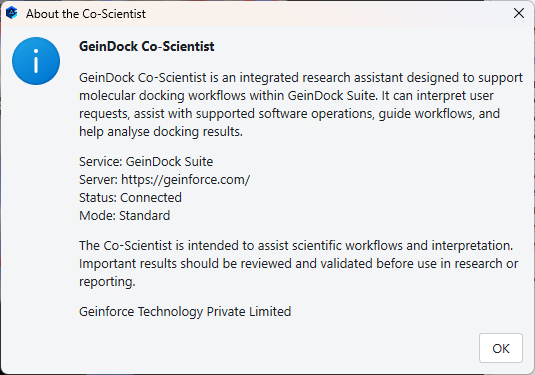
More › About the Co-Scientist opens a small window with a description of the assistant, the service it uses, the status of the connection and the mode it is running in, with a reminder that important results should be reviewed and validated before use.
| Status | Meaning |
|---|---|
| Not connected yet | Nothing has been sent in this run of the application, so no session has been opened. This is normal before the first message. |
| Connecting | A session is being opened. |
| Connected | The assistant is ready. |
| Any other status | One of the connection states, in slightly fuller words than the header uses. The table in Meet the Co-Scientist says what each means and what to do. |
Questions
For a question about the terms, about how the Co-Scientist handles what you send, or about what your licence includes, write to Geinforce.
- Email: [email protected]
- Web: geinforce.com