A tour of the window
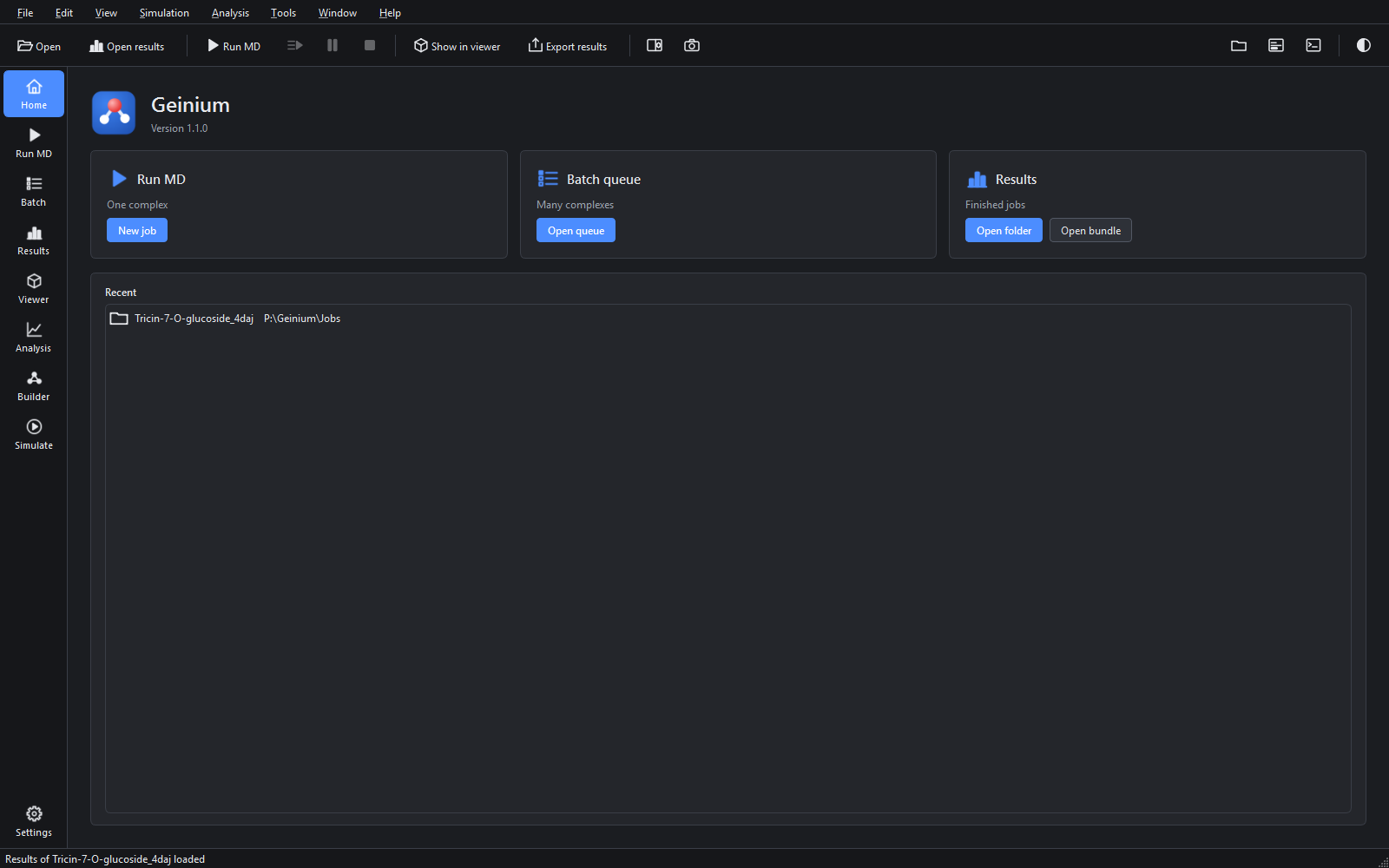
The menu bar, the tool bar, the page bar on the left, the workspace, and the panels that can be opened beside it.
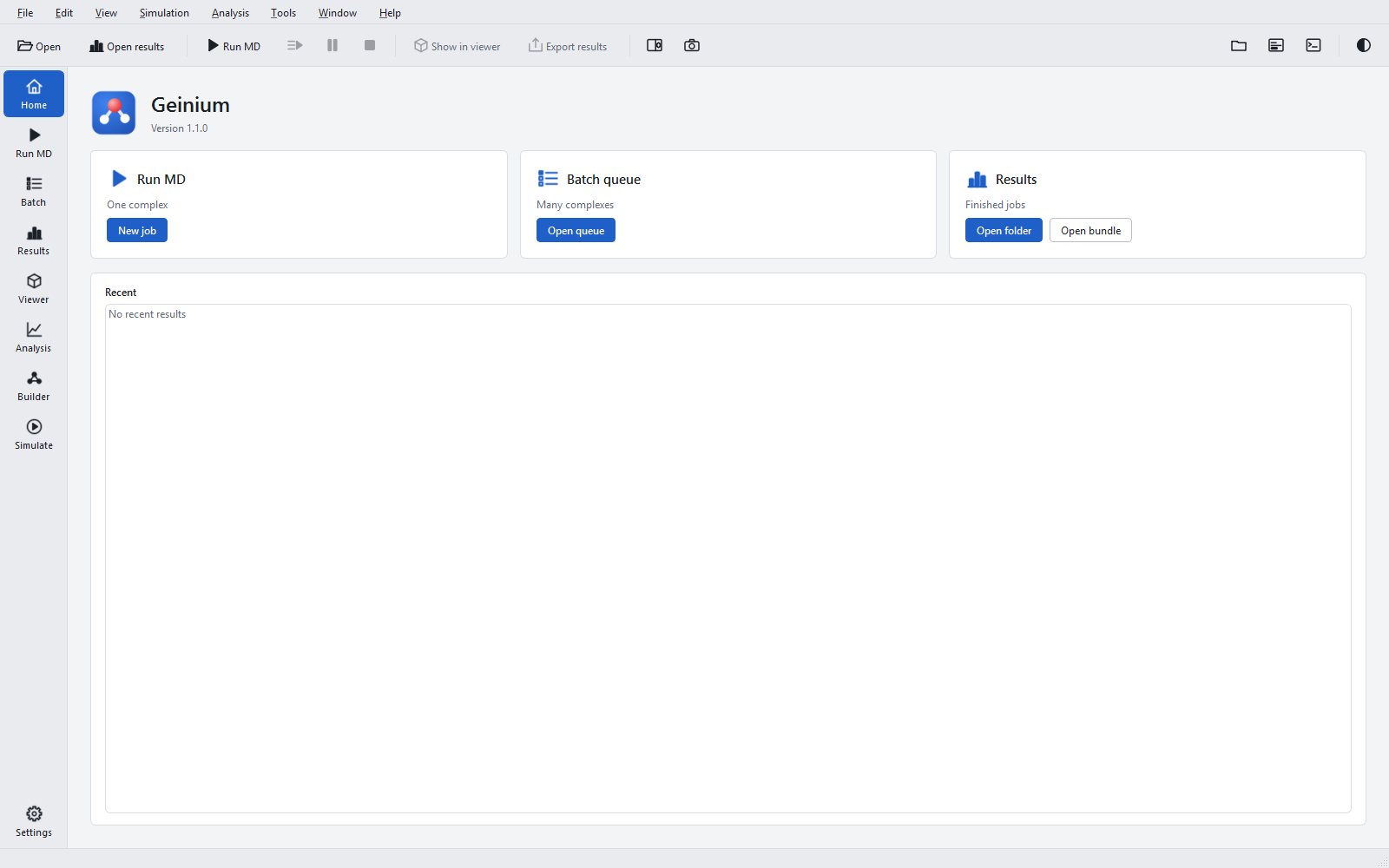
The window has five regions: the menu bar and the tool bar across the top, the page bar down the left edge, the workspace that fills the rest, and the status bar along the bottom. Panels for the project folder, the jobs and the log can be opened beside the workspace when they are needed; they start closed so that the page has the whole window.
The regions
| Region | What it is for |
|---|---|
| Menu bar | Every command, grouped as File, Edit, View, Simulation, Analysis, Tools, Window and Help. Menus and shortcuts lists each command with its shortcut. |
| Tool bar | The commands used most, described button by button below. |
| Page bar | One button per page, from Home at the top to Simulate, with Settings at the bottom. The page shortcuts are Ctrl+1 to Ctrl+8 (the Viewer is F3). |
| Workspace | The page that is open. |
| Status bar | The last message on the left; on the right, while a job runs, the job, its stage, the speed and the time left, with a progress bar. A warning such as "No hardware acceleration" or "3D view unavailable" appears here only when something needs attention. |
The tool bar, button by button
| Button | What it does | When to use it |
|---|---|---|
| "Open" | File > Open (Ctrl+O): structures, trajectories, plots, logs, project files and result bundles, each routed to the page that handles it. | To look at any file Geinium reads. |
| "Open results" | Opens a finished job folder, or a folder of jobs, on the Results page (Ctrl+Shift+O). | To return to a job that is already done. |
| "Run MD" | Opens the Run MD page for a new job (Ctrl+N). | To simulate one complex. |
| Start queue | Runs the waiting jobs of the batch queue (F5). | After adding jobs, or to continue a paused queue. |
| Pause | Stops the running job at its next checkpoint (F6); starting again continues from there. | To free the PC for a while without losing work. |
| Stop after stage | Lets the running stage finish, then stops. | Before shutting the PC down at a clean point. |
| "Show in viewer" | Loads the structure and trajectory of the open result into the viewer. | To look at the motion behind a figure. |
| "Export results" | Opens the export dialog for the open result (Ctrl+E). | To write the PDF report, images and raw data. |
| Viewer beside page | Shows the viewer to the right of the current page (F4). | To compare a figure with the structure without switching pages. |
| Camera | Saves the current viewer image (File > Save viewer image). | For a quick picture of the view. |
| Project, Jobs, Log (right) | Open or close the three panels (Ctrl+Shift+P, Ctrl+J, Ctrl+L). | See Panels below. |
| Half-filled circle (far right) | Toggles between the light and the dark theme (Ctrl+Shift+T). | When the light around you changes. |
A button that cannot act yet is greyed: "Show in viewer" and "Export results" need an open result, and the three queue buttons need waiting or running jobs.
The pages
| Page | What it is for | Chapter |
|---|---|---|
| Home | The three ways in and the list of recent results. | This page |
| Run MD | One complex: input, protocol, preparation, and the live monitor of the running job. | The Run MD page |
| Batch | A queue of complexes with shared defaults. | The Batch queue |
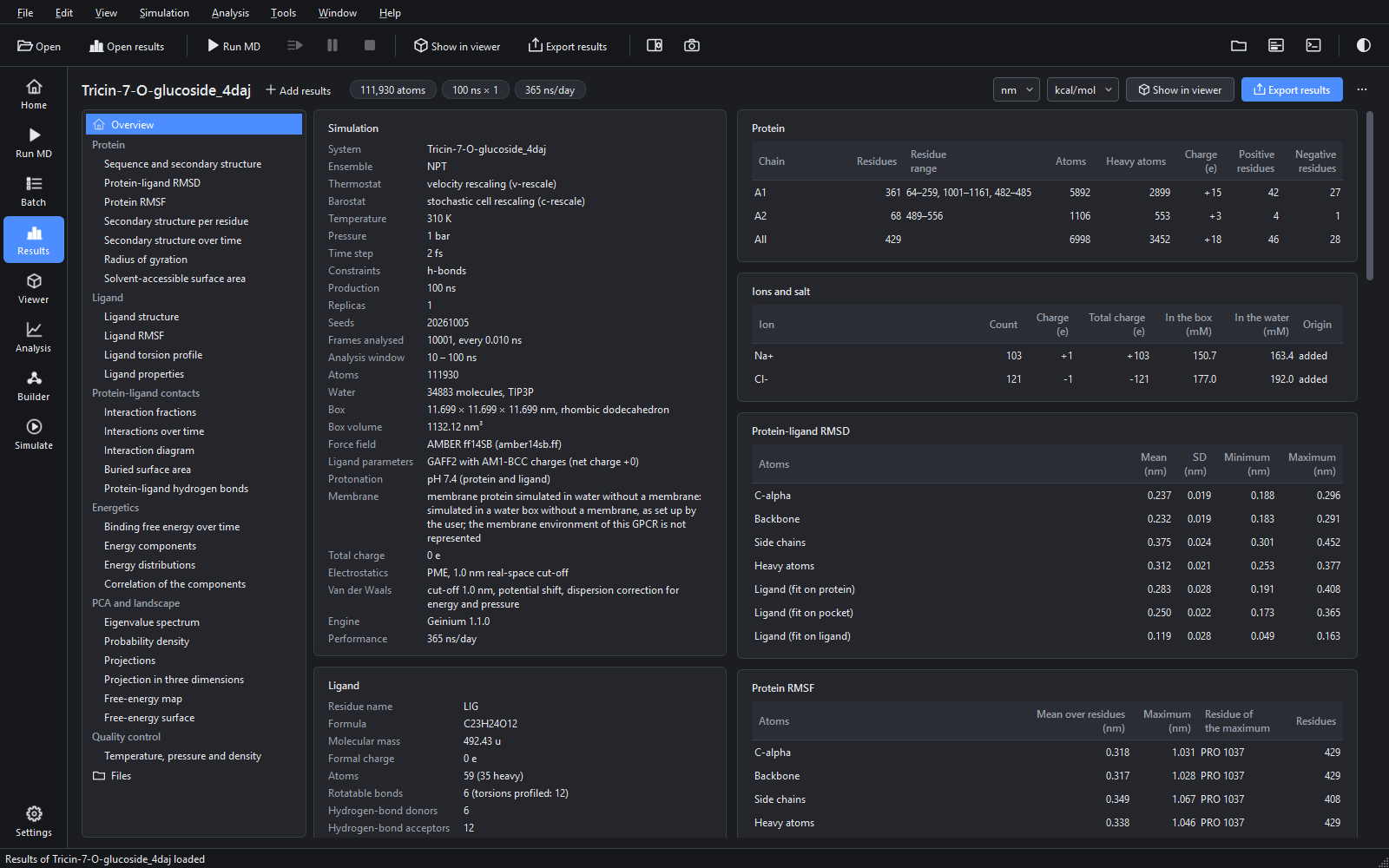
| Results | Every figure and table of a finished job, several jobs side by side, and the export. | The Results page |
| Viewer | Structures and trajectories in three dimensions. | The 3-D viewer |
| Analysis | Single analysis tools and plots of .xvg files. | The Analysis page |
| Builder | Building a system step by step with every option visible. | The System Builder page |
| Simulate | Running a protocol of the Builder, a run input or a project, and following any run log. | The Simulate page |
| Settings | Theme, data library, viewer and external command. | Settings |
Panels
Three panels can be docked beside the workspace. Each is opened from the right end of the tool bar, from View > Panels and tool bars, from the Window menu, or with its shortcut. They can be dragged to another edge or floated, and the layout is remembered; Window > Reset window layout restores the default with all panels closed.
| Panel | What it holds | When to open it |
|---|---|---|
| Project (Ctrl+Shift+P) | A project folder with its file tree (double-click opens a file on the page that handles it) and the list of recent files. The folder button opens a folder; the plus button creates a new project folder with a project.json and the subfolders 00_input to 07_results. That layout is for organising your own files and is not the layout of a job folder (see Project file keys). | When you work with files by hand, for example on the Builder or the Analysis page. |
| Jobs (Ctrl+J) | Every job of the queue with the columns "Job", "State", "Stage", "Progress" and "Result", a summary line, and the buttons "Start queue", "Pause" and "Results". Double-clicking a finished job opens its results, a running job opens the monitor, any other job opens the Batch page. | To follow a queue while you look at results on another page. |
| Log (Ctrl+L) | Every message of the program with its time and level, a "Show" filter, "Save" and "Clear". See Monitoring a running job. | When a stage reports a warning, or to keep a record of a session. |

Themes
The window follows the Windows light or dark setting by default. View > Theme switches to "Light" or "Dark" for this application, or back to "Follow Windows"; Ctrl+Shift+T toggles. Settings > Appearance > Theme holds the same choice. Figures are always drawn on a white sheet, in both themes, because that is how they will be printed and published.
Display scaling
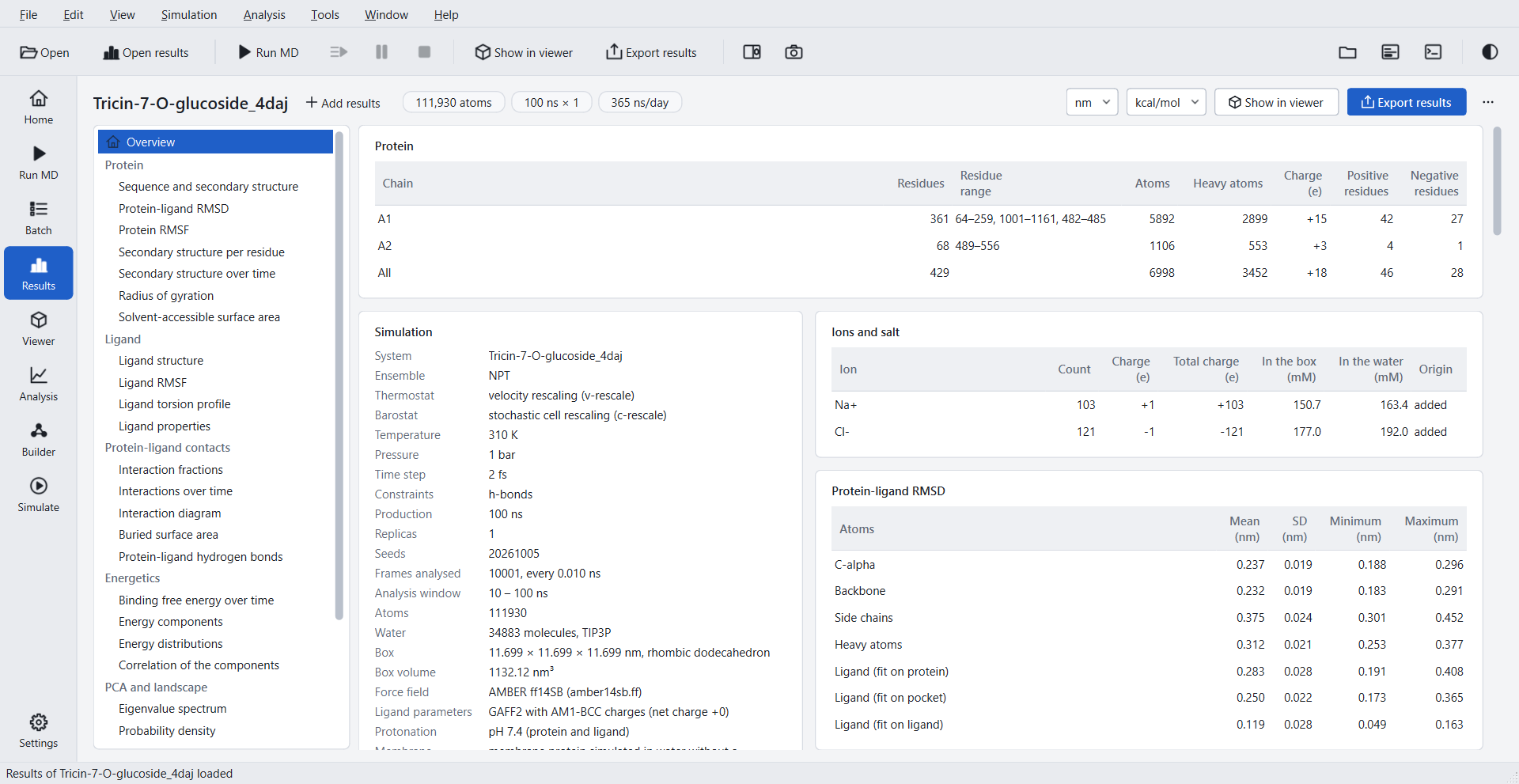
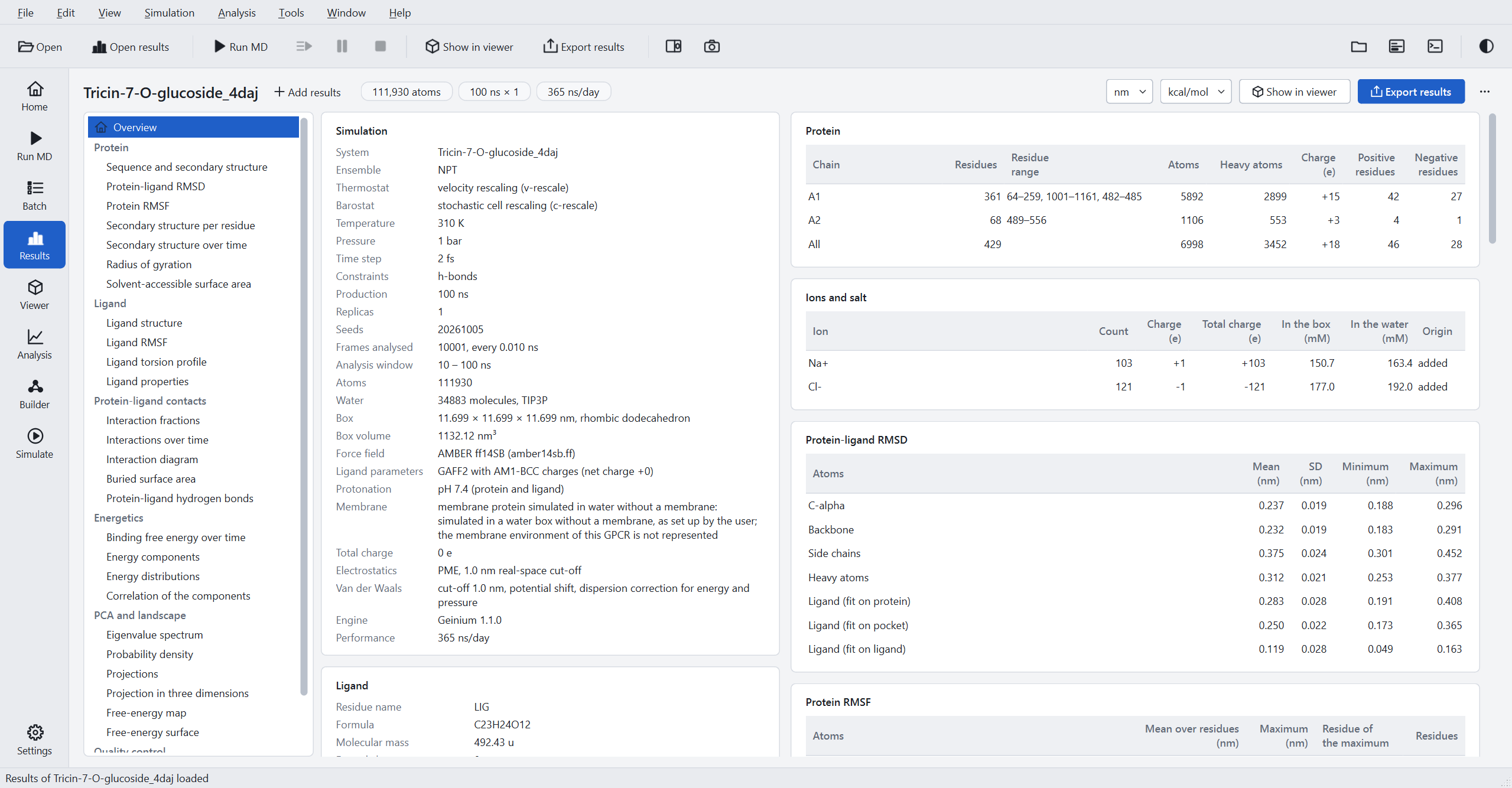
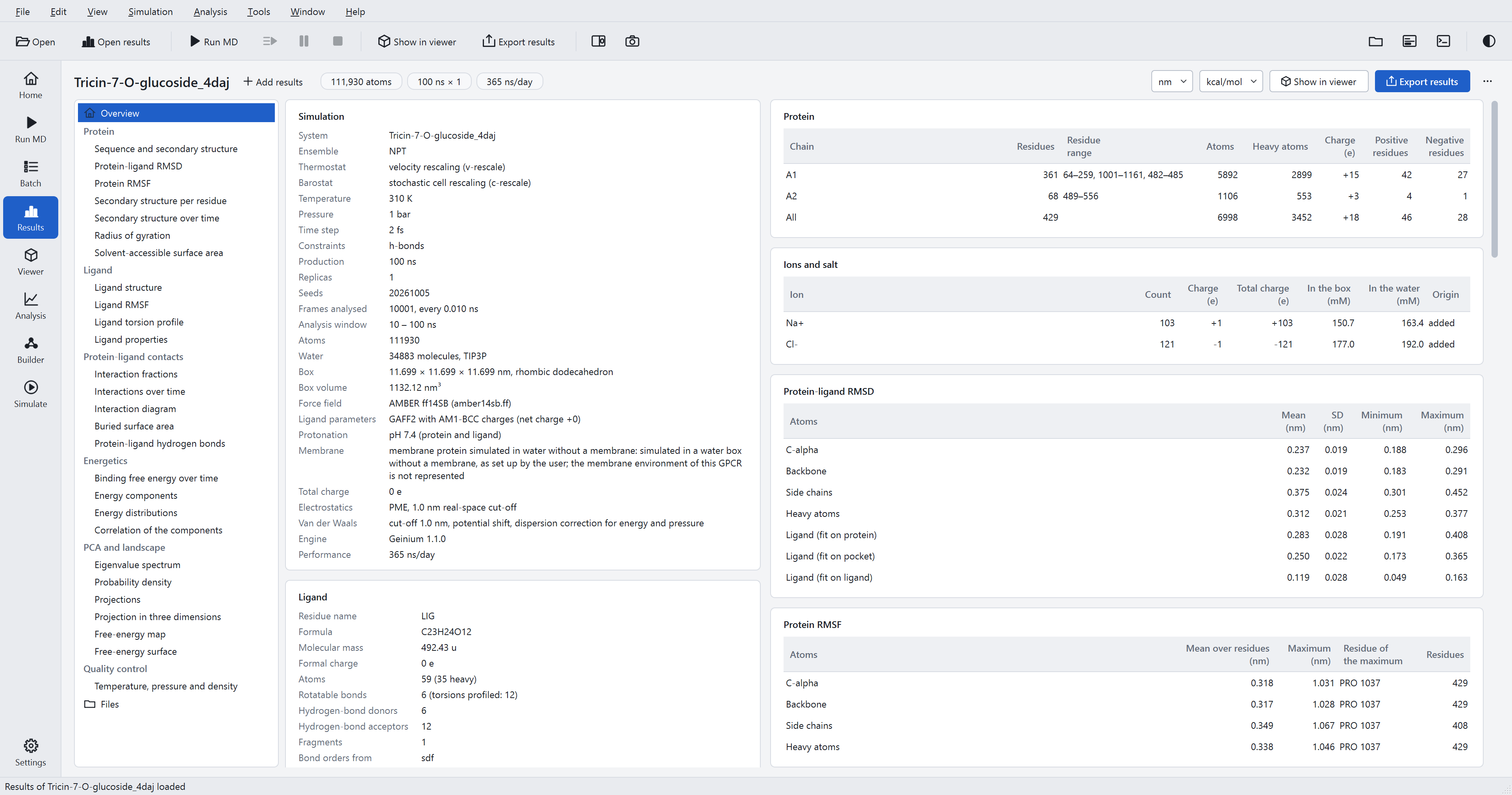
The window follows the display scaling set in Windows. Controls, text, tables and figures scale together, and the layout reflows: the cards of the Home page stack when the window is narrow, the System Builder changes from two columns to one, and the buttons of the Batch page wrap onto a second line. The three pictures below show the same Results page on three screens.