Settings
The settings of the application and where they are kept.
Geinium needs no configuration: the GPU, the data library and the engine are found automatically at every start. The Settings page (Edit > Preferences, Ctrl+,) holds the few things that are a matter of taste. Every change is saved at once; there is no Apply button.
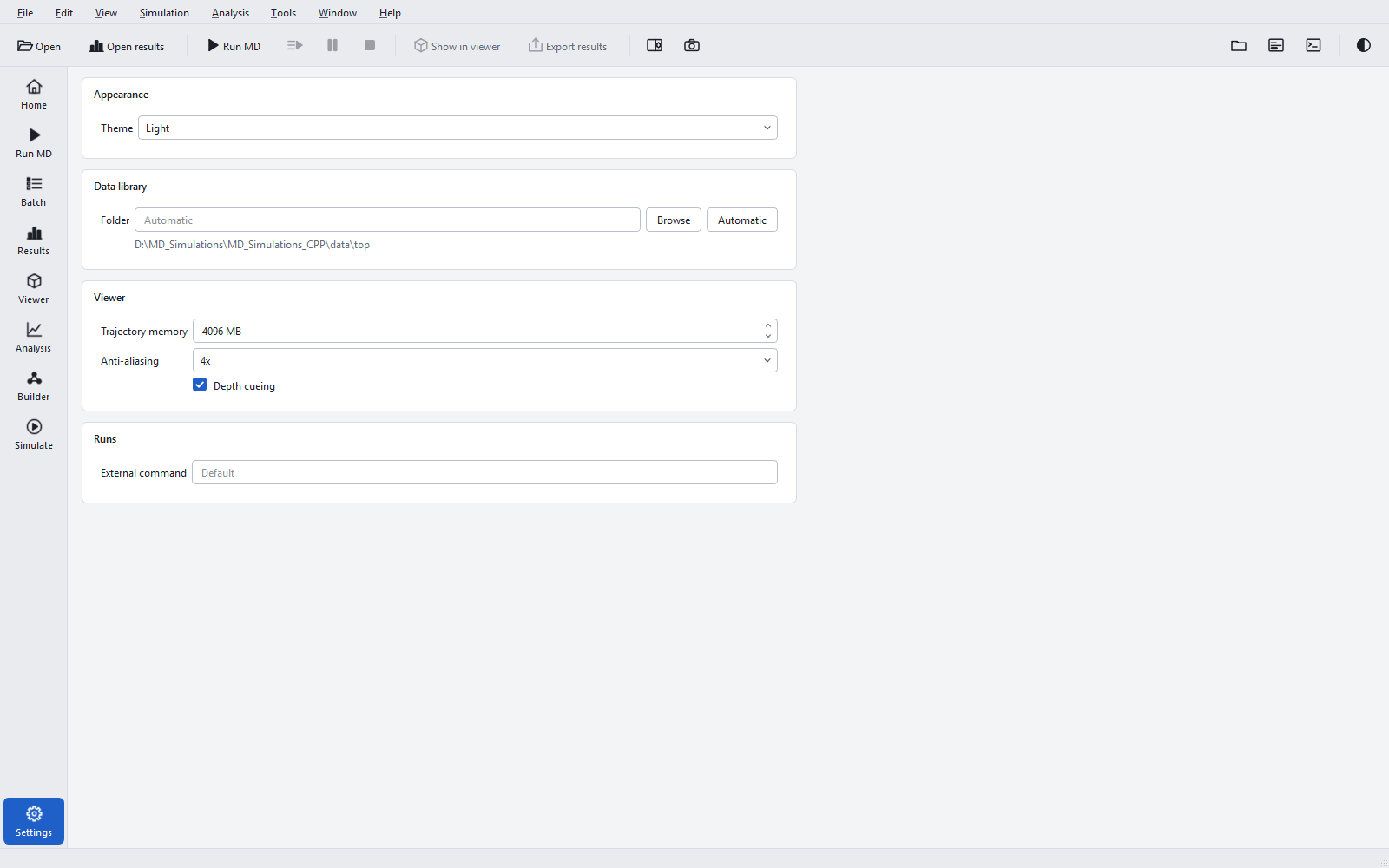
Appearance
| Setting | Choices | When to change it |
|---|---|---|
| "Theme" | "Follow Windows" (default), "Light", "Dark" | Follow Windows matches the colour mode of Windows. Choose a fixed theme for presentations or screenshots. The theme can also be switched with Ctrl+Shift+T. |
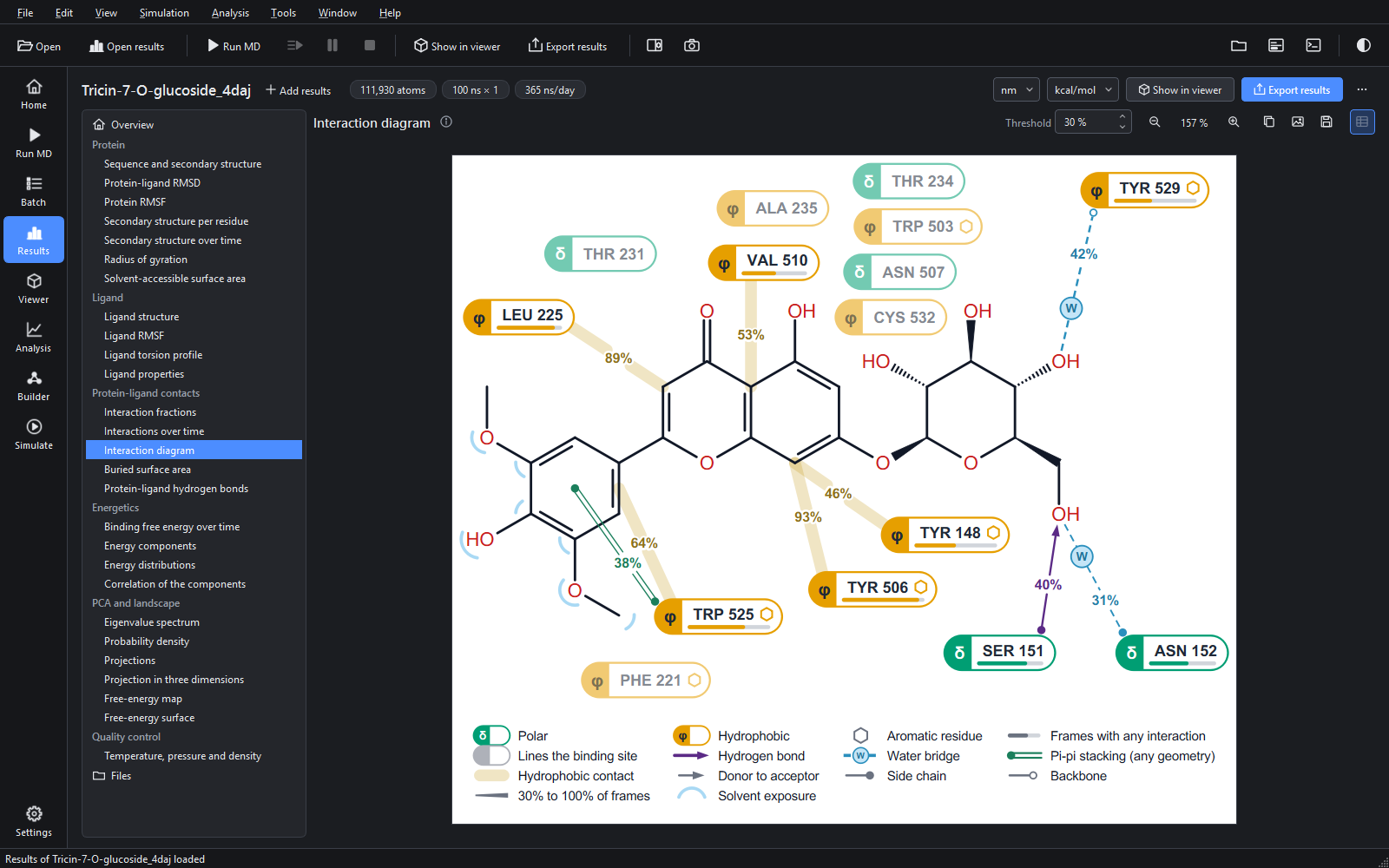
Figures always stay on a white sheet, whatever the theme, because that is how they will be printed; a figure judged on a dark background would look different in the paper.
Data library
The data library holds the force fields, water models, ion parameters and lipid bilayer patches
the program builds systems from. "Folder" shows "Automatic" by default, and the label below names
the folder that was found. The search order is the environment variable MDS_DATA_DIR,
then the data folder of the installation. "Browse" chooses another folder and
"Automatic" returns to the automatic search.
Viewer
| Setting | Default | When to change it |
|---|---|---|
| "Trajectory memory" | 4096 MB (256 to 262144 MB) | Frames of a trajectory are kept in memory up to this amount; beyond it they are read from the file when shown. Raise it on a PC with much memory for smoother playback of large trajectories; lower it on a PC with little memory. |
| "Anti-aliasing" | 4x (Off, 2x, 4x, 8x) | Smoother edges at a higher graphics cost. Lower it if playback stutters on a weak graphics driver. Applies after a restart. |
| "Depth cueing" | On | Fades distant atoms, which makes depth easier to read. Turn it off for pictures in which every atom should be equally strong. |
Runs
| Setting | Default | When to change it |
|---|---|---|
| "External command" | Empty (placeholder "Default") | Used only by the "External command" mode of the Simulate page, which runs a command line of your own instead of the built-in engine. Leave it empty otherwise. |
The engine is chosen automatically, and so is the GPU; there is no setting for either on this page. How the choice is made, and how to pin one GPU when a PC has several, is described in The simulation engine and the GPU.
Where settings live, and what is kept elsewhere
| What | Where | Notes |
|---|---|---|
| Settings, recent files, recent results, last folder | %APPDATA%\Geinium\Geinium.ini | Kept when the program is uninstalled, so a new version starts with your settings. |
| The batch queue | %APPDATA%\Geinium\Geinium\batch_queue.json | Written before each job starts, so an interrupted queue can be continued; see The Batch queue. |
| Downloaded protein sequences | %APPDATA%\Geinium\Geinium\sequences\<ID>.fasta | Written only when you press "Get the sequence of <ID> from the PDB" before a job starts. |
| Unpacked result bundles | %LOCALAPPDATA%\Geinium\Geinium\cache\bundles | Each bundle is unpacked once. Tools > Clear the bundle cache deletes the copies. |
| The software-renderer marker | %LOCALAPPDATA%\Geinium\viewer_opengl_fallback.txt | Records that the viewer needed the software renderer on this PC. |
Environment variables
Environment variables are for special set-ups and scripts; an ordinary installation needs none.
| Variable | Effect | When to use it |
|---|---|---|
MDS_DATA_DIR | Folder of the data library | A shared or customised data library. |
MDS_GPU_ID=N | Uses GPU number N (counted from 0) for every run | A PC with several GPUs on which one should be kept free for other work. |
MDS_GPU_NO_CPU_FALLBACK=1 | A run that cannot use the GPU stops with an error instead of continuing on the CPU engine | Scripts and queues where a run many times slower than expected is worse than no run. |
MDS_GUI_QUEUE_FILE | Another file for the batch queue | Keeping separate queues, for example one per project. |