The Batch queue
Running many complexes one after another with shared defaults, editing jobs in the queue, and continuing a queue after an interruption.
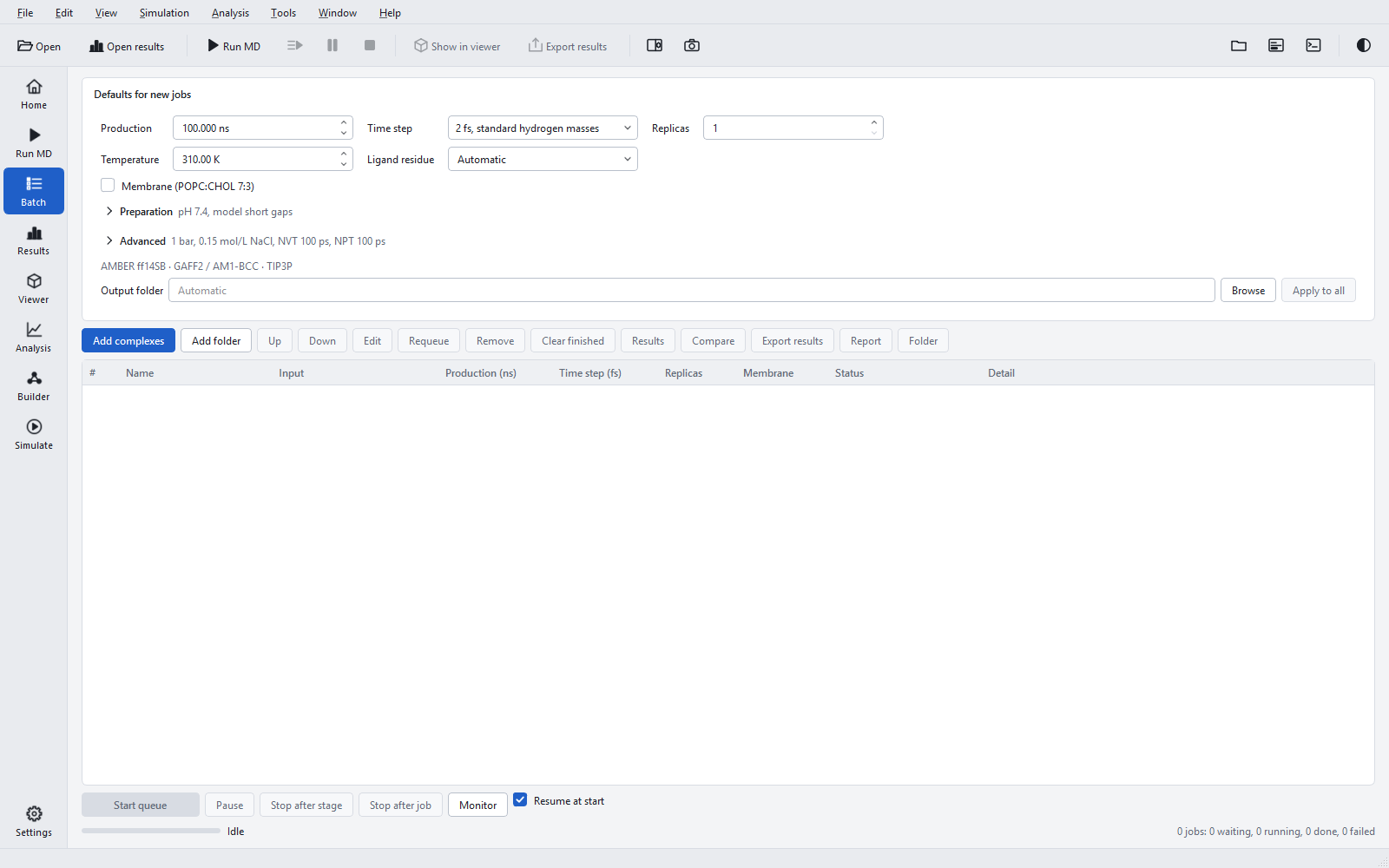
The Batch page runs a queue of jobs, one at a time, from top to bottom. It is the way to simulate a series of ligands against one receptor with the same protocol, and the queue survives a restart of the program or of the PC. Jobs added with "Add to queue" on Run MD appear here as well.
Adding jobs
| Way | What it adds |
|---|---|
| "Add complexes" | One or more complexes (.pdb, .ent, .cif, .mmcif, .pdbqt) or project files. |
| "Add folder" | Every complex of a folder. A folder that holds a project.json adds that project. |
| Drag and drop | Files or folders dropped onto the page, as above. |
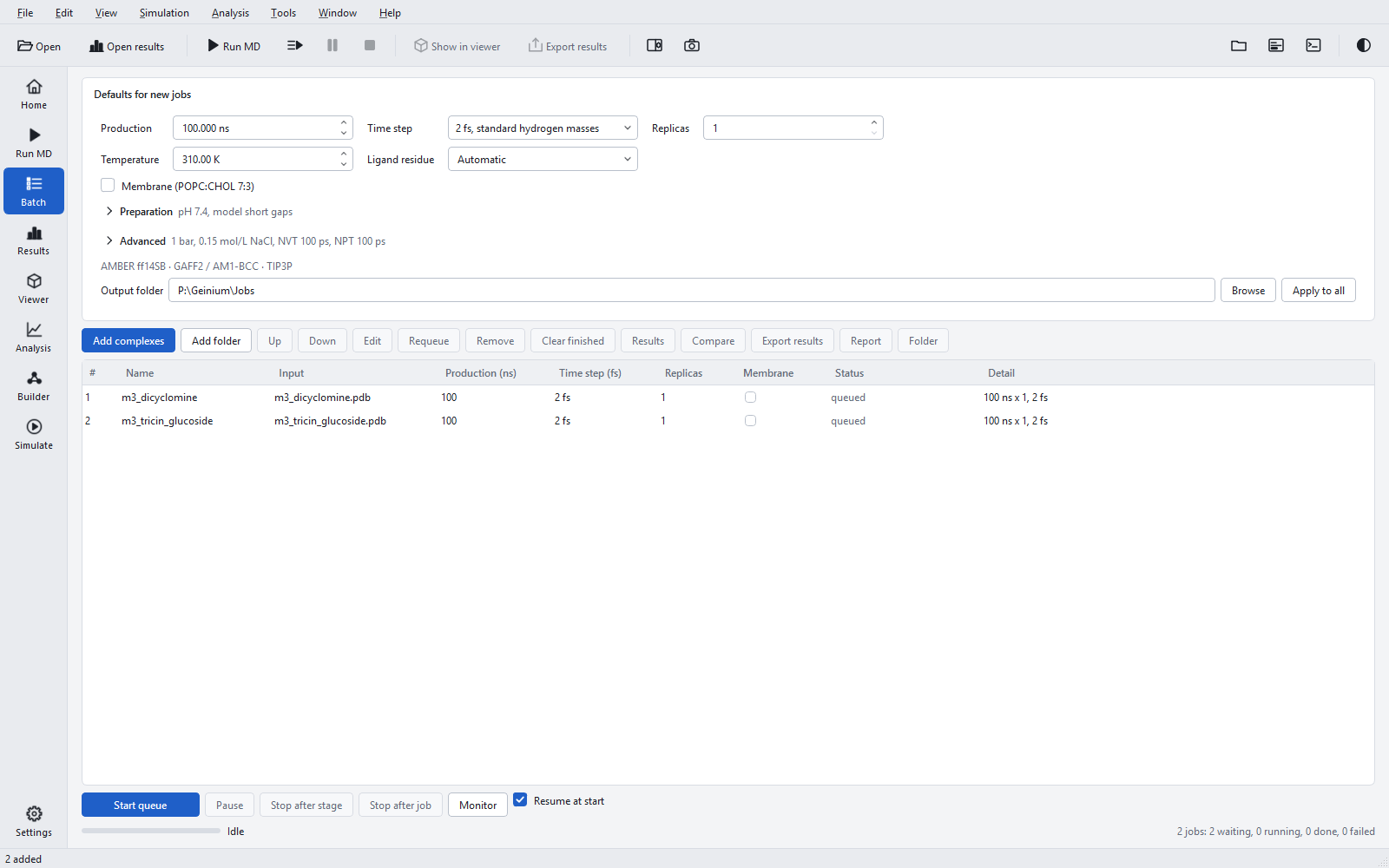
Each new job takes the current "Defaults for new jobs" and gets its own velocity seed. A name that is already in the queue receives a suffix (name_2, name_3). Files that cannot be added are named in the status bar, for example "2 added; not added: ...", with reasons such as "the folder contains no .pdb file and no project.json" or "this project is already in the queue".
Defaults for new jobs and Apply to all
"Defaults for new jobs" is the same editor as on Run MD (Protocol, "Preparation", "Advanced"), laid out in three columns, plus "Output folder", the parent folder of the job folders (empty: a folder next to each complex). The defaults are applied to jobs when they are added.
"Apply to all" copies the current defaults to every job that has not finished. It skips running and finished jobs and jobs from project files, and it never copies choices that belong to one input: the ligand file, pose and copy, the sequence, the molecules to remove and the membrane decision. Use it after adding the jobs, when you decide to change, say, the production length for the whole series.
The queue table
| Column | Meaning | Editable |
|---|---|---|
| "#" | Position in the queue. | Use "Up" and "Down". |
| "Name" | Job name and folder name; the folder is the tooltip. | By double-click until the job has started. |
| "Input" | The complex, or the project file marked "(project)". | No. |
| "Production (ns)" | Production length per replica. | By double-click until the job runs. |
| "Time step (fs)" | "2 fs" or "4 fs (HMR)"; type 2 or 4. | By double-click until the job runs. |
| "Replicas" | 1 to 20. | By double-click until the job runs. |
| "Membrane" | A check box for the POPC:cholesterol 7:3 bilayer. | Until the job runs. |
| "Status" | "queued", "running: <stage> (i/n)", "interrupted (done/total)", "done" or "failed". | No. |
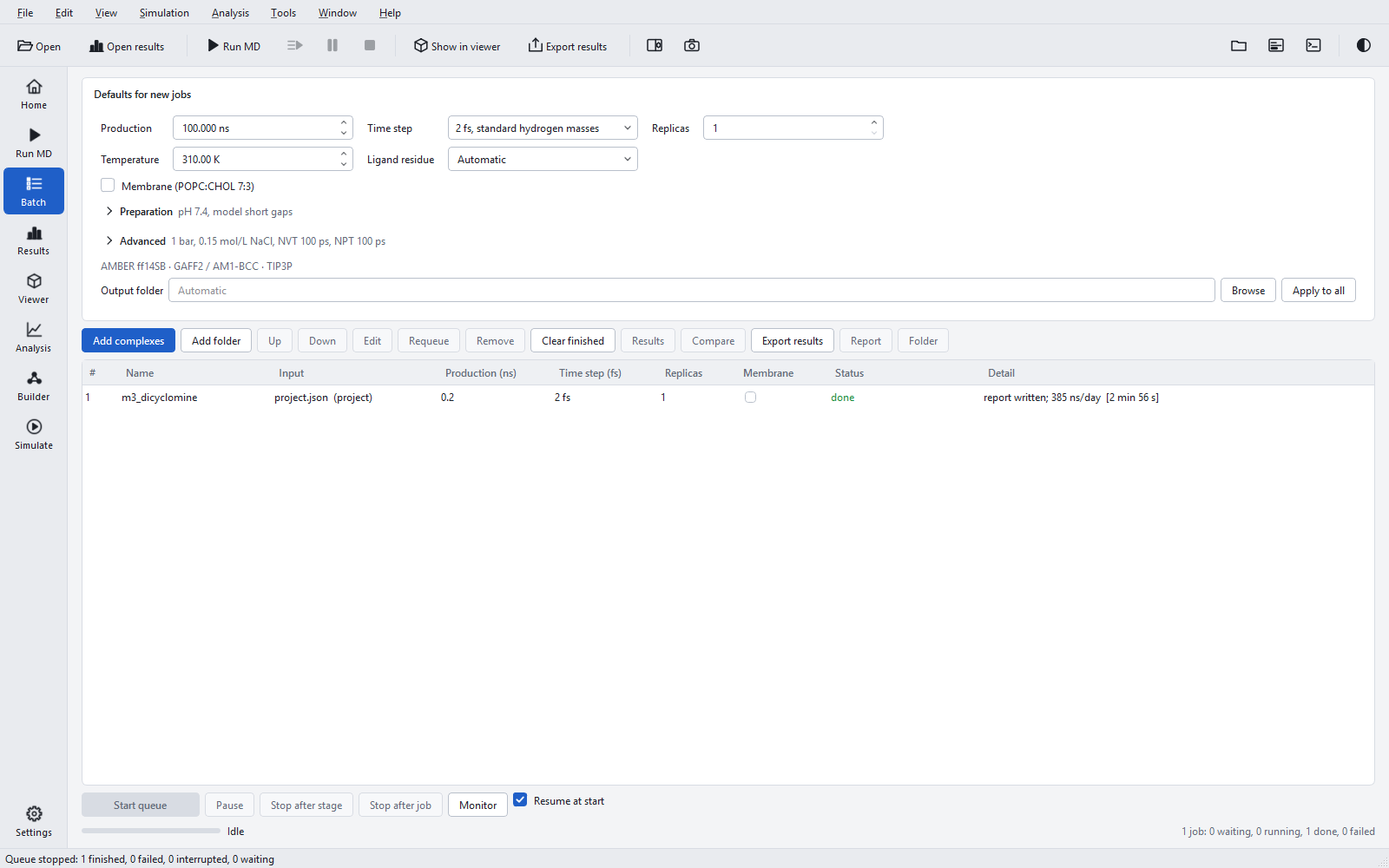
| "Detail" | For a waiting job, what it will run ("1.5 ns x 2, 2 fs"); afterwards the outcome, for example "report written; 385 ns/day [2 min 56 s]", the number of constraint warnings, or the failure message. | No. |
A finished job is locked ("Finished; Requeue makes it editable"); a project job is locked to its file. An edit that is not allowed is refused with "Not changed: ..." in the status bar.
| Button | What it does |
|---|---|
| "Up", "Down" | Move the selected job earlier or later. The running job cannot be moved. |
| "Edit" | Opens all options of the selected job (see below). Double-clicking the #, Input, Status or Detail cell does the same. |
| "Requeue" | Puts a failed, finished or interrupted job back into the queue; finished stages are kept, so only what is missing or changed runs again. |
| "Remove" | Removes the job from the queue; its files stay. |
| "Clear finished" | Removes all finished jobs from the list; their files stay. |
| "Results" | Figures and tables of the selected job on the Results page. |
| "Compare" | All finished jobs side by side on the Results page (needs two or more). |
| "Export results" | One combined report of all finished jobs. |
| "Report", "Folder" | Open the report or the folder of the selected job. |
The same commands are on the context menu of a row.
Editing a job
"Edit" opens a dialog titled "Job <name>" with the input file, the job folder and the status at the top, and the full option editor below, including "Preparation" and "Advanced". OK stores the changes. For a running job or a project job the editor is read-only and the dialog has only "Close".

Running the queue
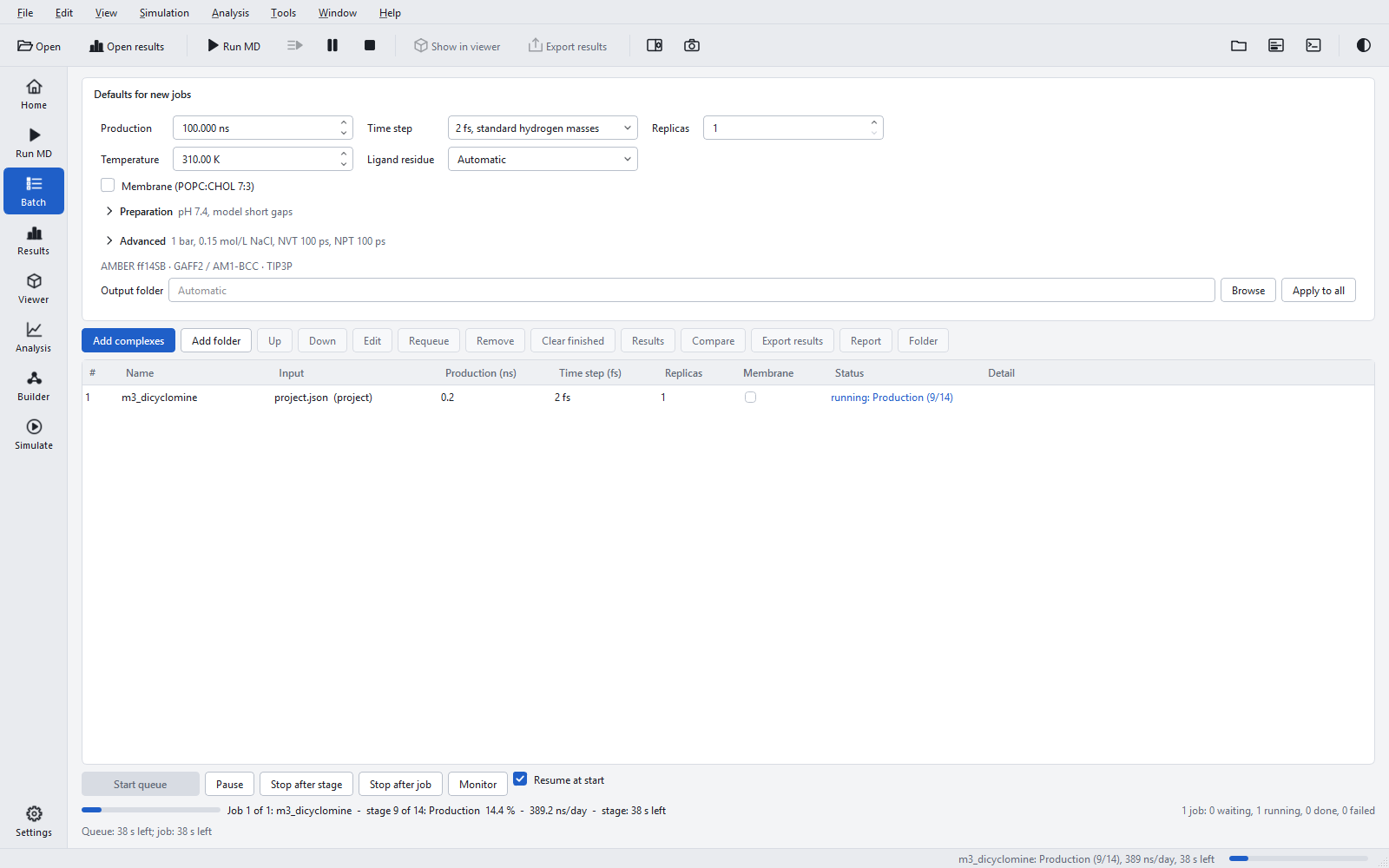
"Start queue" runs the waiting jobs from top to bottom, one at a time. Before the first job starts, every waiting job that needs it gets the "Before the start" and "Membrane protein" questions, so the queue does not stop in the night for a decision. A job that fails does not stop the queue: it is marked "failed" with its message, and the next job starts.
| Control | What it does | When to use it |
|---|---|---|
| "Start queue" | Runs the waiting jobs. It reads "Continue queue" when interrupted jobs exist. | After adding jobs. |
| "Pause" | Stops the running job at its next checkpoint. | To free the PC; "Start queue" continues. |
| "Stop after stage" | Finishes the running stage, then stops. | To stop at a clean point. |
| "Stop after job" | Finishes the running job, then stops the queue. | To end a session without leaving a job half done. |
| "Monitor" | Shows the live plots and stages of the running job on the Run MD page. | To watch the job. |
| "Resume at start" | Continues an interrupted queue when the application starts, after a 10 s countdown. On by default. | Leave it on for unattended work, so a queue survives a restart of the PC. |
While the queue runs, the line under the controls reads, for example, "Job 1 of 1: m3_dicyclomine - stage 9 of 14: Production 14.4 % - 389.2 ns/day - stage: 38 s left", with "Queue: ... left; job: ... left" below it. The estimates cover the MD stages; minimisation, MM-GBSA and the membrane equilibration are not included. Closing the window pauses the running job.
The Jobs panel (Ctrl+J) shows the same queue in compact form beside any page, with "Start queue", "Pause" and "Results".

After an interruption
The queue is saved in %APPDATA%\Geinium\Geinium\batch_queue.json, written safely before each job starts. After a crash, a power cut or a forced restart, a job that was running is reloaded as "interrupted" and continues from its stage markers and its last checkpoint, losing at most 5 minutes of MD. A queue file that cannot be read is kept as batch_queue.json.unreadable rather than overwritten.
When the application starts with an interrupted queue, the Batch page shows a banner "Queue interrupted. Next: <name> (<stage>)" with "Resume now (10)" counting down and "Not now". The queue continues when the countdown ends or on "Resume now"; "Not now" leaves it paused ("Queue not resumed"). With "Resume at start" off, the banner appears without a countdown.

Results of a batch
"Results" opens one job; "Compare" opens all finished jobs side by side, with a Comparison group of figures and tables (see Comparing compounds); "Export results" writes one combined report of all finished jobs, with a comparison of the compounds and one chapter per compound. When a queue finishes two or more jobs, a combined package is also written next to the job folders automatically. A fair comparison needs the same receptor, protocol and production length for every compound; "Apply to all" before the start is the simplest way to ensure it.