Installing and starting
What the installation contains, what a PC needs, how the GPU is detected at every start, and what happens when there is none.
What is installed
Geinium 1.1.0 is distributed in two forms with the same content: a zip archive, Geinium-1.1.0-win64.zip, and an installer, Geinium-1.1.0-win64-setup.exe. The zip can be unpacked into any folder, including a folder on a removable drive, and run from there. The installer can install for the current user without administrator rights or for all users; the default folder for all users is Program Files\Geinium. It offers a desktop icon and the file association "Open Geinium result bundles (.gnm) with Geinium". The association can also be made later with Tools > Associate .gnm files with the program.
| Folder or file | Contents |
|---|---|
bin | Geinium.exe and mdsim.exe, the runtime libraries they need, the CUDA FFT library cufft64_11.dll for the GPU engine, and the software OpenGL renderer used when the graphics driver offers no OpenGL 3.3. |
data | Force fields, water models, lipid patches and the other parameter files read at run time. |
licenses | The licence texts of the components shipped with the program. The About dialog opens this folder with its "Licences" button. |
README.txt, MANIFEST.txt | A short description and the list of files of the package. |

Requirements
| Item | Needed | Why it matters |
|---|---|---|
| Operating system | Windows 10 or 11, 64-bit. | The programs are built for 64-bit Windows only. |
| Processor | A processor with the AVX2 instructions (most processors from about 2014 on). | AVX2 is not checked at start-up. A processor without it ends the program with an illegal-instruction fault and no message. |
| Graphics for simulation | Optional: an NVIDIA GPU and driver (see the next section). | Without a usable GPU every simulation runs on the CPU engine, with the same results and a much longer run time. |
| Graphics for the viewer | OpenGL 3.3 from the graphics driver. | Without it (remote desktop, virtual machine, very old graphics) the application restarts once with the software renderer shipped in bin. Everything except the 3-D view works even without any OpenGL. |
| Folder names | Any characters from Windows 10 version 1903 on. | On an older Windows 10 only names inside the code page of the PC work; the programs print a note when started in such a folder. Paths longer than 260 characters also need the Windows setting "Enable Win32 long paths". |
| Other software | None. | No toolkit, runtime or second program has to be installed. |
The GPU and the CPU fall-back
At every start both programs detect the graphics driver, the GPUs, their free memory and the FFT library, and choose the engine. There is no configuration step and no setting to keep in step with the hardware. The shipped package was built with CUDA 12.2, which sets the oldest card and driver it can use:
| Requirement | Value for the shipped build | Notes |
|---|---|---|
| GPU generation | Compute capability 5.0 (Maxwell, for example GTX 750 Ti and the GTX 9xx series) or newer | Kepler cards and older use the CPU engine. The package contains ready machine code for compute capability 6.1, 7.5, 8.6 and 8.9, and PTX code that the driver compiles for any newer card. |
| Driver | 527.41 or newer | Cards served by the PTX code need, according to the driver documentation, a driver at least as new as the toolkit (536.25); this was not tested. |
| First start on a new card | About 6 to 8 s once | The driver compiles the PTX code for the card and caches the result; later starts do not repeat it. |
| GPU memory | About 0.4 GB plus 2 kB per atom | Checked against the free memory before anything is allocated. Measured: 0.2 to 0.3 GB for 6,000 to 89,000 atoms. |
When the GPU engine cannot be used, the CPU engine runs instead and the program says why. The reasons are: no NVIDIA driver; a driver that is too old; a GPU generation that is too old; no CUDA device (none installed, disabled in the device manager, or hidden by CUDA_VISIBLE_DEVICES); cufft64_11.dll missing from bin; not enough free GPU memory for the system; or a failure to start the engine on the device. The status bar then shows "No hardware acceleration", with the full explanation as its tooltip, and the Run MD page and the Home page carry a banner with the reason and what to do. The results are the same; only the run time differs: for a system of about 34,000 atoms the CPU engine reaches about 6 to 8 ns/day against about 1,100 ns/day on the GPU of the development PC (see The simulation engine and the GPU).
Testing a new PC
| Command | What it does | When to use it |
|---|---|---|
mdsim gpuinfo -probe | Lists the driver, the GPUs with compute capability and memory, and whether each is usable; prints the GPU code and the oldest driver of the build. | First thing on a new PC, and when the GPU engine is not used and you want to know why. |
mdsim gpuinfo -selftest | Runs a built-in system of 4,779 atoms (27 ethanol molecules in 1512 waters, PME, constraints) for 20 steps twice on every usable GPU and once on the CPU engine, and compares forces and energies with the tolerances of the test suite. Takes about two seconds; prints "RESULT: PASSED" or "RESULT: FAILED" with exit code 1. | Once on every new PC and after every driver change, before trusting a long run. |
mdsim gpuinfo -config | Prints where the data folder was searched for and found. | When the program reports missing force-field files. |
Geinium.exe --smoke | Starts the application without a window and reports the engine, the back ends and the OpenGL version. | When the window does not open or the viewer stays blank. |
Geinium.exe --software-gl | Starts with the software renderer. | On a remote desktop or a virtual machine where the automatic restart did not help. |
Starting for the first time
The application opens on the Home page. Nothing has to be configured: there is no licence key, no activation, no trial period and no dongle. The data folder is found next to the program, the engine is chosen, and the window is ready for a complex. The Home page shows a "System" card only when something needs attention, such as a missing GPU engine; on a PC with a working GPU it does not appear. See A tour of the window.
Where settings are kept
Settings are kept per Windows user and stay when the program is uninstalled, so a new version starts with the settings of the old one.
| What | Where |
|---|---|
| Settings (theme, data folder, viewer, recent files) | %APPDATA%\Geinium\Geinium.ini |
| The batch queue | %APPDATA%\Geinium\Geinium\batch_queue.json |
| Sequences downloaded for missing residues | %APPDATA%\Geinium\Geinium\sequences\<ID>.fasta |
| Unpacked result bundles (.gnm) | %LOCALAPPDATA%\Geinium\Geinium\cache\bundles, emptied with Tools > Clear the bundle cache |
| Marker of the software-renderer restart | %LOCALAPPDATA%\Geinium\viewer_opengl_fallback.txt |
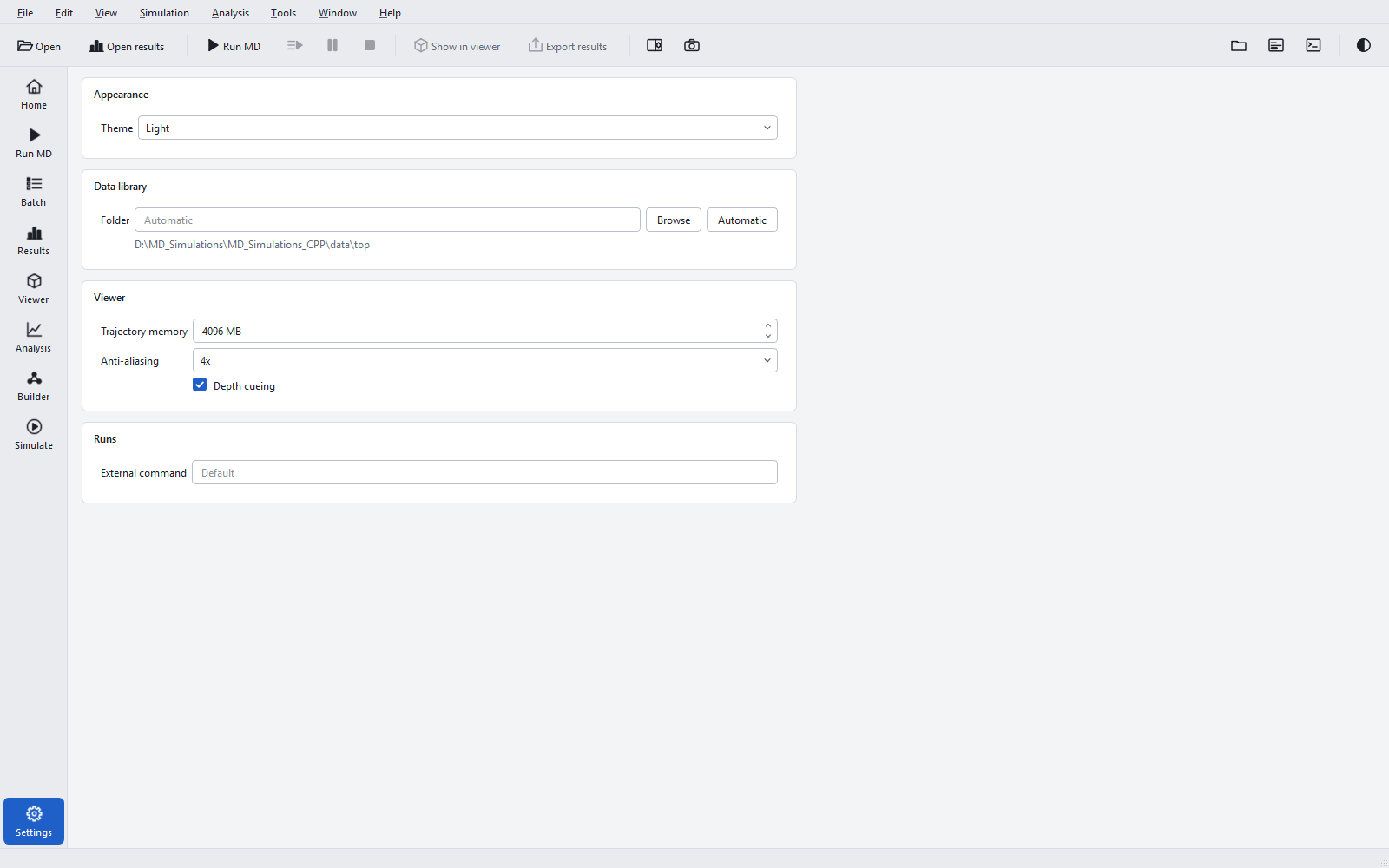
The data folder is searched in this order: the folder named by the environment variable MDS_DATA_DIR, then data beside bin, then bin\data, then an installed share\geinium. The Settings page shows the folder found and lets you choose another one (see Settings).
Uninstalling
An installed copy is removed from Windows Settings > Apps, or with unins000.exe in the program folder. A copy unpacked from the zip is removed by deleting its folder. Job folders, results and settings are not touched in either case; delete %APPDATA%\Geinium and %LOCALAPPDATA%\Geinium as well to remove every trace.