Troubleshooting
Most of what looks like a fault is the software telling you something true about your license or your data. This page lists the messages you are most likely to see, what causes each one, and the quickest way past it.
The app will not start
Every time it opens, OptiGein Design reads the license stored on the computer. It needs no internet connection to do that. When there is no stored license, or its period has ended, the activation screen appears instead of the workspace. The app never runs unlicensed, so the way forward is always to activate or renew, not to bypass the screen.
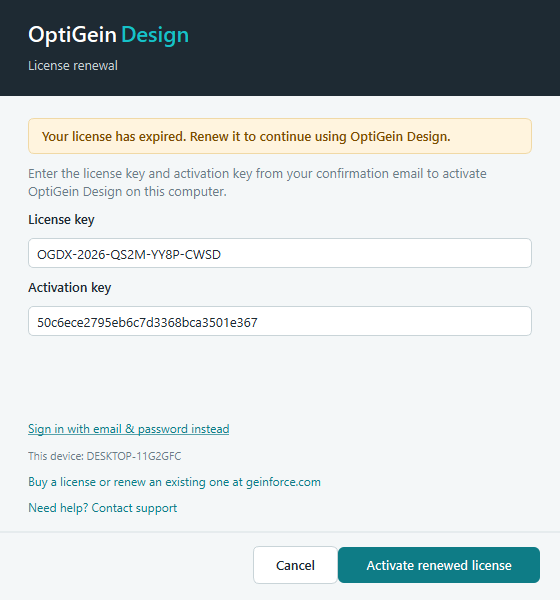
The activation screen says your license has expired
Your license has a fixed end date. Once that date passes, the app stops at the renewal screen, whether or not you are online. A license can also lapse while the app is open: OptiGein Design re-checks the stored license every ten minutes, and if the date has passed it asks you to renew there and then.
Renew the license at geinforce.com, then open the activation screen it presents. Because this is a renewal, the screen is already filled in with your keys, so you press Activate renewed license to continue. Your saved designs are untouched; only the license needs refreshing.
It asks for activation again on a computer that was already activated
There are two usual causes. The first is an old version. Before 1.4.5 the software included the network adapter in the way it recognised a computer, so joining another Wi-Fi network, using a mobile hotspot, plugging in a network cable or connecting a VPN could make an activated computer look like a new one. Version 1.4.5 recognises the computer by its operating system installation instead, and it keeps an activation that already works. If you are on an older version, install the current one as described in Keeping the software up to date.
The second cause is that the stored license is gone: you chose Deactivate This Device, the operating system was reinstalled, or the user profile was reset. Activate again with the same keys or the same account. If the server answers that the maximum number of devices is reached, the old entry for this computer is still holding a slot; contact support and we will release it.
"Maximum activations reached"
Every license covers a set number of devices. When you try to activate one more than the license allows, the server refuses and the screen reads that the license is already active on the maximum number of devices. The activation summary of a working install shows this as, for example, device 3 of 3.
Free a slot on a machine you no longer use: open that machine, go to Help › Deactivate This Device, and confirm. That releases the slot on the server and clears the license from that computer. You can then activate the new machine. If the old machine is gone or will not start, contact support and we will release the slot for you.
The app cannot reach the activation server
This only matters at the moments that talk to the server: activating, activating a renewed license, deactivating a device and checking for updates. An activated copy does not contact the server to start, so being offline never stops you working during the license period.
If activation itself cannot get through, the screen reports a connection problem and retries a
few times on its own before returning to the form with a message. Check that the computer is
online, and that a firewall or proxy is not blocking geinforce.com, then press
Activate again.
Updates and appearance
Check for Updates says "Update unavailable"
Help › Check for Updates needs the internet. When the update server cannot be reached, or answers with an error, the window reads Update unavailable and gives the reason underneath. Check the connection and try again later. Your installed version keeps working in the meantime; an update is never forced on you part way through your work.
The update downloaded but did not install
| What you see | What it means | What to do |
|---|---|---|
| The downloaded update failed its integrity check and was discarded | The file that arrived was not identical to the one Geinforce published, usually because the download was cut short. The software refuses to run it. | Choose Check for Updates again to download a fresh copy. |
| Could not start the installer | The file was downloaded and verified, but Windows would not run it. Security software sometimes blocks this. | The message shows where the file is. Close OptiGein Design and run that file yourself. |
| The app closed and did not come back | Installing needs administrator approval. If the Windows prompt was declined or timed out, nothing was installed. | Start OptiGein Design from the Start Menu. You are still on the old version, so run Check for Updates again and approve the prompt. |
On Linux the update is not installed for you. Download Update saves the package in your
Downloads folder and shows the sudo apt install command to run in a terminal, as
described in Keeping the software up to date. If the window
shows Update Now and then Could not start the installer, you have an early 1.5.0
build: download the new package from My License on geinforce.com and install it with
sudo apt install ./optigein-design_<version>_amd64.deb.
Text is hard to read when the computer is in dark mode
From version 1.4.4, OptiGein Design follows the dark or light setting of your operating system, including its dialogs, message boxes and tooltips. Older versions kept light colours in some places and dark ones in others, which left dark text on a dark background. Update to the current version to fix it. If you prefer the light look, switch the operating system to its light mode and the app follows at once, with no restart.
Analysis
Start Analysis is greyed out, or asks to be pressed again
Both of these are the button doing its job, not a fault. After a fit completes, the button disables itself and reads that the analysis is complete and you should change a setting to re-run. Change the polynomial order or the transform on the Configure tab, or edit the term set on the Model tab, and the button comes back. Editing terms on the Model tab re-fits at once, so you often do not need the button at all.
If you go back and change response values in the run sheet after analysing, the saved analysis no longer matches the data. OptiGein Design clears the stale tables and each tab shows that the design data changed and you should open Configure and press Start Analysis to refresh. Do exactly that. If Start Analysis produces an error about too few points instead, check the Configure tab: it reports how many complete data points the response has, and a model needs enough of them to fit.
The suggested model is Mean
Fit Summary scores the linear, two factor interaction, quadratic and cubic models and suggests the one the data supports. When none of them earns a positive score, meaning no polynomial order explains the response better than its own average, the suggestion falls back to Mean. In plain terms, nothing you varied moved the response above the noise.
First rule out a data problem: confirm the response column is entered correctly and open Diagnostics to check for a stray point. If the data is sound, the effect may genuinely be small relative to the scatter, or your factor ranges may be too narrow to reveal it. Try a response transformation, widen the ranges in a follow-up design, or add runs to sharpen the estimates. A Mean suggestion is a real and useful result: it tells you this experiment found no signal.
Lack of fit is significant
The lack-of-fit test compares what your model leaves unexplained against the pure error measured from repeated runs. In the worked face-centred design, the five centre points supply that pure error. When the ANOVA note reports lack of fit as significant, some real pattern in the data sits outside the model you fitted, for example curvature that a linear model cannot bend to.
Raise the polynomial order, from linear toward quadratic, or add the specific higher terms the shape needs on the Model tab. A response transformation sometimes removes the misfit in one step. Also check Diagnostics for a single influential point, since one bad run can trip the test. Remember that lack of fit can only be measured when the design has replicate runs to estimate pure error.
A term will not go into the model
On the Model tab a term can carry a warning mark and refuse to join the fit, staying in the error pool. The status legend spells out why: the term is outside what this design can estimate, because it is confounded with other terms or there are too few distinct runs to separate it. In Fit Summary, a whole order that depends on such terms is labelled Aliased and can never be the suggested model.
You cannot force an aliased term into a model this design cannot support; the numbers to separate it simply are not there. Either leave the term out and work with what the design can estimate, or build a larger design that resolves it. A screening factorial, for instance, aliases two factor interactions on purpose; if you need those interactions or curvature, move up to a response surface design with enough distinct runs.
Optimization
The optimizer finds no solution, or every desirability is zero
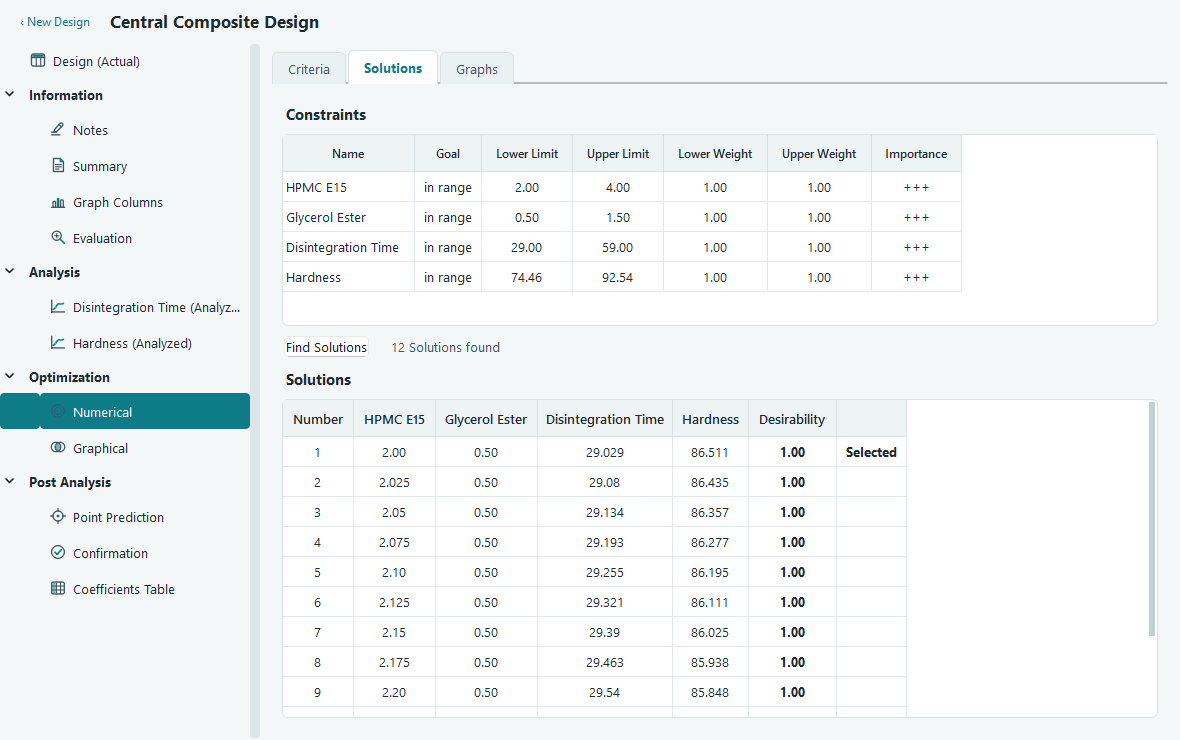
Numerical optimization turns each response goal into a desirability between 0 and 1 and combines them. If any single response with a goal lands outside its limits, its desirability is zero, and one zero drags the overall score to zero as well. When that holds everywhere it searched, the result reads that there is no feasible solution for the given goals. The optimizer still shows its best attempt, so an all-zero desirability means no settings can satisfy every goal at once.
Loosen the limits that are hardest to meet, lower the importance on a less critical goal, or drop a goal to In range so it stops forcing the score to zero. Check that each goal points the way you intend and that any target values sit inside the response range. If you see a message that a response must be analysed first, open its Analysis page and run Start Analysis: the optimizer can only use responses that have a fitted model.
Graphical optimization shows no yellow region
The overlay plot shades yellow only where every response stays inside its limits at the same time, as the note under the plot states. No yellow means that, for the two factors on the axes and the current settings of the factors you are holding fixed, there is no spot that keeps all responses in bounds together. One-sided limits are stricter still, because the plot judges them against a 95% confidence bound, so it keeps only points that are confidently within spec.
Widen a limit on the Criteria tab, move the sliders for the held factors to a more promising region, or plot a different pair of factors to see whether the sweet spot lies elsewhere. If nothing opens up, the specifications may be incompatible for this system, which is itself worth knowing before you run confirmation experiments.
Graphs and export
Export to Word or PowerPoint does nothing, or reports Office is missing
Right-clicking a graph or a result table offers Export to Word and Export to PowerPoint. These drive a running or newly started copy of the Office application to place the image or table for you. If Office is not installed or cannot start, you get a clear message that Microsoft Word, or PowerPoint, is not installed or could not be started. Direct Office export is available on Windows only; on other systems the app tells you to use Copy or Export to File instead.
You do not need Office to get your graphs out. Use Copy to put the image on the clipboard and paste it into any document, use Copy With Headings for tables, or use Export Graph to File to save a PNG or JPEG. If you do have Office and the export still fails, close any dialog that Word or PowerPoint is waiting on and try again, since the app cannot place content while the other program is blocked.
A graph looks cramped in a small window
Graphs keep a readable minimum size. When the window is too small to hold one at that size, the page scrolls rather than squashing the plot, so axis titles and labels never collapse into each other. This is deliberate: a shrunken plot that hid its own labels would be worse than a scroll bar.
What matters for your reports is that copies and exports ignore the on-screen size entirely. Every graph you Copy or export is laid out fresh at full size, at least 1000 by 640 and rendered at triple resolution with the correct print resolution attached, so it drops into Word or PowerPoint sharp and at its natural scale. In short, a graph copied from a tiny window still looks right in the document. For comfortable viewing on screen, maximise the window or drag it larger.
Contacting support
If a message here does not match what you see, or a fix does not take, we are glad to help. The more you send with your first email, the faster we can answer.
| Send this | Why it helps |
|---|---|
| A screenshot of the message | The exact wording tells us which check failed. |
| Your license key | Lets us find your license. It looks like OGDX-2026-XXXX-XXXX-XXXX. |
| The device name on the activation screen | Identifies the machine among your activations. |
| The app version and your operating system | The version is in Help › About OptiGein Design. It rules out version-specific behaviour. |
| The .ogdx file, for a data or analysis question | Lets us reproduce exactly what you are seeing. |
Reach us by email at [email protected] or by phone at +91 9960867592. You can also find us at geinforce.com. We are Geinforce Technology Private Limited, the makers of OptiGein Design.