Menus and shortcuts
A complete reference to the menu bar, the toolbar and the keyboard shortcuts. Keep it open beside the application if you like knowing exactly what a command does before you use it.
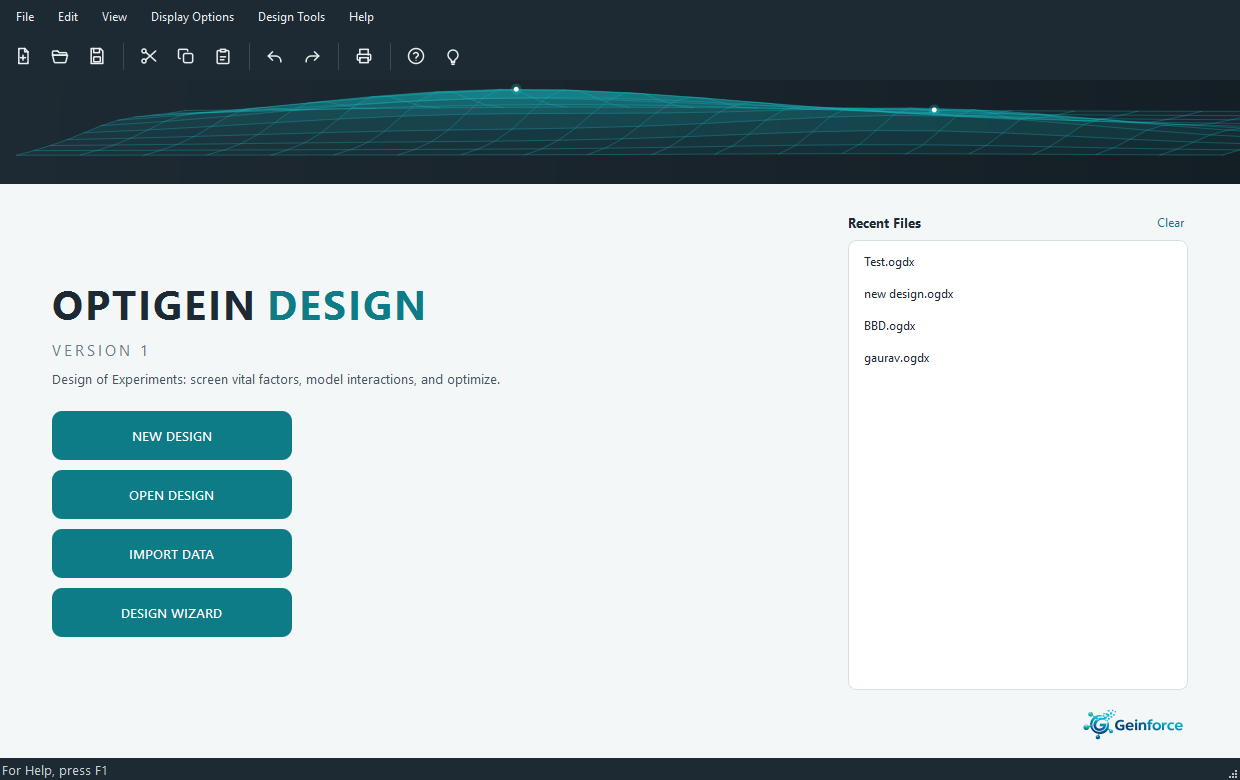
The menu bar and toolbar sit above every screen and stay in the same place whether you are on the welcome screen, building a design or reading an ANOVA table. Some commands only make sense once a design is open. Those stay greyed out until you build or open one, so you can never trigger them by accident.
File menu
Everything to do with whole design files lives here: starting one, opening one, saving your work, and getting the run sheet out as a spreadsheet or onto paper.
| Item | Shortcut | What it does |
|---|---|---|
| New Design | Ctrl+N | Open the design catalogue to start a new design of experiments. |
| Open Design | Ctrl+O | Open a saved .ogdx design file from disk. |
| Open Recent | A submenu of the files you opened lately. It ends with Clear Recent Files, and reads "(No recent files)" until you have opened something. | |
| Close Design | Ctrl+W | Close the current design and return to the welcome screen. You are asked to save first if there are unsaved changes. |
| Save | Ctrl+S | Save the current design. If it has never been saved, this behaves like Save As. |
| Save As | Ctrl+Shift+S | Save the current design to a new .ogdx file, adding the extension for you if you leave it off. |
| Import Data | Open the builder at the Import Data Set screen, where you paste tabular results and assign each column as a factor or a response. | |
| Export Run Sheet to CSV | Write the run sheet to a CSV file, ordered by run number, with the Std and Run columns, a Block column when the design is blocked, then every factor and response. | |
| Print Preview | Show how the screen you are on now will look when printed, scaled to fit the page. | |
| Ctrl+P | Print the current screen as a picture, centred and scaled to the page. | |
| Exit | Close OptiGein Design, prompting you to save any unsaved design first. |
Edit menu
The edit commands act on whatever has focus at that moment: a cell in the run sheet, a text box in a dialog, or a table of results. That is why the same Copy command works on a run-sheet selection and on an ANOVA table. In read-only result tables, Cut and Copy both place the selected cells on the clipboard as tab-separated text you can paste into a spreadsheet.
| Item | Shortcut | What it does |
|---|---|---|
| Undo | Ctrl+Z | Undo the last edit in the active editor or run sheet. |
| Redo | Ctrl+Y | Redo the last undone edit. |
| Cut | Ctrl+X | Cut the selection to the clipboard. In read-only tables it copies instead. |
| Copy | Ctrl+C | Copy the selection to the clipboard. |
| Paste | Ctrl+V | Paste from the clipboard into the focused editor or run-sheet cells. |
| Delete | Del | Clear the selected cells, or delete the next character in a text box. |
| Select All | Ctrl+A | Select everything in the active editor or table. |
View menu
The View menu controls the window itself, not your data. The Toolbar and Status Bar entries are checkboxes that show or hide those bars, and Full Screen is a toggle you can turn on and off with the same key.
| Item | Shortcut | What it does |
|---|---|---|
| Toolbar | Show or hide the toolbar. The tick follows the toolbar's current state. | |
| Status Bar | Show or hide the status bar along the bottom of the window. | |
| Full Screen | F11 | Fill the whole screen. Press again to return to a normal window. |
| Reset Window Layout | Restore a sensible default window size, leave full-screen mode, and bring back the toolbar and status bar. |
Display Options menu
| Item | Shortcut | What it does |
|---|---|---|
| Show Tip on Startup | A checkbox that records whether you want the Design of Experiments tip shown at startup. Your choice is remembered between sessions, and you can read a tip anytime from Help, Tip of the Day. |
Design Tools menu
This menu gathers the three ways to begin. New Design and Import Data are the same commands as in the File menu, repeated here for convenience. The Design Wizard is unique to this menu.
| Item | Shortcut | What it does |
|---|---|---|
| New Design | Ctrl+N | Open the design catalogue, the same as File, New Design. |
| Design Wizard | Answer a few questions about your goal, your factors and your run budget, and let OptiGein recommend and set up a design for you. | |
| Import Data | Open the builder at the Import Data Set screen, the same as File, Import Data. |
Help menu
Help gathers the built-in guidance, the ways to reach Geinforce Technology, the two commands that manage your license on this computer, and the check for a newer version.
| Item | Shortcut | What it does |
|---|---|---|
| Help Contents | F1 | Show a short guide to working through an experiment, from building a design to confirming the result. |
| Keyboard Shortcuts | Show the list of keyboard shortcuts in a small window. | |
| Tip of the Day | Show a Design of Experiments tip, with a Next Tip button to read more. | |
| Visit Geinforce Website | Open geinforce.com in your browser. | |
| Contact Support | Show the support email and phone number for Geinforce Technology. | |
| License Information | Show the license stored on this computer: its status, type, expiry date, who it is licensed to, and how many device slots are in use. | |
| Deactivate This Device | Release this computer's activation slot so the license can be used elsewhere. OptiGein Design closes afterwards and will ask for activation next time it starts. | |
| Check for Updates | Ask the Geinforce server whether a newer version exists. If one does, the window shows what changed and offers to download and install it. See Keeping the software up to date. | |
| About OptiGein Design | Show the version number and company details. |
Toolbar buttons
The toolbar is a shortcut to the commands people reach for most often. Every button repeats a menu item, so hovering over one shows its name and, where it has a key, its shortcut. Save is greyed out until a design is open.
| Button | Command | Shortcut |
|---|---|---|
| New | File, New Design | Ctrl+N |
| Open | File, Open Design | Ctrl+O |
| Save | File, Save | Ctrl+S |
| Cut | Edit, Cut | Ctrl+X |
| Copy | Edit, Copy | Ctrl+C |
| Paste | Edit, Paste | Ctrl+V |
| Undo | Edit, Undo | Ctrl+Z |
| Redo | Edit, Redo | Ctrl+Y |
| File, Print | Ctrl+P | |
| Help | Help, Help Contents | F1 |
| Tip of the Day | Help, Tip of the Day |
You can hide the whole bar from View, Toolbar if you want more room for a graph or a wide run sheet, and bring it back the same way.