License and activation
OptiGein Design is licensed per device. You activate it once on each computer, and from then on it runs from the license stored on that computer, with or without an internet connection, until the license period ends. This page explains what you need, what activation does, and how to read the messages you might see.
What you need before you start
You need an internet connection for the activation itself, and one of two things: the keys from your confirmation email, or the email address and password of your Geinforce account. Either one activates the same license.
When you buy OptiGein Design, Geinforce sends you a confirmation email with two keys. To activate with keys you need both.
| Item | What it looks like | What it is for |
|---|---|---|
| License key | OGDX-YYYY-XXXX-XXXX-XXXX | Identifies your license. It is safe to write down and to quote to support. |
| Activation key | A 32 character string | Proves the license is yours. Treat it like a password. |
The license key always starts with OGDX, then the year, then three more groups of
four characters. The activation key is the longer, secret one. Keep the email; you will need both
keys again if you move to another computer or reinstall.
Activating on first launch
The first time you open OptiGein Design on a computer, it cannot find a license, so it shows the activation screen before anything else. This is the only screen you will see until activation succeeds; the software does not run unlicensed.
- Open OptiGein Design. The activation screen appears after the splash.
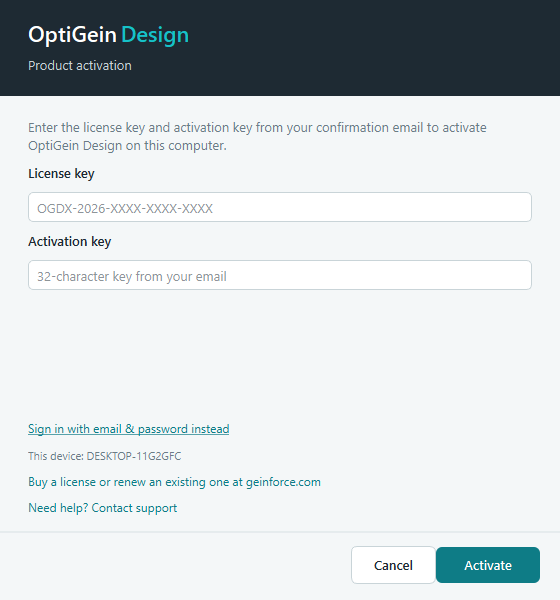
The activation screen. It also shows the name of the computer it is about to bind, a link to sign in with your account instead, and links to buy or renew a license and to contact support. - Type or paste your license key into the first field. It is not case sensitive; the software tidies it up for you.
- Type or paste the 32 character activation key into the second field.
- Press Activate. The software contacts the Geinforce activation server to check the keys and bind this computer.
- On success you see a short summary: your license type, how many days remain, the date it is valid until, and which activation slot this computer took. The main window then opens on its own.
Signing in instead of typing keys
If you do not have the confirmation email to hand, you can activate with your Geinforce account instead of the two keys.
- On the activation screen, click Sign in with email & password instead, just
above the device name. The two key fields are replaced by an email field and a password field.
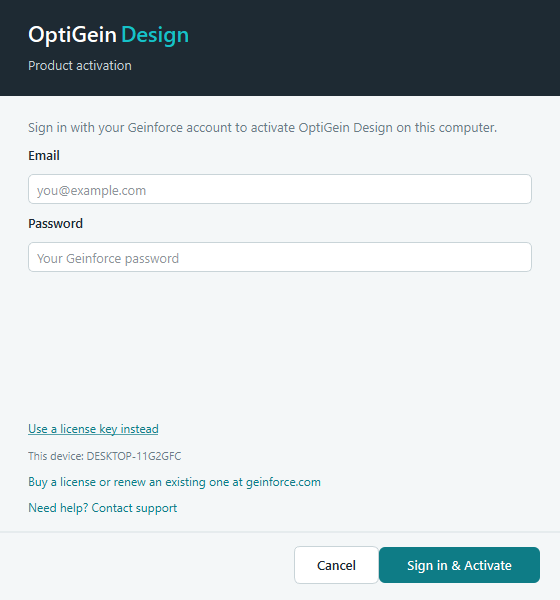
The same screen after switching to sign in. Use a license key instead takes you back to the key fields. - Type the email address and password of your Geinforce account.
- Press Sign in & Activate. The software signs you in, finds the license on your account, and binds this computer to it. You see the same summary as with keys.
What the software stores afterwards is the license, exactly as it does when you activate with keys. You do not sign in again on later launches.
If the connection drops mid check, the software retries a few times on its own before giving up, so a brief network hiccup does not usually need a second attempt from you.
What activation does to the device
Activation binds this specific computer to your license and uses one activation slot. Each license allows a fixed number of devices, shown to you as "device 1 of 3", for example. The software identifies the machine by its operating system installation, works that out once, and keeps it. Restarting, updating the app, or updating the operating system does not consume another slot. Nor does changing how the computer is connected: another Wi-Fi network, a mobile hotspot, a network cable, a docking station or a VPN all leave the activation alone. A genuinely different computer does use a slot.
Re-activating the same computer with the same license, for instance after a reinstall, does not cost an extra slot. It simply refreshes what is stored locally.
Working offline
Once a computer is activated, OptiGein Design does not need the internet to start. Each time it opens it reads the license stored on that computer and checks one thing: that the license period has not ended. It does not wait for a server, so the software opens just as quickly on a train or in a laboratory with no network as it does at your desk. This holds for the whole license period, however long the computer stays offline.
When a connection happens to be available, the software quietly refreshes the stored license in the background shortly after the main window opens. That is how a renewal or an extended end date reaches your copy without you doing anything. The refresh never interrupts your work and never uses an activation slot. If there is no connection, nothing happens and nothing is lost.
When a license expires
If your license has expired, OptiGein Design will not open into the main window. Instead it shows the renewal screen, which is the activation screen relabelled for renewal, with your existing keys already filled in. Renew your license, then activate the renewed license from that same screen.
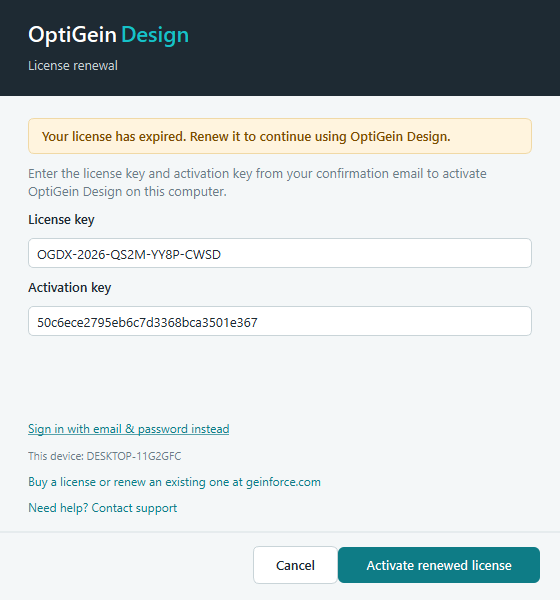
If the server refuses an activation because the license has been revoked or suspended, the message asks you to contact support instead. Renewing on your own does not restore a revoked or suspended license.
A license can also lapse while the software is open. OptiGein Design checks the stored license periodically as it runs, and if the expiry date passes during your session it brings up the same renewal screen. If you close it without renewing, the window closes through the normal path, so you still get the chance to save any unsaved work.
Checking your license status
To see where your license stands at any time, open Help › License Information. It reads the license stored on this computer and shows:
| Field | Meaning |
|---|---|
| Status | Active with the number of days remaining, or Expired. |
| Type | The license type, for example Standard. |
| Valid until | The expiry date, in your local date format. |
| Licensed to | The name or email the license was issued to. |
| Devices in use | How many activation slots are used out of the total, for example 2 of 3. |
Moving to a new computer
Activation slots are limited, so free the slot on a machine you are done with before you activate a new one. Choose Help › Deactivate This Device. The software tells the server to release this computer's slot, removes the license stored locally, and closes. The next time you start OptiGein Design on that machine it will ask for activation again.
The local license is always cleared, even if the server could not be reached at that moment. If that happens and the slot still shows as used later, contact support and they can clear it for you.
Messages you might see
Most activation problems come with a plain message that tells you what to do. Here are the ones you are most likely to meet.
| Message | What it means | What to do |
|---|---|---|
| Maximum activations reached | Your license is already active on the highest number of devices it allows, and this is a new one. | On a computer you no longer use, choose Help › Deactivate This Device to free a slot, then activate here. If you cannot reach that computer, contact support and they can release the old device for you. |
| License has expired | The validity period is over. This is not a connection problem. | Renew your license at geinforce.com, then activate the renewed license on the renewal screen using the same keys. |
| Your stored license could not be verified | The license stored on this computer is incomplete or cannot be read, so the software cannot rely on it. | Connect to the internet and activate again with the same keys or the same account. If you are online and it still fails, check that your system clock is correct, then contact support. |
| Connection problem, retrying | The activation server did not answer. The software waits a few seconds and tries again on its own. | Wait. If it gives up, check your internet connection and any firewall or proxy, then press Activate again. |
Two more can appear when you first type your keys. "License key not recognized" means a typo in the license key, so check it against your email. "Activation key doesn't match this license" means the license key and activation key are not a pair, which usually means one of them was copied wrong.
Getting help
If a message does not match anything here, or activation keeps failing when you are certain the keys and the connection are fine, contact Geinforce. Have your license key ready. Do not send your activation key by any channel you would not send a password.
Email [email protected], call +91 9960867592, or visit geinforce.com.