Which design do I need?
OptiGein Design can build sixteen kinds of design. That sounds like a lot, but the choice is usually easy once you know which stage of the experiment you are at. This page walks you through the three stages, points each one at the right family, and lists every design in a single table so you can compare them at a glance.
Three stages, not sixteen decisions
Almost every study moves through the same three stages. You do not always run all three, but knowing where you are is the fastest way to narrow the list.
Screening. You have many candidate factors and no idea yet which ones matter. The goal is to test them all in as few runs as you can afford and find the vital few that move the response. You accept that you cannot separate every interaction at this stage; you just want to know which factors are worth studying further. Screening designs live in the Factorial family, with one useful screen (Definitive Screening) in the Response Surface family.
Characterisation. You are down to a handful of important factors and now you want to understand how they work together, including which pairs interact. This is what full and fractional two-level designs are built for, so you stay mostly in the Factorial family.
Optimisation. You know the factors that matter and you want the settings that give the best result. That means fitting curvature, not just straight-line effects, so each factor needs more than two settings. This is the job of the Response Surface family.
The New Design screen groups the catalogue into these families, so once you have named your stage you only have a few entries to read.
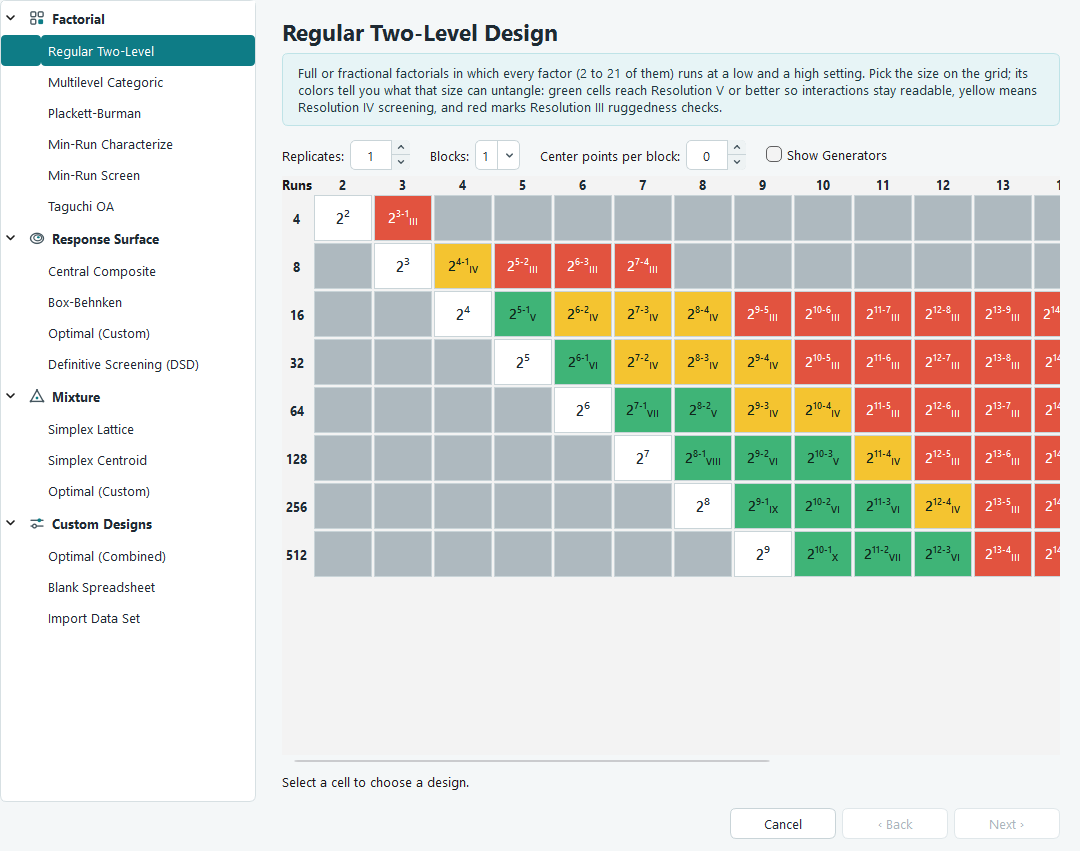
Mixture designs are a special case
There is a fourth situation that does not fit the stages above. If your factors are the ingredients of a recipe, they are not independent: they have to add up to a fixed total. Push one ingredient up and the others must come down to keep the batch at one hundred percent. An ordinary factorial assumes you can set each factor on its own, so it simply does not apply here. That is why mixtures get their own family.
The full catalogue
Every design the software builds is below, with its family, how many factors it accepts, what it is for, and a rough run count. Treat the run counts as a guide; the builder shows you the exact number before it creates anything, and options like centre points and replicates change it.
| Design | Family | Factors | What it is for | Rough runs |
|---|---|---|---|---|
| Regular Two-Level | Factorial | 2 to 21 | Screen or characterise with every factor at a low and a high setting | 2 to the power of the factor count for a full set, fewer for a fraction |
| Multilevel Categoric | Factorial | 1 to 12 | Cross every named level of every categoric factor | The level counts multiplied together, so it grows quickly |
| Plackett-Burman | Factorial | 2 to 23 | Screen many factors for main effects only (Resolution III) | 12, 20 or 24 |
| Min-Run Characterize | Factorial | 6 to 20 | Keep every main effect and every two-factor interaction readable (Resolution V) | 1 + k + k(k-1)/2, about 22 at six factors |
| Min-Run Screen | Factorial | 5 to 50 | Trim a long factor list, main effects clear of two-factor interactions (Resolution IV) | About two per factor, roughly 2k |
| Taguchi OA | Factorial | 3 to 15 | Classic orthogonal arrays for main effects | Fixed by the array, 4 to 27 |
| Central Composite | Response Surface | 2 to 10 | Map curvature and locate an optimum, five settings per factor | Factorial core + 2k axial + centre points, 13 for two factors |
| Box-Behnken | Response Surface | 3 to 5 | Fit a quadratic model with no run at all extremes at once | 2k(k-1) + centre points, about 17 at three factors |
| Optimal (Custom) | Response Surface | 1 to 10 | Smallest run list for a model you state, numeric and categoric factors welcome | Model terms + 10 by default |
| Definitive Screening | Response Surface | 4 to 20 | Compact three-level screen that also shows curvature | About 2k + 1 |
| Simplex Lattice | Mixture | 2 to 12 | Spread blends evenly across the recipe space to a chosen polynomial degree | Set by component count and lattice degree |
| Simplex Centroid | Mixture | 3 to 10 | Every equal-parts blend, best when component synergy is the question | 2 to the power of the component count, minus 1, plus axial blends if augmented |
| Optimal (Custom) | Mixture | 2 to 10 | Fewest blends that support a Scheffe linear or quadratic model | Model terms + 10 by default |
| Optimal (Combined) | Custom Designs | 2 to 8 | One experiment for the recipe and the process together | Crossed model terms + 10 by default |
| Blank Spreadsheet | Custom Designs | 1 to 20 | An empty run sheet you fill in by hand or by paste | However many rows you set |
| Import Data Set | Custom Designs | 1 to 30 | Bring in results you already have and go straight to analysis | Matches the rows you paste |
In the run counts, k is the number of factors. The worked example used throughout this documentation is a face-centred central composite design on two numeric factors, A: HPMC E15 (2 to 4 % w/v) and B: Glycerol Ester (0.5 to 1.5 % w/v). Its run count follows the Central Composite row: four factorial corners, four axial runs and five centre points give 13 runs in all.
Let the wizard choose for you
If you would rather answer a few questions than read the whole catalogue, open the Design Wizard from the Design Tools menu. It asks three things: what you are trying to do (screen, characterise, optimise, or just analyse data you already have), whether your factors are independent process settings or mixture components, and how many factors and runs you have in mind. It then lists a short set of suitable designs with an estimated run count for each, and marks any that would exceed your run budget.
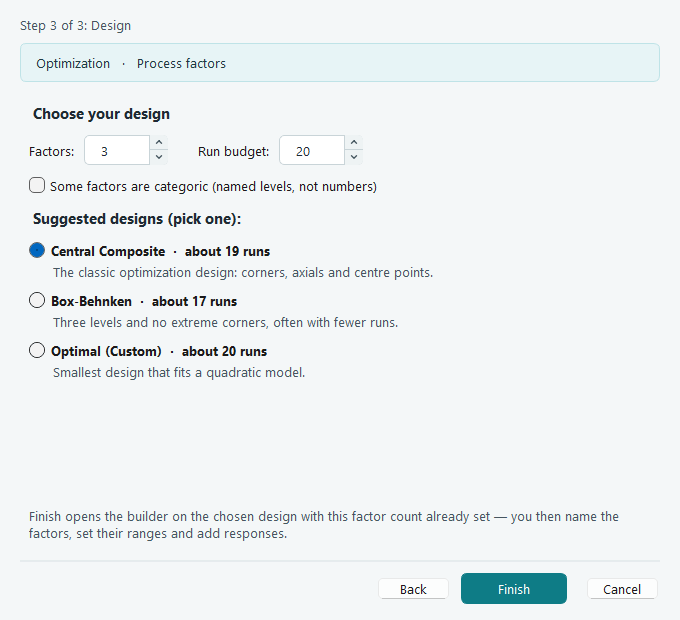
The wizard is a good starting point when the choice is not obvious, or when you want a quick sanity check on how many runs an idea will cost. When you know exactly what you want, going straight to the catalogue is faster.
Go deeper on a family
Once you have a family in mind, its own page explains every option and what it does to the run sheet.
- Factorial designs, for screening and characterisation.
- Response surface designs, for mapping curvature and optimising.
- Mixture designs, for recipes and formulations.
- Custom designs and import, for combined studies, blank sheets and existing data.