Home › Measurements
Measurements
Distances, angles and dihedrals: taking them, reading them, and getting them into a figure.
Taking a measurement
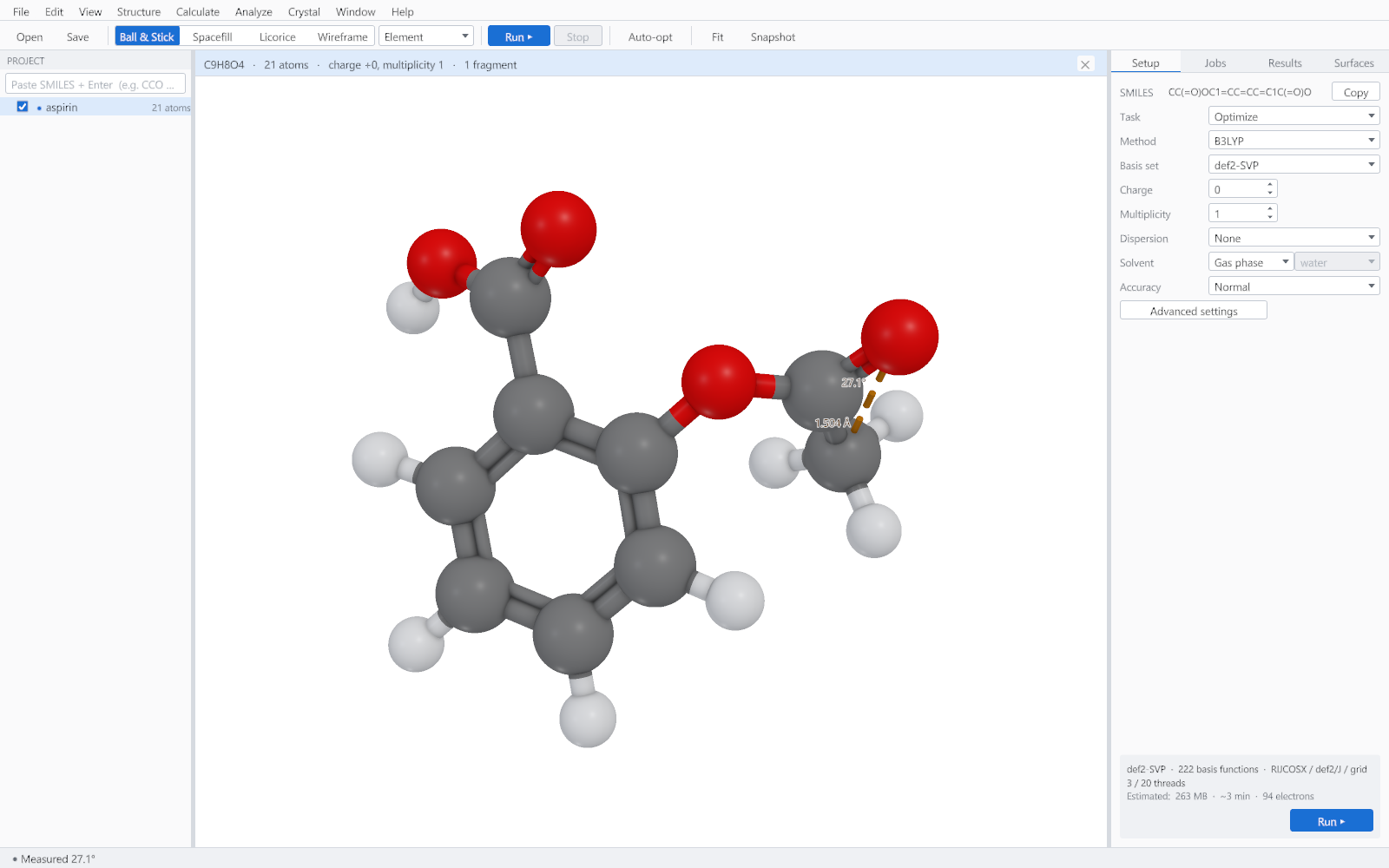
- Click the atoms in the viewer to select them. Two for a distance, three for an angle, four for a dihedral.
- Use Analyze > Measure Distance (Ctrl+2), Measure Angle (Ctrl+3) or Measure Dihedral (Ctrl+4).
- The measurement is drawn in the viewer and the value appears in the status bar.
Conventions
| Quantity | Unit | Convention |
|---|---|---|
| Distance | Angstrom | Centre to centre between the two nuclei. |
| Angle | Degrees | At the second atom selected, between the first and third. |
| Dihedral | Degrees | Between the plane of the first three atoms and the plane of the last three, signed and in the range minus 180 to plus 180. |
Managing measurements
| Command | Shortcut | Effect |
|---|---|---|
| Show Measurements | M | Hides or shows the labels without discarding the measurements. |
| Clear Measurements | Removes all of them. | |
| Clear Selection | Ctrl+Shift+A | Deselects the atoms, leaving existing measurements in place. |
Measurements in figures
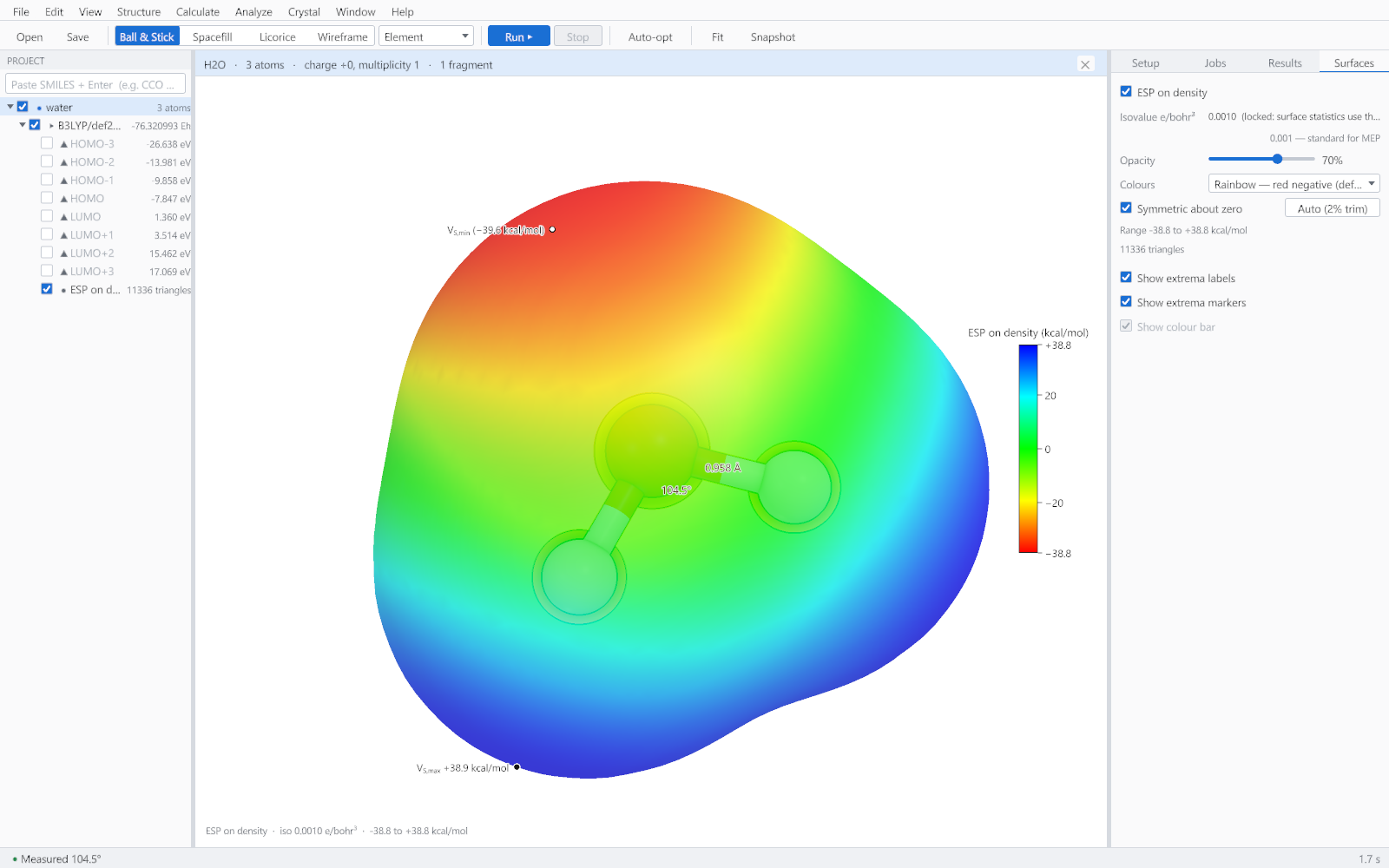
Measurements are part of the scene, not an overlay on the window, so they appear in a snapshot and in an exported figure exactly as they appear on screen. A figure showing a hydrogen bond with its length labelled therefore needs no annotation afterwards in a drawing program.